Ford SYNC Not Working? Troubleshooting Guide
If Ford SYNC stops connecting, updating, or staying stable, sort the fault by layer: phone and Bluetooth, cable and USB, vehicle power and reset behavior, then software and module faults before you wipe settings or replace parts. Skip that order and you can waste time, erase paired devices, and miss a bad cable, weak battery, or head unit problem. This guide shows how to isolate SYNC problems across Bluetooth, CarPlay, Android Auto, USB, and startup behavior.
SYNC failure triage table


| Symptom | Most likely cause | Quickest test | Next action |
|---|---|---|---|
| Bluetooth pairing fails | Old paired-device limit, phone visibility off, or another device already connected | Delete the phone on both the vehicle and the phone, then try pairing with only one nearby phone | Re-pair after turning Bluetooth on and making the phone visible |
| Phone pairs, then drops | Interference, weak phone signal settings, or pairing conflict | Turn off other nearby Bluetooth devices and retry in the vehicle | Forget the profile and pair again |
| CarPlay launches then drops | Bad USB data cable, permission issue, or duplicate iPhone profile | Swap to a known data cable and confirm CarPlay is allowed on the iPhone | Remove the old phone profile and reconnect by USB |
| Android Auto never appears | Android Auto app, permissions, or USB data-cable problem | Open Android Auto settings on the phone and test a different data cable | Reconnect with the phone unlocked and the app allowed to launch |
| SYNC reboots on startup | Low battery voltage, ignition-cycle glitch, or APIM fault | See whether the reboot happens after jump-starts, short trips, or battery work | Check vehicle power first, then scan the module |
| USB update stalls | Charge-only cable, bad flash drive, or unsupported file transfer | Try a different USB stick and a data-capable port | Rebuild the update media and retry |
| Audio works but calls do not | Phonebook or call-permission issue, not a full media failure | Check call permissions and Bluetooth phone access on the handset | Remove the phone and pair again |
| Screen freezes but audio still plays | SYNC software fault or APIM instability | Try a simple power cycle first | Use a master reset if the freeze returns |
| Navigation works but phone audio fails | Phone profile or Bluetooth audio setting | Confirm the phone is allowed for calls and media | Re-enable Bluetooth audio and re-pair |
| CarPlay or Android Auto works on one phone only | Duplicate profile, phone compatibility, or permission mismatch | Test with one supported phone at a time | Delete older profiles and set up the active phone again |
| USB device not recognized | Faulty port, wrong port, or cable mismatch | Move to the vehicle’s data-capable USB port and try a known data cable | Inspect the port for bent pins or debris |
| SYNC stays unstable after reset | Module fault, power problem, or failed update | Check battery voltage behavior and update history | Schedule dealer diagnostics for module codes |
What you’ll need
- The phone you want to connect, unlocked and nearby.
- A known data-capable USB cable, not a charge-only cable.
- A second phone or USB cable for comparison tests.
- The vehicle key or fob, plus enough battery voltage for a full ignition cycle.
- Access to the vehicle settings menu, Bluetooth menu, and SYNC settings.
- A way to check your phone’s Bluetooth, CarPlay, and Android Auto permissions.
Why is Ford SYNC not connecting to my phone?
Start with Bluetooth pairing limits, phone visibility, and profile conflicts. On SYNC, SYNC 2, SYNC 3, and SYNC 4, Bluetooth can fail even when the screen is fine, and CarPlay or Android Auto can fail separately from basic phone pairing. A supported phone alone is not enough if permissions or a previous profile are wrong.
- Delete the old pairing. On the vehicle, open Settings > Bluetooth > Devices and remove the phone. On the phone, forget the SYNC connection too.
- Make the phone visible. Turn Bluetooth on, keep the phone unlocked, and leave it on the pairing screen. Nearby devices can interfere, so turn off other Bluetooth accessories during the test.
- Pair one device only. Keep a single phone in the vehicle and pair it again from Settings > Bluetooth > Add Device. If the connection is stable only after that, the issue was likely a profile or interference problem.
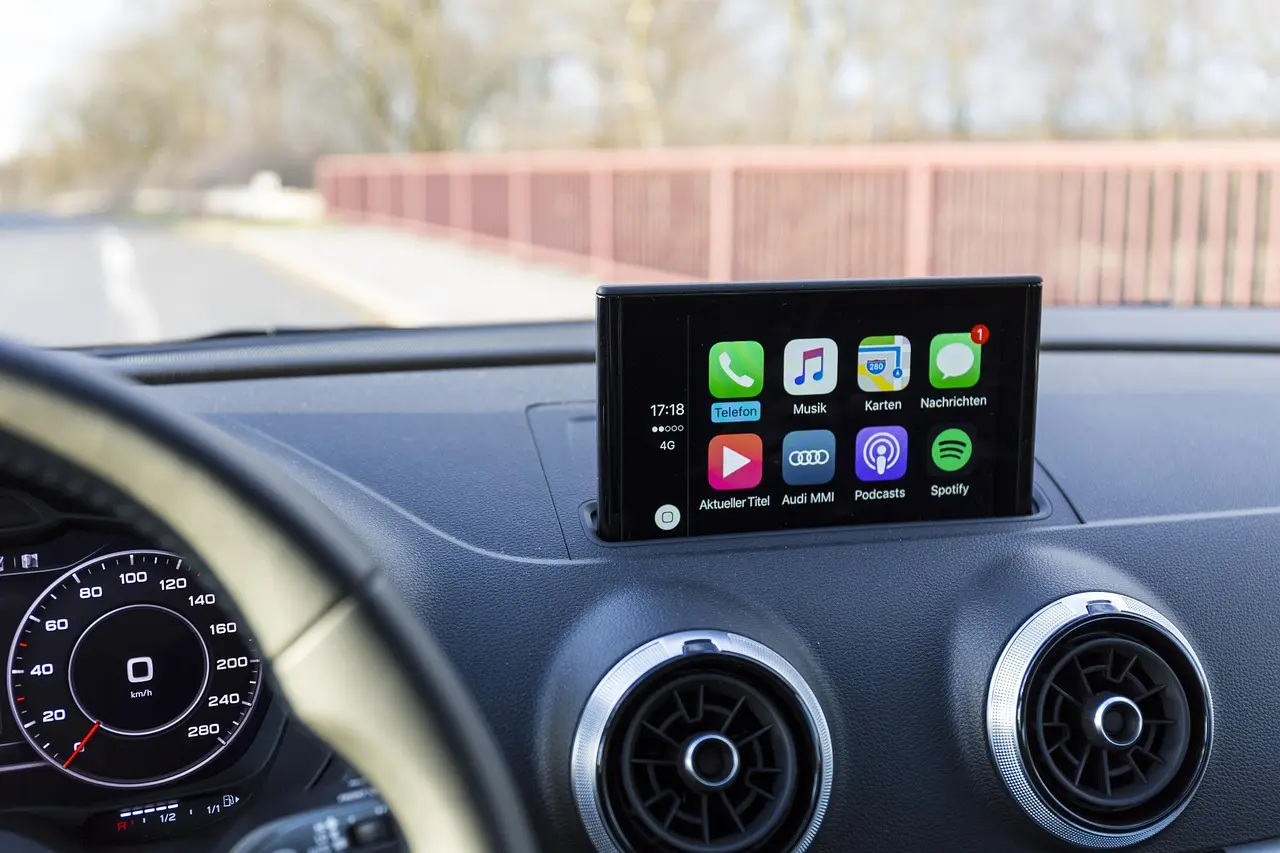
- Check app permissions. On iPhone, open Settings > General > CarPlay to manage CarPlay settings, and confirm Bluetooth access is enabled in the phone’s Bluetooth settings. On Android, open Settings > Apps > Android Auto and confirm permissions are enabled.
Say your iPhone pairs for calls but CarPlay never opens. That usually points to USB, permission, or profile conflict rather than a dead SYNC unit. Try one known data cable and delete any older phone profile before pairing again.
Why does Ford SYNC keep rebooting?
Repeated reboots often point to vehicle power first, then software, then the APIM (the module that controls the SYNC infotainment system) or infotainment module. A weak battery, jump-start event, or short-trip charging pattern can leave SYNC unstable even when the car still starts. If the reboot appears only after startup, treat power as the first layer to check.
- Watch the startup pattern. Note whether the reboot happens during cranking, right after engine start, or after a jump-start. That timing helps separate low voltage from a pure software fault.
- Inspect the battery state. If you have a battery tester, check whether the battery passes a load test before anything else. Low battery voltage can contribute to touchscreen resets, blank screens, and occasional module resets.
- Check ignition-cycle behavior. Turn the vehicle fully off, open and close the driver door, wait a minute, then restart. If SYNC is stable after a clean cycle but not after a quick restart, power interruption is part of the problem.
- Escalate to module scan. If the reboot returns after power checks, a dealer diagnostic scan can read APIM or infotainment module fault codes and decide whether calibration or replacement is needed.
Why won’t Ford SYNC update through USB?
USB update failures usually come from the flash drive format or the update package structure, not from a phone cable path. For SYNC USB updates, use the correct drive setup and copy the package exactly as provided. Newer systems may also offer Wi-Fi updates, which can be the cleaner path if USB keeps stalling.
- Use the correct USB drive. Try a clean USB flash drive set up for the update package. If the vehicle does not read the drive consistently, the drive preparation is the first thing to check.
- Try the correct USB port. Use the vehicle’s data port, not every socket in the cabin. Many Ford models place the media port in the center console or near the dash, while some rear or auxiliary ports are power only.
- Rebuild the update media. Copy the update package again to a clean USB drive and retry. If the file transfer stalls at the same point, the drive format or file set may be wrong.
- Use Wi-Fi on newer systems. If your SYNC version supports Wi-Fi updates, check Settings > System > Software Updates and let the system reboot after install. If the update fails again, suspect the module or vehicle power path.
How do you reset Ford SYNC the right way?
A simple power cycle is not the same as a master reset. A power cycle may clear a temporary freeze, while a master reset erases saved phones, personalization, and some radio settings. Use the lighter step first. Save the reset for repeated pairing failures, repeated freezes, or a failed software recovery.
- Try a simple power cycle. A common power-cycle routine is to turn the vehicle off, open the driver door, wait about 60 seconds, then restart. This tests whether SYNC only needs a clean reboot.
- Use master reset only if needed. Use the master reset option in the SYNC settings menu for your specific SYNC version and model year, then confirm only after you know you will lose saved devices and personalization.
- Pair the phone again. After the reset, re-add Bluetooth devices and reconnect CarPlay or Android Auto. On SYNC 3 and SYNC 4, wired phone projection may need a fresh USB connection after the reset.
A common first-timer mistake is resetting before checking power. That can erase a working phone profile and still leave the reboot problem in place if the battery is weak.
How do I tell whether the problem is the phone, cable, or SYNC?
Use a three-layer check: phone settings, cable and port behavior, then vehicle software or module health. If the same phone fails in every Ford vehicle, the phone is the stronger suspect. If every phone fails in one vehicle, the cable, port, software, or APIM moves higher on the list.
- Test the phone alone. Confirm Bluetooth is on, the phone is unlocked, and CarPlay or Android Auto permissions are enabled. For Android Auto, verify the app launches on the phone before it reaches the car.
- Test the cable and port. Use a known data cable and the vehicle’s data USB port. A charge-only cable may power the phone but never start CarPlay, Android Auto, or an update.
- Test another phone. If a second compatible phone connects normally, the first phone’s settings or software are the likely issue. If both fail, move to vehicle software or module diagnostics.
- Escalate to service. If resets and updates do not stop freezes or reboots, ask for a dealer scan of the APIM and infotainment module. That is the point where hardware fault becomes the likely remaining cause.
Common mistakes
- Using a charge-only cable for CarPlay, Android Auto, or SYNC updates.
- Leaving old phone profiles in the vehicle and on the phone at the same time.
- Skipping battery and voltage checks after a jump-start or battery replacement.
- Assuming Bluetooth, CarPlay, and Android Auto fail for the same reason.
- Doing a master reset before trying a simple power cycle.
- Using the wrong USB port and calling it a software failure.
Suppose SYNC 3 pairs for Bluetooth calls but Android Auto never appears when you plug in a phone. That points to the USB data path, not the whole infotainment system. Try a different data cable first, then verify Android Auto permissions on the phone before moving to a reset.
Frequently asked questions
How do I fix Ford SYNC problems?
Start with the shortest path: Bluetooth off/on, delete the device, try one known data cable, and check battery behavior. If the same fault repeats after a clean restart, use Settings > General > Master Reset, then re-pair the phone and retest before replacing parts.
Why is my Ford SYNC not connecting to my phone?
Check whether the phone is visible, whether the vehicle already has too many saved devices, and whether Bluetooth is paired on both sides. If the phone connects for audio but not calls or projection, the missing permission or wrong profile is usually the next thing to fix.
Why won’t my Ford SYNC update through USB?
Use a data-capable USB flash drive and the correct drive setup, then reload the update files on a clean drive. If the vehicle supports Wi-Fi updates, check Settings > System > Software Updates and install that way if USB keeps failing.
How do I do a master reset on Ford SYNC?
Open the master reset option in the SYNC settings menu for your specific SYNC version and model year, and confirm only after you accept that saved phones and personalization will be erased. Re-pair Bluetooth and reconnect CarPlay or Android Auto afterward.
Does Ford SYNC need a software update to work properly?
Not every fault is an update issue, but software updates can clear known bugs and improve connection stability. If the same reboot, freeze, or pairing problem survives a reset and clean re-pair, check the current version before assuming the hardware is bad.
Products related to this article
Sponsored / affiliate links. As an Amazon Associate I earn from qualifying purchases. I may earn additional commission from eligible campaigns.