How to Pair a Phone with Ford SYNC
Identify your Ford screen first: SYNC 3 has a blue home screen, SYNC 4 adds a larger touchscreen with wireless Apple CarPlay and Android Auto support on many models, and Ford Digital Experience uses Google-based tiles; then pair the phone from Settings > Phone > Add Device. Pairing the wrong way can leave you with failed Bluetooth, missing contacts, or no CarPlay or Android Auto. This guide shows how to spot each interface and follow the right pairing steps, plus the most likely fix when pairing fails.
What you need first


- A Bluetooth-enabled phone with Bluetooth turned on.
- The vehicle parked and running.
- Access to the center touchscreen or Phone button.
- A USB cable is commonly needed when setting up Apple CarPlay on SYNC 3 or if the vehicle asks for a wired connection.
- The vehicle owner’s manual for exact menu names if the screen layout differs.
Identify your Ford system
Ford pairing is generation-specific, and the menu labels change across SYNC, SYNC 3, SYNC 4, SYNC 4A, and Ford Digital Experience. Ford says there are multiple SYNC generations and that the first was introduced in 2007, so a 2010, 2012, or 2014 Ford can land on different screens and different pairing paths. Older hardware cannot be upgraded to a newer one.
SYNC and older Ford menus
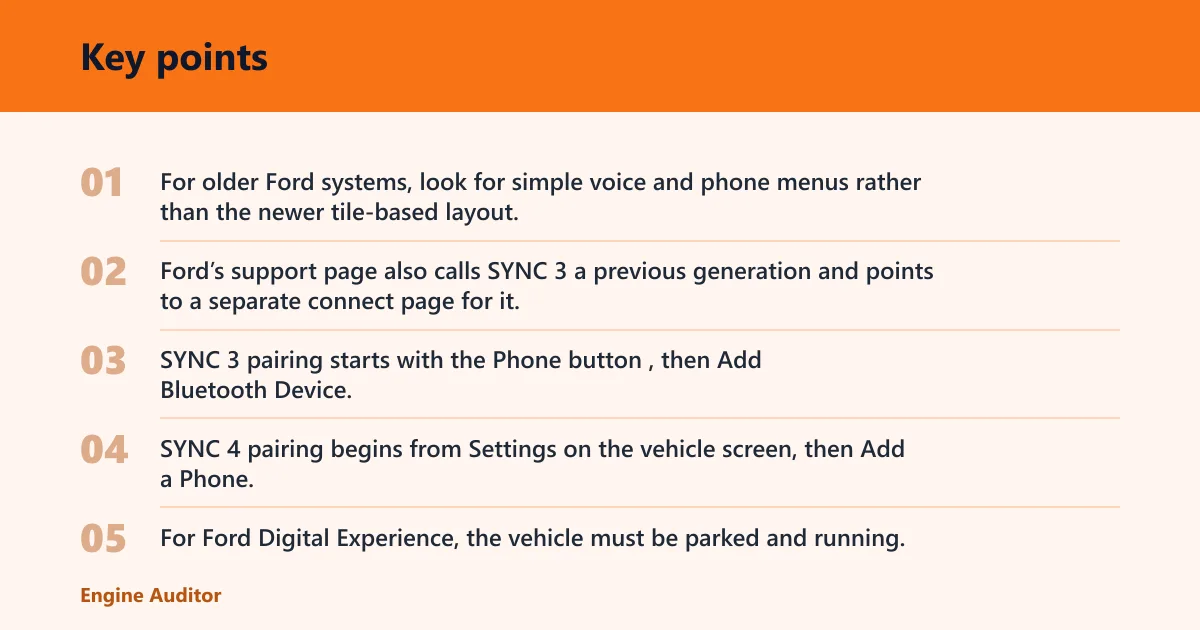
For older Ford systems, look for simple voice and phone menus rather than the newer tile-based layout. Ford SYNC supports Bluetooth phone pairing, hands-free calling, voice commands, and audio streaming, but the exact screen text depends on the generation. Ford’s support page also calls SYNC 3 a previous generation and points to a separate connect page for it.
SYNC 3 pairing path
SYNC 3 pairing starts with the Phone button, then Add Bluetooth Device. Ford says SYNC 3 shows a 6-digit Personal Identification Number, which is the code to match on the phone and the vehicle. CNET describes SYNC 3 as a clean and simple interface with fast response, which helps when you are moving through pairing menus.
SYNC 4, SYNC 4A, and Ford Digital Experience
SYNC 4 pairing begins from Settings on the vehicle screen, then Add a Phone. SYNC 4A uses Add phone and Add device, and Ford Digital Experience uses Add phone, Add device, the Settings tile, and the Vehicle icon with Bluetooth settings. For Ford Digital Experience, the vehicle must be parked and running.
How do you pair a phone with Ford SYNC?
Use the vehicle screen first. Turn on Bluetooth on the phone, keep the vehicle in park and running, and choose the pairing path that matches your exact Ford interface. On SYNC 3 that means Phone > Add Bluetooth Device; on SYNC 4 it means Settings > Phone > Add a Phone; on Ford Digital Experience it means Settings tile or Vehicle icon > Bluetooth settings > Add phone.
- Turn on phone Bluetooth. Open the phone’s Bluetooth menu and leave it discoverable. If the phone is hidden from discovery, the car may never find it.
- Open the correct Ford menu. Use the path for your system: Phone > Add Bluetooth Device on SYNC 3, or Settings > Phone > Add a Phone on SYNC 4.
- Match the code shown. SYNC 3 shows a 6-digit PIN. Newer systems use passcode confirmation on both screens. Accept the pairing prompt on the phone and in the vehicle.
- Finish contact access. Allow calls, contacts, and audio streaming when the phone asks. That is what enables hands-free calling and music streaming.
Say your 2014 Ford shows Add Bluetooth Device and a 6-digit PIN, but your phone never asks to pair. In that case, the likely miss is on the phone side: Bluetooth is on, but discovery is off, or the phone is still trying to connect to another car.
How do you pair an iPhone or Android phone?
Bluetooth pairing is separate from Apple CarPlay and Android Auto setup. First connect the phone to Ford over Bluetooth for calls and audio. Then, if the vehicle supports it, set up CarPlay or Android Auto on the correct connection path. Ford says SYNC 4 and certain previous SYNC generations support Apple CarPlay and Android Auto.
iPhone Bluetooth pairing and CarPlay
For an iPhone, pair the phone through the Ford Bluetooth menu first, then connect CarPlay if the vehicle supports it. SYNC 3 commonly uses a USB connection for CarPlay, while some SYNC 4 vehicles may support wireless CarPlay. Siri support and app access come after CarPlay is active, not before.
- Pair the iPhone first. Use the Ford Bluetooth menu to add the phone and confirm the PIN or passcode.
- Connect CarPlay correctly. On SYNC 3, plug the iPhone into the vehicle’s data USB port. On some SYNC 4 vehicles, follow the wireless CarPlay prompt instead.
- Approve CarPlay prompts. Allow Siri and app access on the phone when asked.
Android Bluetooth pairing and Android Auto
For Android, start with Bluetooth pairing, then check whether the vehicle supports Android Auto. Android Auto is available on SYNC 4 and some previous SYNC generations, and the exact setup path can depend on the vehicle. If the vehicle uses a USB setup for Android Auto, use the data port, not a charge-only port.
- Pair the Android phone. Use the Ford Bluetooth menu and confirm the code on both devices.
- Start Android Auto setup. If the vehicle prompts for Android Auto, connect by USB or follow the wireless prompt if your model supports it.
- Allow app access. Accept the prompts for calls, messages, and apps so voice control works.
Ford SYNC pairing table
This table maps the system to the exact pairing path, the code format you should expect, whether USB is part of the setup, and the first troubleshooting action to take if pairing fails.
| SYNC version | Where to tap | What code appears | Is USB required? | What to do if pairing fails |
|---|---|---|---|---|
| SYNC and older Ford menus | Phone or Bluetooth menu, then Add device or Add phone | Pairing code or PIN | No for Bluetooth pairing | Turn Bluetooth off and on, then delete old pairings on the phone and car |
| SYNC 3 | Phone button, then Add Bluetooth Device | 6-digit Personal Identification Number | Yes for Apple CarPlay on many vehicles | Try the Phone button path again and clear the phone’s saved Ford connection |
| SYNC 4 | Settings, then Add a Phone | Passcode confirmation | No for Bluetooth pairing; sometimes yes for wired setup | Restart Bluetooth discovery on the phone and remove stale pairings |
| SYNC 4A | Add phone or Add device from Settings | Passcode confirmation | No for Bluetooth pairing | Check whether the phone is already connected to another vehicle or headset |
| Ford Digital Experience | Settings tile, Vehicle icon, Bluetooth settings, then Add phone or Add device | Passcode confirmation | No for Bluetooth pairing | Park and keep the vehicle running, then retry Bluetooth discovery |
What if pairing fails?
If pairing fails, work from the most likely cause down. The first fix is usually the phone side: restart Bluetooth discovery, delete the Ford connection from the phone, and remove the phone from the vehicle memory. If the code never appears, or the code does not match, the phone is often connected to another saved device already.
- Restart Bluetooth discovery. Turn Bluetooth off on the phone for about 10 seconds, turn it back on, and reopen the Ford add-phone screen.
- Delete old pairings. Remove the Ford entry from the phone’s saved devices and remove the phone from the vehicle’s paired devices list.
- Check the USB path. If you are setting up CarPlay or Android Auto, move to the correct data USB port and retry. A charge-only port will not complete the setup.
- Retry with the exact menu. Use the system-specific path again: Phone > Add Bluetooth Device on SYNC 3, Settings > Add a Phone on SYNC 4, or Add phone / Add device on Ford Digital Experience.
A common first-timer mistake is trying to start Apple CarPlay before Bluetooth pairing is complete. That can leave the phone visible in the car but unable to place calls, stream audio, or finish app approval.
Can you add a new phone to an older Ford?
Yes, but older Ford systems still use their own menu labels, and the vehicle may already have memory slots filled. Use the exact on-screen prompt rather than the model year alone.
- Open the phone list. Go to the vehicle’s paired phone screen and see whether the car already stores another device.
- Add the new phone. Choose Add phone, Add device, or Add Bluetooth Device, depending on the screen label.
- Remove the old phone if needed. If the vehicle reaches its device limit, delete an unused pairing and retry with the new phone.
Suppose a 2012 Ford still shows only Bluetooth pairing and no CarPlay menu. That points to older SYNC hardware, so the correct path is Bluetooth phone pairing first, with CarPlay only if the vehicle and trim support it through the right port or software path.
Common mistakes
- Using the phone’s CarPlay or Android Auto setup before completing Ford Bluetooth pairing.
- Following a 2014 guide on a 2010 vehicle without checking the exact screen labels.
- Trying SYNC 3 steps on SYNC 4 or Ford Digital Experience.
- Expecting a wireless connection when the vehicle needs a USB data connection.
- Leaving an old phone saved in the vehicle and blocking the new pairing.
Check the Ford interface first, then pair only through the menu that matches the screen. That one habit avoids most failed connections.
Frequently asked questions
How do I connect my phone to ford sync?
Start with Bluetooth on the phone, then use the vehicle screen to add the device. Match the code shown on both devices, accept the prompts, and finish the setup. If it fails, delete the old Ford pairing from the phone and try again from the vehicle menu.
Products related to this article
Sponsored / affiliate links. As an Amazon Associate I earn from qualifying purchases. I may earn additional commission from eligible campaigns.