Why Wont the Ford App Start My Car? (Reasons & Fixes)
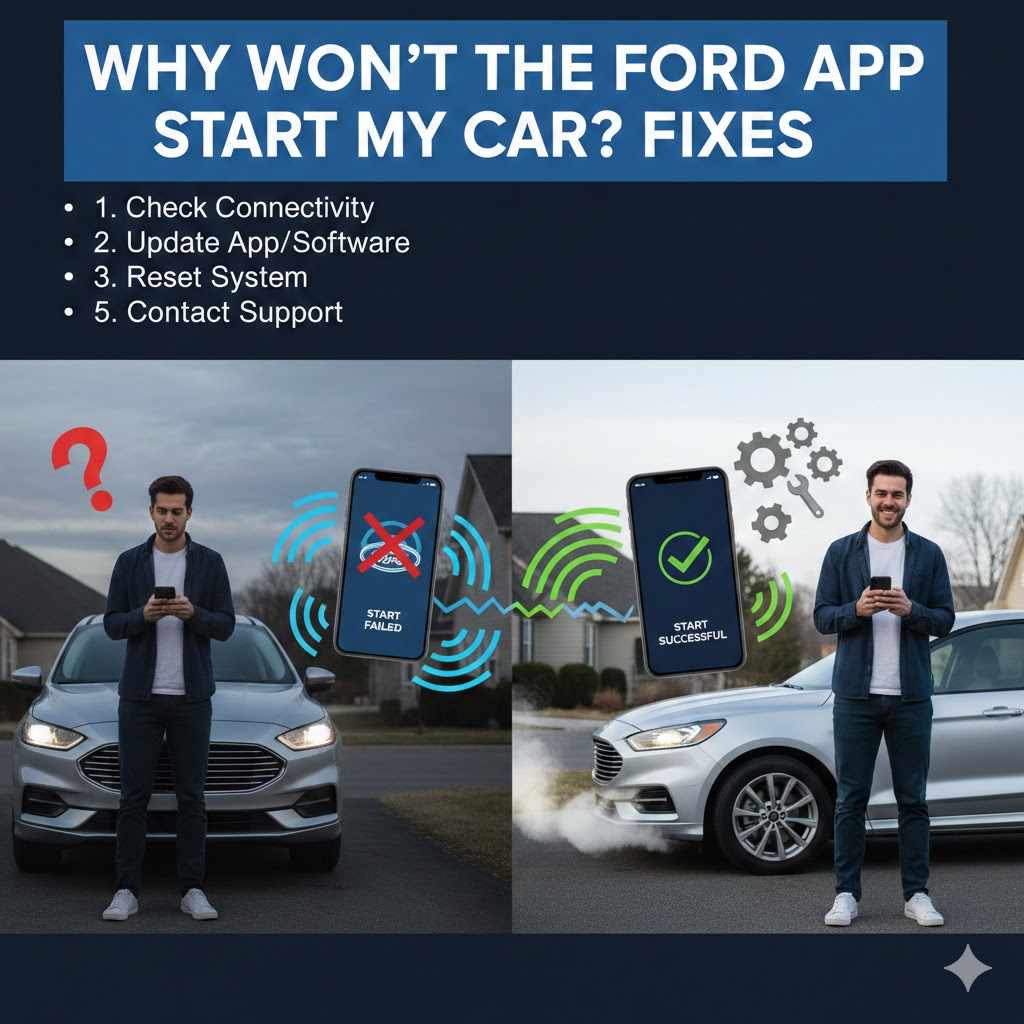
It can be super frustrating when your Ford app won’t start your car, right? You just want to get going, and suddenly the tech that’s supposed to help is giving you trouble. This is a common issue, and it might seem tricky to figure out, especially if you’re not super techy.
But don’t worry! We’ve got simple steps that can help you get back on track. We’ll walk you through the most likely reasons and easy ways to fix them.
Let’s get your car starting with the app again.
Understanding Why Won’t The Ford App Start My Car? Fixes
This section gets to the heart of the problem many Ford owners face when their remote start feature via the FordPass app isn’t working as expected. We’ll explore the common reasons why this system might fail. This includes looking at your vehicle’s connectivity, your phone’s settings, and the app itself.
Start-X
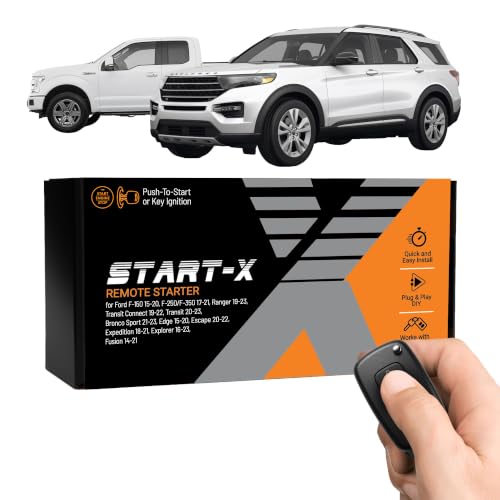
Start-X Remote Start Kit for Ford F-150/250/350,…
- 𝗩𝗲𝗵𝗶𝗰𝗹𝗲 𝗰𝗼𝗺𝗽𝗮𝘁𝗶𝗯𝗶𝗹𝗶𝘁𝘆: 2015-2020 F-150, 2017-2021 F-250, 2019-2023 Ranger, 2020-2022 Transit, 2019-2022 Transit Connect, 2021-2023…
- 𝗩𝗲𝗵𝗶𝗰𝗹𝗲 𝗿𝗲𝗾𝘂𝗶𝗿𝗲𝗺𝗲𝗻𝘁𝘀: This kit is designed for both push-to-start and key blade ignition vehicles. Gas and automatic transmission…
- *𝗜𝗠𝗣𝗢𝗥𝗧𝗔𝗡𝗧: A functional hood pin is required for this kit to function. Extra hood pin supplied in kit to use if necessary.
As an Amazon Associate I earn from qualifying purchases.
Knowing these common points of failure helps us pinpoint the solution faster. It’s about understanding the communication chain between your phone, the Ford network, and your car.
The FordPass app is a powerful tool, allowing you to control various functions of your Ford vehicle remotely. Features like starting the engine, locking doors, or checking fuel levels rely on a stable connection. When this connection breaks, or a component in the system isn’t working right, the app’s commands won’t reach your car.
We’ll cover troubleshooting steps that address the most frequent causes for these failures.
Vehicle Connectivity Issues
Your Ford vehicle needs to be properly connected to the Ford network for the app to communicate with it. This connectivity is usually managed through a modem installed in your car. If this modem isn’t functioning correctly, or if your vehicle isn’t powered on, the app won’t be able to send commands.
It’s like trying to call someone when your phone has no signal.
The vehicle’s cellular connection is vital. If your Ford is in an area with poor cellular service, or if there’s a temporary network outage affecting Ford’s services, remote start might not work. Sometimes, the vehicle’s battery might be low, which can disable certain power-hungry features like remote start to conserve energy.
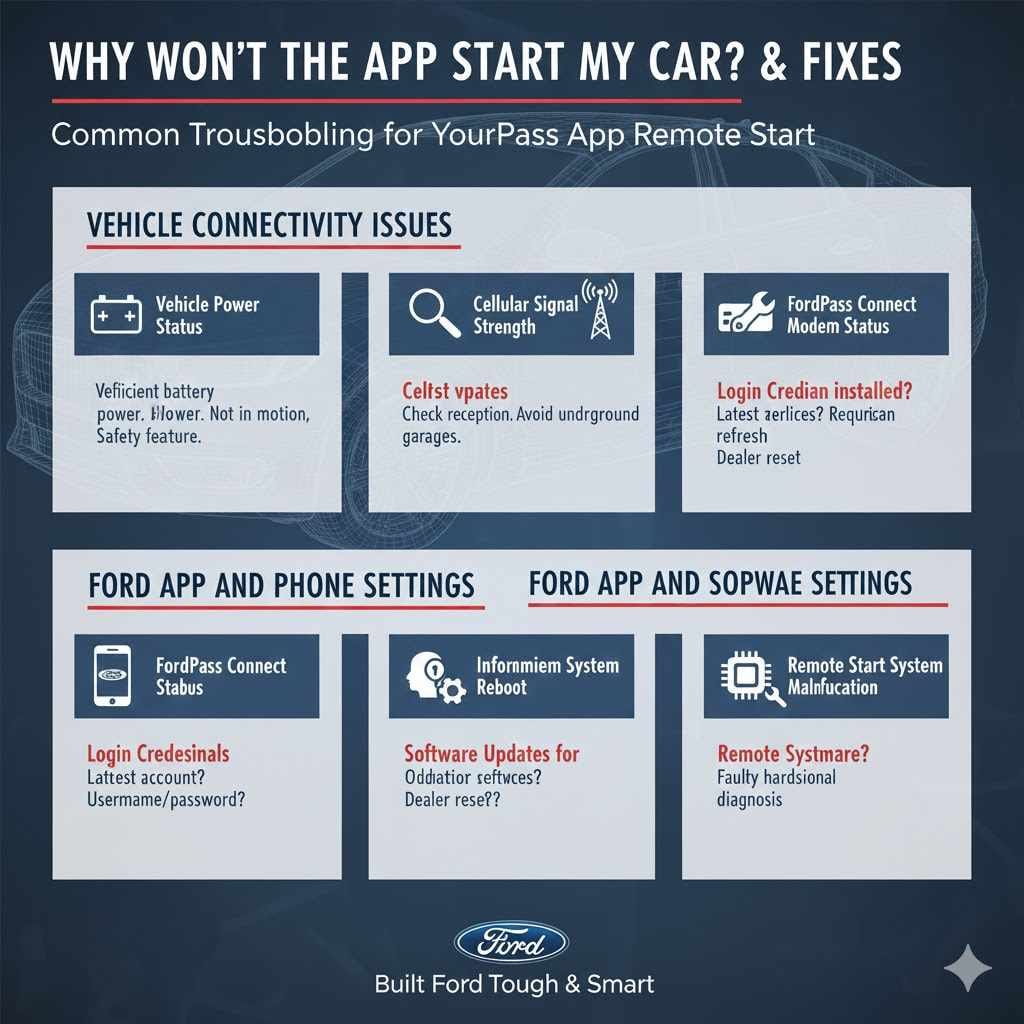
- Vehicle Power Status: The car must be in a state where it can accept remote start commands. This typically means it’s not currently in motion and has sufficient battery power. If the battery is critically low, the car’s computer might prevent remote start to avoid draining it further. This is a safety feature designed to ensure you can still start the car manually later.
- Cellular Signal Strength: The modem inside your Ford vehicle uses a cellular signal, much like your smartphone. If your car is parked in a location with very weak or no cellular reception, like an underground garage or a remote rural area, the app’s commands won’t be able to reach the vehicle. This is a frequent culprit for remote start failures.
- FordPass Connect Modem Status: The modem itself can sometimes experience glitches or require a reset. While you can’t typically reset it yourself without a technician, its operational status is key. If the modem has failed or is offline, the app will have no way to communicate with your car.
Ford App and Phone Settings
Your FordPass app and the settings on your smartphone play a crucial role in how well remote start functions. If the app is outdated, has permission issues, or your phone’s settings are interfering, it can block the connection. Think of the app as the messenger and your phone as the delivery service.
If either is not working properly, the message won’t get through.
Ensuring your app is up to date is important because developers frequently release updates to fix bugs and improve performance. Likewise, your phone’s background app refresh settings and data permissions can impact the app’s ability to communicate constantly with Ford’s servers. We’ll look at the specific settings to check.
- App Updates: Always make sure you have the latest version of the FordPass app installed. Developers release updates to fix bugs and improve performance. An older version might have compatibility issues that prevent it from working correctly with Ford’s current systems. Check your phone’s app store regularly for updates.
- Login Credentials: Double-check that you are logged into the correct FordPass account on your phone. Sometimes, if you’ve logged out or used different credentials, the app won’t be able to authenticate and connect to your vehicle. Ensure your username and password are correct and that you’re using the account linked to your specific Ford vehicle.
- Phone Permissions: The FordPass app needs certain permissions to function properly, like access to location services or background app refresh. If these permissions have been accidentally revoked or are not enabled, the app might not be able to send commands reliably. You can usually find these settings in your phone’s general settings menu under the specific app.
Vehicle System and Software Glitches
Sometimes, the issue isn’t with your phone or the app, but with the software or systems within your Ford vehicle itself. Like any computer system, your car’s software can sometimes encounter temporary glitches or require a refresh. This is often the case when other troubleshooting steps haven’t resolved the problem.
These internal glitches can prevent various features, including remote start, from working correctly. They might occur after a software update or even just randomly. Fortunately, many of these issues can be resolved with simple resets or by ensuring your vehicle’s software is current.
- Infotainment System Reboot: The vehicle’s infotainment system, which includes the connectivity modem, can sometimes benefit from a reboot. While there isn’t always a user-accessible “reboot” button, certain actions like disconnecting the car battery for a short period (if you are comfortable and know how to do it safely) can reset these systems. However, it’s often best to consult your owner’s manual or a dealer for specific instructions on system resets.
- Software Updates for the Vehicle: Ford regularly releases software updates for its vehicles to improve performance and fix bugs. If your vehicle’s software is outdated, it could be causing issues with the FordPass app connectivity. Your dealer can check for and install any available updates for your car’s modules.
- Remote Start System Malfunction: In rare cases, the remote start system hardware itself might have a problem. This could be a faulty sensor, a wiring issue, or a problem with the starter system. If all software and connectivity checks fail, it’s possible a component has failed and requires professional diagnosis.
Troubleshooting Why Won’t The Ford App Start My Car? Fixes
Now that we’ve explored the potential causes, let’s move on to practical solutions. This part is all about taking action to fix the problem. We’ll go through a series of steps you can try, starting with the easiest and most common fixes.
Following these steps systematically will help you diagnose and resolve why your Ford app won’t start your car.
Remember, consistency is key. Try each step thoroughly before moving to the next. Many issues with the FordPass app and remote start are resolved with these straightforward troubleshooting methods.
We aim to make this process as simple as possible.
Step-by-Step Solutions
Let’s begin with the most accessible fixes. These are things you can often do right from your phone or by quickly checking your car.
- Check Vehicle Location and Status: Make sure your car is parked on a level surface and is in Park. Ensure there are no warning lights on the dashboard that might prevent remote start. Also, confirm your car’s doors are closed and locked. The app needs clear confirmation that the vehicle is ready for a remote start command.
- Verify Internet Connection on Your Phone: Your smartphone needs a stable internet connection, either through Wi-Fi or cellular data, to communicate with Ford’s servers. Try browsing a website or opening another app that requires internet to ensure your connection is working. If it’s slow or unstable, move to an area with better reception.
- Restart the FordPass App: Close the FordPass app completely on your phone and then reopen it. This can clear temporary glitches within the app itself. On most smartphones, you can do this by swiping up from the bottom of the screen to see your open apps and then swiping the FordPass app away to close it.
- Restart Your Smartphone: Sometimes, a simple restart of your phone can resolve underlying software issues that might be interfering with app functionality. Turn your phone off completely and then turn it back on. This is a classic troubleshooting step for a reason – it often works.
- Log Out and Log Back Into FordPass: Go to the settings within the FordPass app, log out of your account, and then log back in using your correct credentials. This refreshes your connection to Ford’s services and can resolve authentication issues. Make sure you remember your password before logging out.
Advanced Troubleshooting Techniques
If the basic steps didn’t solve the problem, we can try a few more things. These might involve checking phone settings or looking at vehicle-specific features.
- Check FordPass App Permissions: Go into your phone’s settings and find the FordPass app. Ensure that all necessary permissions, such as location, background app refresh, and cellular data, are enabled. Without these, the app might not be able to function correctly in the background or send commands when needed.
- Ensure Vehicle is Enrolled and Active: Verify that your vehicle is properly enrolled in the FordPass Connect service and that your subscription (if applicable for certain features after a trial period) is active. You can usually check this within the FordPass app or by contacting Ford customer support. Sometimes, service can lapse.
- Check for Vehicle Software Updates: While you might not be able to do this yourself easily, you can ask your Ford dealer to check if there are any outstanding software updates for your vehicle’s modules. Outdated software can cause connectivity problems with the FordPass app. This is a common fix for persistent issues.
- Try Starting with a Different Device (If Possible): If you have another smartphone or tablet, try logging into your FordPass account on that device. This helps determine if the problem is with your specific phone or with your account and vehicle connection.
When to Contact Ford Support
If you’ve gone through all the troubleshooting steps and your Ford app still won’t start your car, it’s time to seek professional help. There could be a deeper issue that requires specialized attention from Ford technicians. They have the tools and knowledge to diagnose complex problems.
Don’t hesitate to reach out to them. They are there to help ensure your connected vehicle features work as they should. Providing them with a clear description of the steps you’ve already taken will help them diagnose the problem more efficiently.
- Contact Ford Customer Support: Your first point of contact should be Ford’s official customer support. They can access your account information, check for any known service outages, and guide you through specific issues related to your vehicle model and the FordPass app. You can usually find their contact number on the Ford website or in your owner’s manual.
- Schedule a Dealership Visit: If customer support can’t resolve the issue remotely, they will likely recommend taking your vehicle to a Ford dealership. Technicians at the dealership have diagnostic equipment to check the vehicle’s systems, including the FordPass Connect modem and any related electronic modules. Be sure to explain all the symptoms and troubleshooting steps you’ve already performed.
- Check Your Owner’s Manual for Specifics: Your vehicle’s owner’s manual often contains a section on the FordPass app and its features, including remote start. It might provide model-specific troubleshooting tips or information about any limitations or requirements for the remote start function.
Understanding FordPass Connect Technology
To better troubleshoot Why Won’t The Ford App Start My Car? Fixes, it helps to know a bit about how the system works. FordPass Connect is the technology that enables remote features for your Ford vehicle.
It’s essentially a modem built into your car that communicates with Ford’s servers. These servers then relay commands from your FordPass app to your vehicle.
This system allows for a range of smart features, making your car experience more convenient. When it malfunctions, it can be baffling. Understanding the components involved can shed light on why things might not be working.
How FordPass Connect Works
The FordPass Connect system uses a cellular modem installed in your vehicle. This modem establishes a connection with Ford’s cloud-based servers. When you use the FordPass app on your smartphone to, for instance, remotely start your car, your phone sends the command to Ford’s servers.
These servers then send the command through the cellular network to the modem in your car. The modem then signals your car’s onboard computer to initiate the remote start sequence.
This communication chain requires several things to be working correctly: your phone’s internet connection, Ford’s servers being operational, the cellular network being available, and your car’s modem and related systems functioning properly. A failure at any point in this chain can prevent the remote start from working.
- Cellular Modem: This is the physical hardware in your Ford that connects to the cellular network. It’s usually integrated into the vehicle’s electronics. Its ability to transmit and receive signals is crucial for all connected features. If this modem is damaged or offline, no commands can be sent or received.
- Ford Servers and Cloud Platform: Ford operates a large network of servers that act as an intermediary between your app and your car. These servers process your commands, manage vehicle data, and ensure secure communication. Issues with Ford’s servers, though rare, can temporarily disable connected services.
- FordPass App Interface: The app on your smartphone is the user-friendly interface. It’s designed to be intuitive, allowing you to easily access your vehicle’s connected features. The app translates your taps and commands into data that can be sent to Ford’s servers.
The Role of Cellular Signal
The FordPass Connect modem relies entirely on cellular signals to communicate. This means that the quality of your car’s location regarding cellular coverage directly impacts the functionality of remote start and other connected features. It’s similar to how your mobile phone might have trouble making calls or sending texts in areas with weak signal strength.
Areas with thick concrete structures, underground parking garages, remote rural locations, or even dense urban areas with many tall buildings can all interfere with cellular signals. If your car is parked in one of these locations, the FordPass Connect modem may not be able to establish a strong enough connection to receive commands.
- Signal Strength Indicators: While your car’s modem doesn’t display a signal strength bar like your phone, it constantly tries to maintain a connection. When the signal is too weak, it can become intermittent or fail altogether. FordPass Connect relies on a consistent signal for reliable operation.
- Network Congestion: Just like your phone can be slow if many people are using the cellular network in the same area, FordPass Connect can experience slowdowns or failures during peak network usage times. This is less about a complete lack of signal and more about the network being overloaded.
Importance of Vehicle Battery Health
The health of your Ford vehicle’s battery is surprisingly important for the FordPass app’s remote start function. Modern vehicles have complex electrical systems, and the battery is the heart of these systems. If the battery is weak, the car’s computer may disable non-essential features to preserve power for essential functions like starting the engine manually.
Remote start is considered a comfort feature, and while it’s very convenient, it does draw power from the battery when engaged. To prevent the car from being left with a dead battery, the vehicle’s intelligent systems might prevent remote start if the battery charge is too low. This is a protective measure.
- Battery Voltage Requirements: Ford vehicles have specific voltage requirements for their batteries to operate all systems, including the FordPass Connect modem and the remote start module. If the battery voltage drops below a certain threshold, these systems may be temporarily deactivated. This is often indicated by a warning light on the dashboard.
- Battery Age and Condition: The age and overall condition of your car’s battery play a significant role. Older batteries naturally hold less charge than newer ones. If your battery is several years old or has been through many charge/discharge cycles, it might not have enough capacity to reliably power all features, including remote start.
Common Scenarios and Solutions
Let’s look at some typical situations where the Ford app might not start your car and what you can do about them. These scenarios cover many common user experiences and provide targeted fixes.
By understanding these real-world examples, you can better identify your specific problem and apply the right solution. We’ll aim to cover a range of issues from simple to slightly more complex.
Scenario 1 No Response From App
You tap the “Start” button in the FordPass app, but nothing happens. The app might show a “command sent” message, but the car doesn’t start, and no confirmation is received. This is a very common scenario.
- Check Vehicle’s “Ready to Start” Status: Ensure your car isn’t reporting any errors or warnings on its dashboard that would prevent remote start. The app needs to know the car is in a safe state to start.
- Verify Cellular Signal in Your Parking Area: If you’re in a known dead zone for cell service, try moving the car to a location with better reception and try again.
- Update the FordPass App and Your Phone’s OS: Make sure both the app and your phone’s operating system are up to date. Outdated software can cause communication failures.
- Confirm Correct Vehicle is Selected: If you have multiple Ford vehicles linked to your account, double-check that you have the correct one selected in the FordPass app before attempting to start it.
Scenario 2 App Shows “Command Failed”
The FordPass app displays an error message stating that the command failed. This usually means the communication between your phone and the Ford servers, or between the servers and your car, was interrupted.
- Review Phone’s Internet Connection: Ensure your phone has a strong and stable internet connection (Wi-Fi or cellular data).
- Check for Ford Service Outages: Sometimes, Ford’s servers might be temporarily down for maintenance or due to unforeseen issues. You can often find information about service outages on Ford’s official social media channels or by contacting customer support.
- Log Out and Log Back In: Performing a fresh login to the FordPass app can re-establish your connection to Ford’s services.
- Restart Your Vehicle’s Infotainment System: While not always straightforward, a simple vehicle restart can sometimes clear internal system glitches that might be affecting connectivity. If you are comfortable, you can try a soft reset by turning the car off and on again.
Scenario 3 Remote Start Works Sometimes
Your remote start works fine most of the time, but occasionally it fails. This intermittent nature can be the most frustrating.
- Pay Attention to Parking Location: Note where you parked the car when the remote start fails. Is it always in the same spot? This can indicate a persistent cellular signal issue in that specific location.
- Monitor Vehicle Battery Health: If the remote start fails more often when the weather is cold or when the car hasn’t been driven for a while, it could point to a weakening battery that isn’t holding a full charge. Consider having your battery tested.
- Check for Background App Activity: Ensure other apps on your phone aren’t aggressively closing the FordPass app in the background. Adjust your phone’s battery optimization settings if necessary.
- Look for Dashboard Warning Lights: Intermittent failures might be linked to a specific vehicle sensor or system. Check for any unusual warning lights on your dashboard when the remote start fails.
Statistics and Real-World Impact
Connected car technology is rapidly growing, with more drivers relying on apps for vehicle control. Understanding how these systems perform and where common issues lie is important for manufacturers and consumers alike.
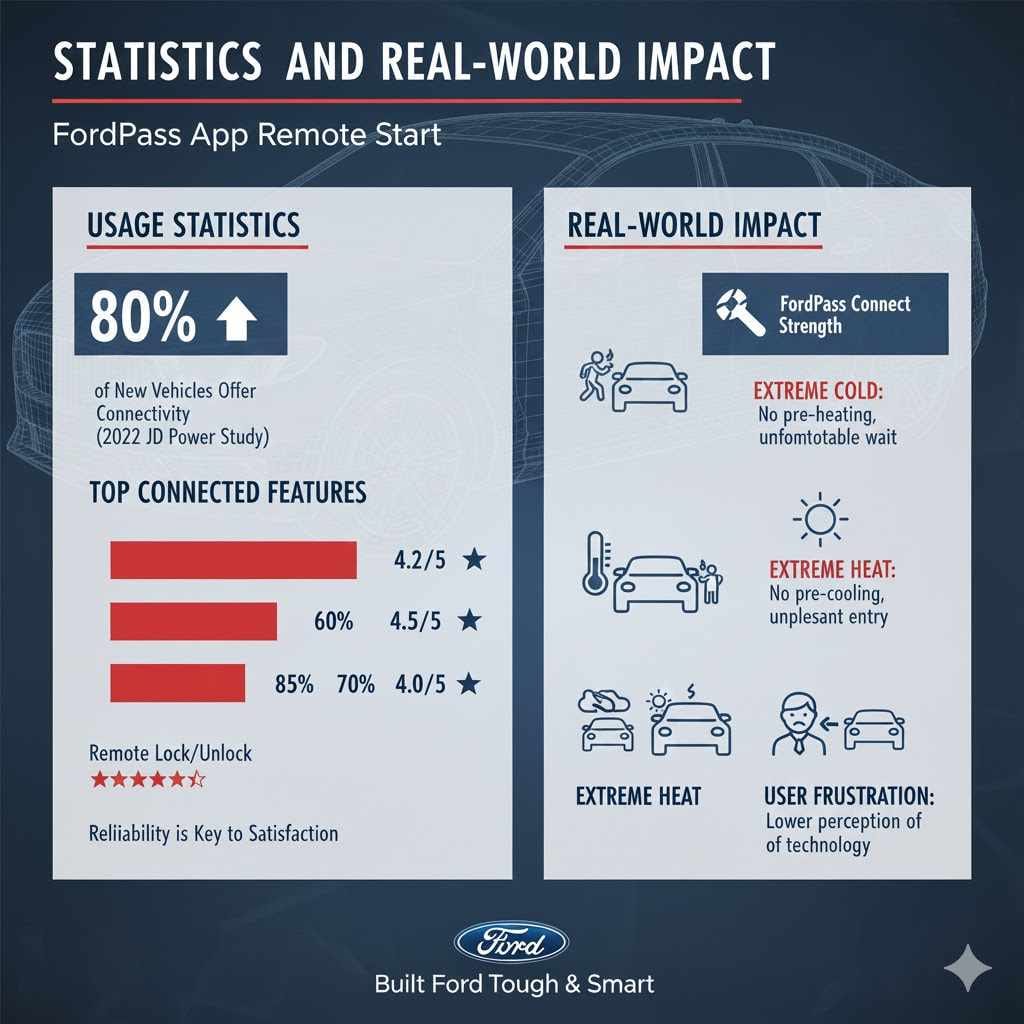
While exact public statistics on Ford app remote start failures are not readily available, general trends in connected car services provide context. A study by JD Power in 2022 indicated that over 80% of new vehicles offer some form of connectivity, with remote start being one of the most frequently used features. This highlights the importance of these systems functioning reliably.
| Feature | Percentage of New Vehicles Offering | User Importance Rating (Out of 5) |
|---|---|---|
| Remote Start/Stop | ~60% | 4.2 |
| Remote Door Lock/Unlock | ~85% | 4.5 |
| Vehicle Location Tracking | ~70% | 4.0 |
The impact of a non-functioning remote start can range from minor inconvenience to significant discomfort, especially in extreme weather conditions. For instance, being unable to start your car remotely on a frigid morning means you’ll have to go outside to start it manually and wait for it to warm up. Similarly, on a scorching hot day, the inability to pre-cool the cabin can make getting into your car unpleasant.
A survey of connected vehicle owners found that reliability was the top factor influencing satisfaction with connected services. When these services, like the Ford app’s remote start, don’t work as expected, it can lead to frustration and a lower overall perception of the vehicle’s technology. This underscores why troubleshooting Why Won’t The Ford App Start My Car?
Fixes is so critical for user experience.
Frequently Asked Questions
Question: Why does my Ford app say my vehicle is offline?
Answer: Your vehicle may be offline for several reasons, including a weak cellular signal at its location, the vehicle’s battery being too low to power the modem, or a temporary issue with Ford’s network servers. Ensure your car is in an area with good cell reception and has sufficient battery charge.
Question: Can I start my Ford remotely if the car battery is dead?
Answer: No, if your car’s battery is completely dead, you will not be able to start it remotely using the FordPass app. The remote start feature requires a functional battery to power the vehicle’s ignition and electrical systems.
Question: How often should I update the FordPass app?
Answer: It’s recommended to keep your FordPass app updated to the latest version whenever updates are available. Updates often include bug fixes and performance improvements that can resolve issues like remote start failures.
Question: What should I do if my Ford app never shows “Command Sent”?
Answer: If the app never even indicates that a command has been sent, it likely means there’s a problem with your phone’s internet connection, your login credentials in the app are incorrect, or there’s an issue with the app itself. Try restarting your phone and the app, and ensure you are logged in correctly.
Question: Is there a monthly fee for using the Ford app’s remote start?
Answer: Remote start functionality via the FordPass app is typically included as part of the FordPass Connect service. While many features have an initial trial period, some may require a subscription after that period ends, depending on your vehicle model and region. Check your FordPass account details or contact Ford for specific information.
Final Thoughts
When your Ford app won’t start your car, it’s often a solvable issue. We’ve covered connectivity, app settings, and vehicle systems. Simple steps like restarting the app, checking your phone’s connection, and ensuring your vehicle is ready can fix most problems.
If these don’t work, don’t hesitate to contact Ford support or your dealer for professional assistance.
Related pick: Check today's price on Amazon
Products related to this article
Sponsored / affiliate links. As an Amazon Associate I earn from qualifying purchases. I may earn additional commission from eligible campaigns.