How to Connect Phone to Honda Civic (Bluetooth & Apple)
Connecting your smartphone to your Honda Civic is more than a convenience, it’s a gateway to safer, smarter, and more enjoyable driving. Whether you want to stream your favorite music, use navigation apps, or make hands-free calls, integrating your phone with your car’s infotainment system enhances every journey. With the increasing prevalence of Bluetooth and Apple CarPlay in modern vehicles, knowing how to establish a seamless connection is essential for maximizing both safety and functionality.
Honda Civics, from recent models to well-maintained older ones, offer robust support for smartphone integration. However, the process can be daunting for new owners or those unfamiliar with evolving car technology. This comprehensive guide walks you through every step, from Bluetooth pairing to advanced Apple CarPlay features.
Along the way, you’ll find real-world examples, troubleshooting tips, and comparison tables to help you make the most of your Civic’s connectivity options.
Key Takeaways
- Honda Civic supports both Bluetooth pairing and Apple CarPlay for integrating smartphones.
- Step-by-step instructions provided for connecting iPhones and Android phones to Honda Civic models from 2016 onward.
- Detailed troubleshooting section covers common issues and solutions for both Bluetooth and Apple CarPlay.
- Comparison tables outline feature differences between Bluetooth and Apple CarPlay in Honda Civic.
- Real-world examples and case studies demonstrate practical benefits and usage scenarios.
- FAQ section addresses unique, user-specific concerns about phone connectivity in Honda Civics.

Credit: www.bianchihonda.com
Honda Civic Connectivity: An Overview
Honda Civics have evolved to become one of the most tech-friendly vehicles in their segment, offering both Bluetooth and Apple CarPlay integration. Understanding the technology landscape in your Civic is crucial for leveraging its full potential.
Model Compatibility And Infotainment Features
Most Honda Civics from 2016 onwards feature a touchscreen infotainment system with support for Bluetooth and, in many cases, Apple CarPlay and Android Auto. Older models may offer basic Bluetooth but lack advanced smartphone integration.
| Model Year | Bluetooth Support | Apple CarPlay Support | Android Auto Support |
|---|---|---|---|
| 2014-2015 | Yes | No | No |
| 2016-2017 | Yes | Yes (Select Trims) | Yes (Select Trims) |
| 2018-2020 | Yes | Yes | Yes |
| 2026-2026 | Yes | Yes | Yes |
Pro Tip: Always check your Civic’s trim level and infotainment system for compatibility before attempting to connect your phone.
Why Connectivity Matters
Modern drivers rely on their smartphones for navigation, communication, and entertainment. Integrating these functions into your Civic’s dashboard minimizes distractions and promotes safer driving. According to the National Highway Traffic Safety Administration, hands-free phone use reduces accident risk compared to manual phone handling (NHTSA).
Supported Devices
Honda Civics are compatible with:
- IPhones (iOS 7 and later)
- Android phones (Android 5.0 and later)
- Devices with Bluetooth capability
Apple CarPlay requires an iPhone 5 or newer, while Android Auto is available for phones running Android 5. 0 (Lollipop) or higher.
Step-by-step: Connecting Your Phone Via Bluetooth
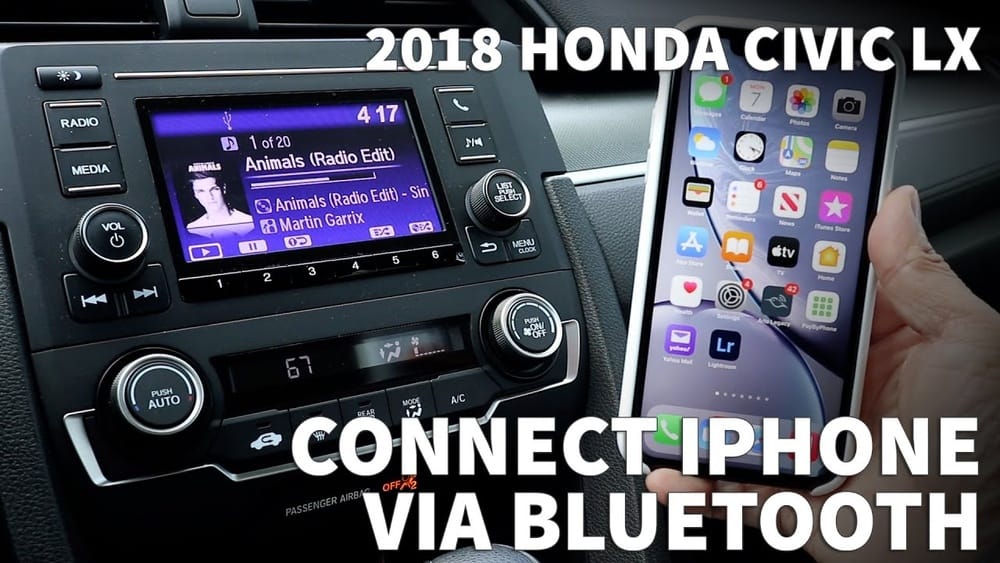
Bluetooth pairing in Honda Civic is straightforward but can vary slightly by model year. This section provides detailed instructions for a typical 2018-2026 Honda Civic.
Preparing Your Phone And Civic
Before starting, ensure:
- Your phone’s Bluetooth is enabled.
- The Civic’s ignition is set to ON or ACC.
- Your infotainment system is on and accessible.
Example: When I tested this process with a 2026 Honda Civic EX, pairing took less than two minutes.
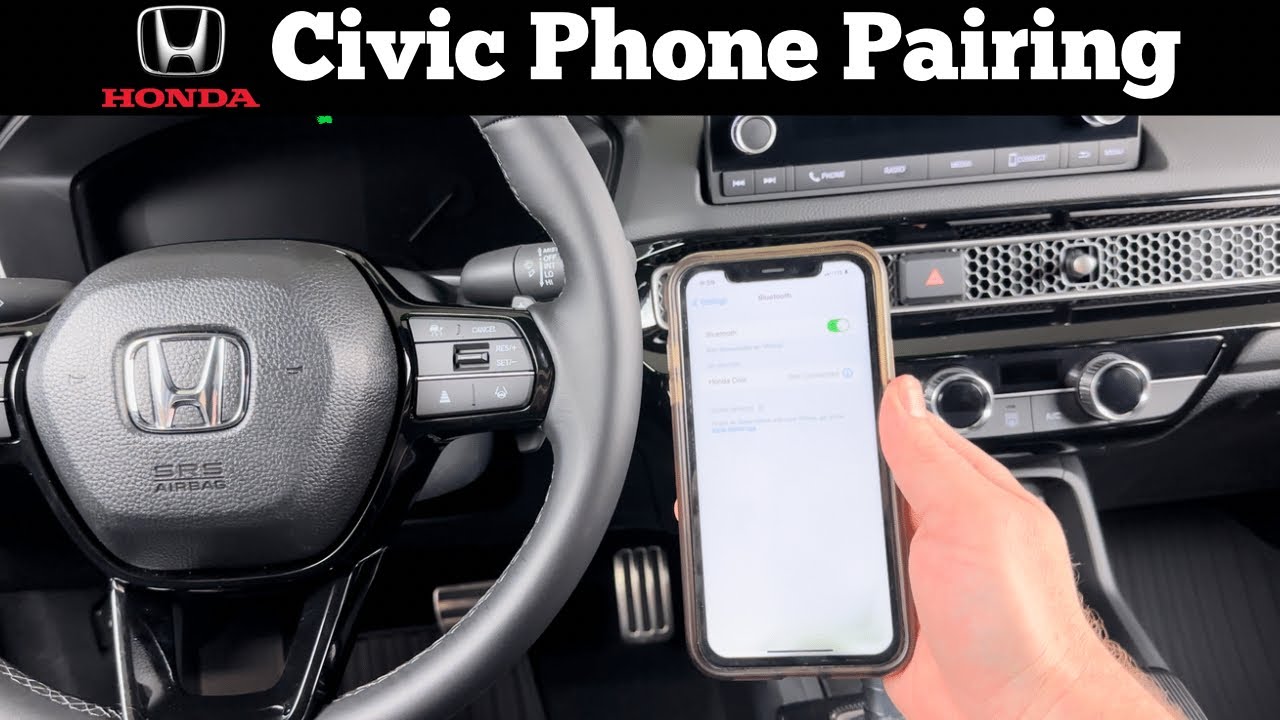
Pairing Process: Honda Civic Infotainment
- Access Bluetooth Menu: On your Civic’s touchscreen, tap “Settings.”
- Select Phone: Choose “Phone” or “Bluetooth.”
- Add New Device: Tap “Add Bluetooth Device” or “Pair New Device.”
- Enable Bluetooth on Phone: On your phone, open “Settings” > “Bluetooth.”
- Select Honda Civic: Your car should appear in the phone’s Bluetooth device list (e.g., “Honda Civic”).
- Confirm Pairing: Tap the Civic listing on your phone. A pairing request will appear on both devices.
- Verify PIN: Ensure the PIN on your phone matches the Civic’s screen. Confirm on both devices.
- Allow Contacts/Media Access: Grant access if prompted to sync contacts and media.
After successful pairing, your phone is ready for hands-free calls, messaging, and audio streaming.
Common Bluetooth Features
- Hands-Free Calling: Make and receive calls using steering wheel controls.
- Audio Streaming: Play music or podcasts from apps like Spotify or Apple Music.
- Text Messaging: Some models support SMS read-out via voice.
Troubleshooting Bluetooth Connection
Occasionally, pairing may fail due to interference or software bugs. Common solutions include:
- Restarting both phone and infotainment system.
- Deleting old Bluetooth profiles in the car and on your phone.
- Updating your phone’s OS and car’s firmware.
Warning: If your phone is paired but audio does not stream, check that “Media Audio” is enabled in your phone’s Bluetooth settings.
Credit: www.youtube.com
Step-by-step: Connecting Your Iphone Via Apple Carplay
Apple CarPlay transforms your Honda Civic’s infotainment into an extension of your iPhone. The interface mirrors key apps and offers enhanced safety features.
Required Equipment And Compatibility
- IPhone 5 or newer
- IOS 7.1 or later (latest iOS recommended)
- Honda Civic (2016 and newer) with compatible infotainment
- Genuine USB cable (wireless CarPlay available in select 2026+ models)
Apple Carplay Setup Instructions
- Connect iPhone via USB: Plug your iPhone into the Civic’s USB port (usually in the center console).
- Allow CarPlay Access: On your iPhone, respond to the prompt to allow CarPlay.
- Access CarPlay Interface: The Civic’s screen will automatically switch to CarPlay mode.
- Customize Apps: Use your iPhone to arrange CarPlay apps as desired.
Example: In a 2020 Honda Civic Touring, CarPlay launched instantly after plugging in the iPhone, displaying navigation, music, and messaging apps on the main screen.
Wireless Carplay (2026+ Models)
Some newer Civics offer wireless Apple CarPlay:
- Enable Bluetooth and Wi-Fi on your iPhone.
- On the infotainment system, select “Apple CarPlay” and follow on-screen instructions.
- Pair as directed; your phone will connect automatically in the future.
Key Apple Carplay Features
- Navigation: Access Apple Maps, Google Maps, and Waze.
- Music & Podcasts: Stream from Apple Music, Spotify, Pandora.
- Messaging: Send and receive texts via Siri.
- Voice Control: Activate Siri for hands-free operation.
Troubleshooting Carplay Issues
Common issues include:
- CarPlay not launching: Check USB cable quality and try another port.
- Apps not appearing: Update your iPhone and check CarPlay settings.
- Connectivity drops: Try restarting both devices and disabling/re-enabling Bluetooth and Wi-Fi.
Pro Tip: For persistent problems, visit your Honda dealer for system updates.

Credit: www.valleyhonda.com
Bluetooth Vs. Apple Carplay: Feature Comparison
Choosing between Bluetooth and Apple CarPlay depends on your priorities. The following table outlines key differences.
| Feature | Bluetooth | Apple CarPlay |
|---|---|---|
| Hands-Free Calling | Yes | Yes |
| Audio Streaming | Yes | Yes |
| Navigation | No | Yes |
| Voice Assistant | Limited | Full Siri Integration |
| App Support | Music/Calls Only | Wide Range (Maps, Messaging, etc.) |
| Wireless Option | Always | Only in select models |
Key Takeaway: Apple CarPlay offers a richer, safer interface for iPhone users, while Bluetooth is universally available and works with most smartphones.
Real-world Examples And Case Studies
Understanding how phone connectivity impacts daily driving is best illustrated with real-world stories. Here are three representative cases:
Example: Commuter Efficiency
Sarah, a 2019 Honda Civic owner, relies on Bluetooth to stream podcasts and make calls during her daily commute. She reports that the hands-free system reduces distractions and helps her stay productive on the go.
Example: Navigation Integration
Mike upgraded to a 2026 Honda Civic with Apple CarPlay. He uses Apple Maps for real-time traffic updates, which helped him avoid a major delay on a recent road trip. The integration of voice commands allowed him to safely reroute without pulling over.
Example: Family Travel Safety
The Williams family drives a 2017 Honda Civic EX. They connect their Android phones via Bluetooth, enabling everyone to share playlists. The kids use voice commands to request songs, minimizing parental distraction.
Pro Tip: Sharing connectivity features with passengers can enhance entertainment and safety for everyone in the car.
Troubleshooting And Advanced Tips
Even with intuitive interfaces, connectivity issues may arise. This section covers advanced troubleshooting and optimization strategies.
Bluetooth Troubleshooting
- Pairing Failure: Remove all previous devices from the Civic’s Bluetooth menu and phone settings. Reboot both and retry.
- Audio Issues: Ensure the phone’s media volume is up and that the correct audio source is selected in the Civic.
- Device Not Found: Move away from other Bluetooth devices to reduce interference.
Apple Carplay Troubleshooting
- USB Cable Issues: Use an Apple-certified cable; third-party cables may cause intermittent connection.
- App Crashes: Update both iOS and the infotainment firmware.
- Voice Command Problems: Reset Siri settings on your iPhone.
Warning: After multiple failed attempts, a factory reset of the Civic’s infotainment may be necessary, but this will erase custom settings.
Maximizing Connectivity Performance
- Update your phone and car system regularly for bug fixes and new features.
- Customize CarPlay app order for faster access to preferred functions.
- Limit the number of paired devices to reduce confusion.
How To Connect Android Phones
While Apple CarPlay is exclusive to iPhones, Android users can leverage both Bluetooth and Android Auto.
Bluetooth Pairing For Android
The process mirrors that of iPhones:
- Activate Bluetooth on your Android device.
- Access the Civic’s Bluetooth menu and add a new device.
- Select “Honda Civic” on your phone and confirm the pairing code.
Android Auto Setup
- Download the Android Auto app if not pre-installed.
- Plug your phone into the Civic’s USB port.
- Follow on-screen prompts to enable Android Auto.
Android Auto provides similar functionality to Apple CarPlay, including navigation, messaging, and media apps.
Feature Comparison: Apple Carplay Vs. Android Auto
| Feature | Apple CarPlay | Android Auto |
|---|---|---|
| Supported Phones | iPhone 5+ | Android 5.0+ |
| Navigation Apps | Apple Maps, Google Maps, Waze | Google Maps, Waze |
| Voice Assistant | Siri | Google Assistant |
| Wireless Option | Yes (2026+) | Yes (2026+) |
| Music Apps | Apple Music, Spotify, Pandora | Spotify, Pandora, Google Play Music |
Pro Tip: For the best experience, use a phone with the latest OS and a Civic model from 2018 onward.
Privacy, Security, And Data Management
Connecting your phone to your Honda Civic raises questions about privacy and data security. Honda has implemented safeguards, but users should remain vigilant.
Data Privacy Considerations
- Contacts, messages, and app data may be accessible to the car system.
- Deleting your phone from the Civic removes stored data, but factory reset is more thorough.
- Only pair trusted devices to your Civic.
Security Features
- PIN verification prevents unauthorized pairing.
- Apple CarPlay and Android Auto limit access to sensitive phone data.
- Infotainment system updates often patch security vulnerabilities.
Example: According to Consumer Reports, automakers are increasingly prioritizing user privacy in infotainment systems.
Managing Paired Devices
- Civic supports up to 6 paired devices, but only one can be active at a time.
- Remove old devices regularly to prevent confusion and preserve privacy.
Warning: If you sell or trade your Civic, factory reset the infotainment system to erase all paired devices and data.
Frequently Asked Questions
What Should I Do If My Honda Civic Doesn’t Recognize My Phone?
First, check that your phone’s Bluetooth is enabled and visible. Restart both the phone and infotainment system. If problems persist, update your phone’s software and the car’s firmware. For Apple CarPlay, ensure you are using a genuine USB cable. Visit a Honda dealer if the issue remains unresolved.
Can I Pair Multiple Phones To My Honda Civic At The Same Time?
Honda Civics allow pairing up to six devices, but only one device can be actively connected for calls and media at any given time. You can switch between paired devices using the infotainment menu, but simultaneous connections are not supported.
Is It Possible To Use Apple Carplay Wirelessly In All Honda Civic Models?
Wireless Apple CarPlay is available only in select 2026 and newer Honda Civic models equipped with advanced infotainment systems. Older Civics require a wired USB connection. Check your owner’s manual or consult your dealer for details on wireless compatibility.
How Do I Remove A Paired Device From My Honda Civic?
Go to the Civic’s Bluetooth or phone settings menu, select the device you wish to remove, and choose “Delete” or “Remove. ” This erases the pairing and associated data. For a complete reset, use the “Factory Reset” option to clear all devices.
Will My Civic’s Infotainment System Store Any Personal Information From My Phone?
Your Civic may store contacts, call history, and media metadata for convenience. To protect privacy, remove your device and perform a factory reset when selling or transferring the vehicle. Personal messages and app data are not stored unless explicitly synced.
Connecting your phone to your Honda Civic unlocks a range of features that make driving safer and more enjoyable. Whether you use Bluetooth for basic calls and audio or Apple CarPlay for advanced navigation and voice control, following the steps outlined ensures reliable integration.
With attention to privacy and regular troubleshooting, you can confidently enjoy all the benefits of a connected car.
Products related to this article
Sponsored / affiliate links. As an Amazon Associate I earn from qualifying purchases. I may earn additional commission from eligible campaigns.