
Why Does My Honda Civic Say Audio Off? Troubleshooting Guide
If you own a Honda Civic, chances are you enjoy its reputation for reliability, fuel efficiency, and smart features. But what happens when you suddenly see the message “Audio Off” on your dashboard? It can be confusing, especially if you want to listen to music, the radio, or use hands-free calling. This message doesn’t always mean something is broken—but it does mean your car’s audio system is not active.
So, why does your Honda Civic say “Audio Off,” and what can you do about it? Let’s dive deep to understand the reasons, how to fix them, and what you need to know to enjoy your car’s audio system without frustration. If the whole screen is unresponsive rather than just the audio, see our Honda Civic screen not working guide instead.
What Does “audio Off” Mean In A Honda Civic?
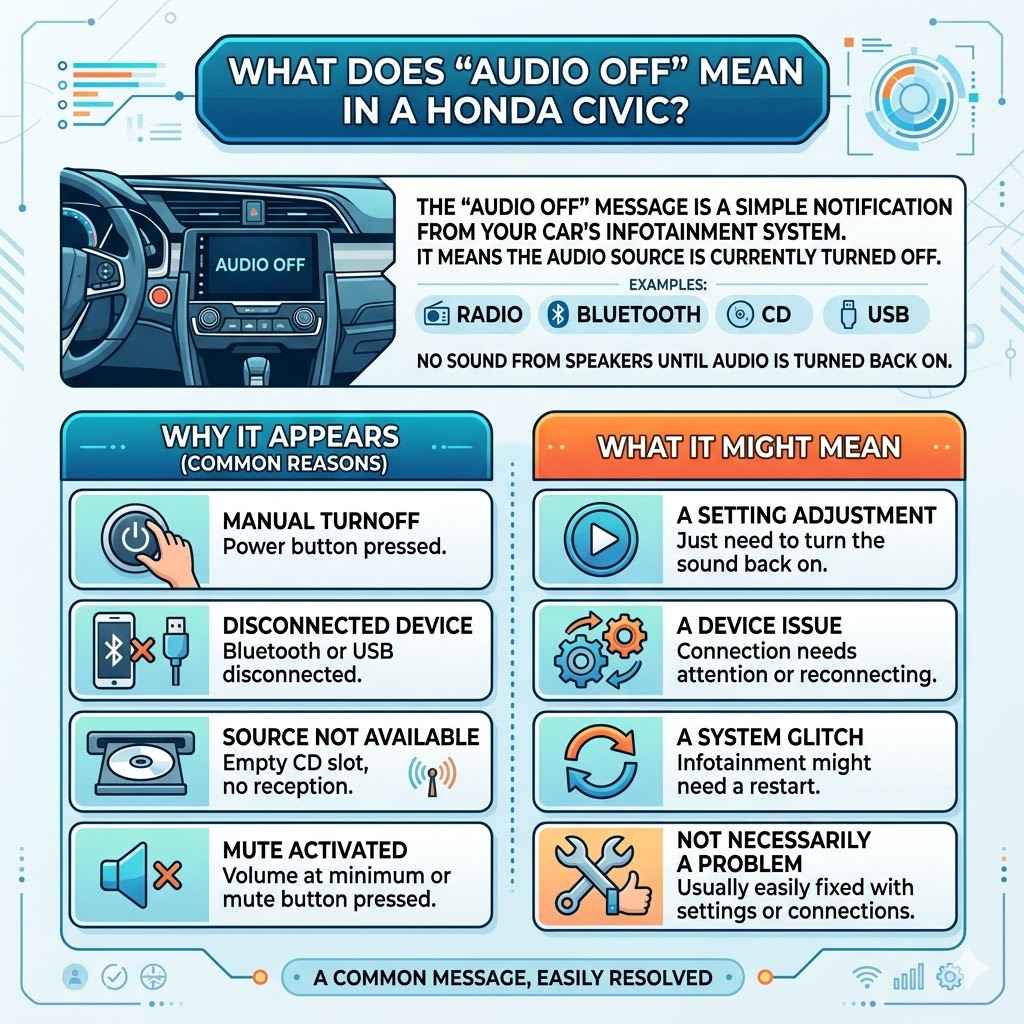
The “Audio Off” message is a simple but important notification from your car’s infotainment system. It means the audio source—radio, Bluetooth, CD, or USB—is currently turned off. You won’t hear any sound from the speakers until you turn the audio back on. This message can appear for several reasons, and it’s not always a sign of a problem. Sometimes it’s just a setting, while other times it’s a sign that something needs your attention.
IYING
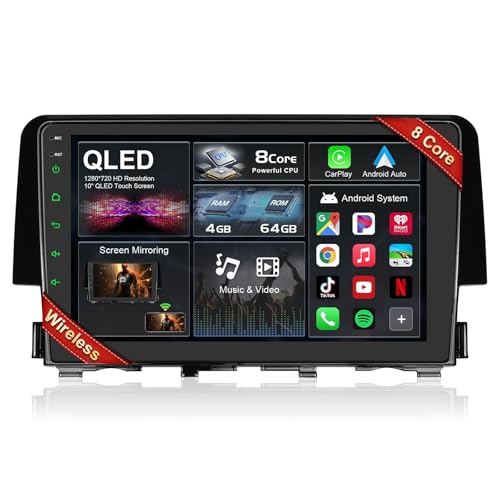
【8 core 4GB+64GB】 Car Stereo for Honda…
- 【Versatile Compatibility for Various Models】 Our radio system is compatible with the Honda Civic 2016-2021 car radio series, ensur…
- 【Seamless Integration with Apple CarPlay】 Experience the future of connectivity with the Honda Civic Apple CarPlay feature. Effort…
- 【Enhanced Touch Screen Functionality】 Elevate your driving experience with our sleek Honda Civic touch screen. The intuitive inter…
As an Amazon Associate I earn from qualifying purchases.
Many drivers worry that seeing “Audio Off” means something is wrong with their car. In most cases, it’s a matter of changing a setting, reconnecting a device, or restarting the system. But to fix it quickly, you first need to understand why it appears.
Common Reasons For “audio Off” In Honda Civic
There are several situations where your Honda Civic may display “Audio Off”. Knowing these can help you troubleshoot and solve the issue faster.
1. Audio System Not Turned On
The most basic reason is that the audio system is simply turned off. This can happen if you pressed the power button or the volume knob, or if the system turned off by itself after the engine was stopped.
2. Ignition Cycle And System Boot
After starting your car, the infotainment system may take a few seconds to start. During this time, it might show “Audio Off” until it’s fully ready. This is normal, especially in newer Civics with advanced touchscreens.
3. Source Not Selected
If you have not chosen an audio source (FM/AM radio, Bluetooth, USB, etc.), the system will remain silent and display the “Audio Off” message.
4. Bluetooth Device Not Connected
If you previously played music through a Bluetooth device (like your phone) and the device is not connected or in range, the system will show “Audio Off” until you reconnect or pick another source.
5. Muted Audio
Sometimes, muting the audio or reducing the volume to zero can trigger the “Audio Off” message. Some Civic models display this message instead of a mute icon.
6. Software Glitches
Like any modern tech, the infotainment system can sometimes glitch. A bug or temporary error might display “Audio Off” even when the audio system is on.
7. Battery Save Mode
If your car’s battery is low, the Civic may automatically limit non-essential systems, including the audio, to save power. This can trigger the “Audio Off” message.
8. Safety Settings
Some Civics have safety features that limit audio when the car is in reverse or during certain alerts. For example, if the reverse camera is active, the audio may turn off automatically.
9. After Disconnecting The Battery
If your car’s battery was disconnected for maintenance or replacement, the audio system may reset and show “Audio Off” until you turn it back on.
10. Faulty Audio Components
Less commonly, a faulty speaker, blown fuse, or wiring problem can cause the system to shut down, displaying “Audio Off” as a warning.
11. Audio Lock Or Security Code
After replacing or servicing the car’s battery, some Civics require an audio code to unlock the system. Until you enter this, the system may display “Audio Off”.
12. Infotainment Updates
During or after a software update, the system may reset itself and show “Audio Off”. This is usually temporary.
How To Fix “audio Off” In Your Honda Civic
Now that you know the main reasons, let’s explore practical solutions. With a few simple steps, you can often restore your music and calls quickly.
Step 1: Turn On The Audio System
- Press the power button or push the volume knob on your dashboard. On most Civics, this will instantly turn the audio back on.
- If your model uses a touchscreen, tap the Audio or Source button and select your desired input (FM, AM, Bluetooth, USB).
Step 2: Check Source Selection
- On the main screen, select a source by tapping FM, AM, Bluetooth, USB, or CD. Sometimes, the last used source is unavailable (for example, if your phone isn’t connected), and you need to pick another.
Step 3: Reconnect Bluetooth Devices
- Make sure your phone or device’s Bluetooth is on and paired with the car.
- If not, go to your Civic’s Bluetooth settings, select your device, and reconnect.
- If there’s a connection issue, try deleting the device from the car’s memory and pairing again.
Step 4: Increase Volume
- Turn the volume knob or use steering wheel controls to ensure the volume isn’t set to zero or on mute.
- Look for a mute icon or message, and unmute if needed.
Step 5: Restart The Infotainment System
- If the system is frozen or glitchy, press and hold the power button for 10 seconds to force a restart.
- You can also turn the car off, open and close the driver’s door, wait a minute, then restart the car.
Step 6: Check Battery And Power Settings
- If your battery is low, consider having it tested or replaced. A weak battery can cause multiple electronic issues.
- Avoid running the audio system for long periods with the engine off.
Step 7: Enter Security Code
- If you recently replaced the battery, your Civic may ask for a radio or audio code.
- This code is usually in your owner’s manual or can be found online using your VIN and radio serial number. Enter the code to unlock audio.
Step 8: Inspect Fuses And Wiring
- Check your owner’s manual for the location of audio system fuses.
- Inspect and replace any blown fuses.
- If you suspect wiring or hardware issues, visit a professional mechanic.
Step 9: Update Infotainment Software
- Go to your dealer or the official Honda website for updates. Outdated software can cause glitches, including “Audio Off”.
Step 10: Reset To Factory Settings
- As a last resort, reset your infotainment system to factory settings. This will erase all saved devices and preferences but can resolve stubborn issues.
Real-world Examples: When “audio Off” Appears
To make things clearer, let’s look at real situations where drivers have seen the “Audio Off” message:
- After a car wash: The system can get wet, causing a temporary glitch. Restarting the car usually solves it.
- Switching phones: You disconnect one phone and forget to connect the new one. The Civic waits for a source and shows “Audio Off”.
- Battery replacement: After a battery swap, the system asks for a code. Until you enter it, the audio stays off.
- Cold weather mornings: The system boots slowly in extreme cold and may show “Audio Off” for longer than usual.
Table: Common Causes And Quick Fixes
Here’s a side-by-side look at common causes and what you should do.
| Cause | Quick Fix |
|---|---|
| Audio system is off | Press power button or volume knob |
| No audio source selected | Select FM, AM, Bluetooth, or USB |
| Bluetooth not connected | Reconnect or pair device |
| Muted audio | Increase volume or unmute |
| Battery disconnected | Enter radio/audio security code |
| System glitch | Restart infotainment or reset system |
Why Understanding “audio Off” Matters
You might think this message is just a small annoyance, but it can point to larger issues:
- Battery health: Frequent “Audio Off” alerts can hint at a weak battery.
- Infotainment problems: Glitches may signal the need for a software update or hardware check.
- Safer driving: Knowing how to control your audio means less distraction behind the wheel.
Honda Civic Infotainment: A Closer Look
The Honda Civic’s infotainment system has evolved over the years—from basic radios to advanced touchscreens with Apple CarPlay and Android Auto. But every generation shares some common audio controls.
Key Features
- Touchscreen interface (most models from 2016 onward)
- Steering wheel audio controls
- Multiple input sources: FM/AM, Bluetooth, USB, CD (older models)
- Voice control on select trims
- Customizable audio settings
Infotainment System Comparison
Here’s how different Civic generations handle audio controls.
| Model Year | Audio Interface | Common “Audio Off” Causes |
|---|---|---|
| 2012-2015 | Button/dial interface | Manual source selection, mute, fuse issues |
| 2016-2021 | Touchscreen | Bluetooth issues, software glitches, battery disconnect |
| 2022+ | Updated touchscreen, more voice control | Boot delays, device pairing problems, updates |
Non-obvious Insights Most Owners Miss
- Audio memory: Some Civics remember the last used source. If that source is unavailable (like a removed USB stick), the system won’t auto-switch. You have to pick a new source.
- Hidden reset: Pressing and holding the power button for 10+ seconds is a “soft reset”—it fixes many glitches without erasing settings.
- Update risks: Updating the infotainment system with the engine off can cause the update to fail, leaving the system stuck on “Audio Off.”
- Battery drain warning: If you use the audio system with the engine off for too long, the car may shut off audio automatically to protect the battery.
- Fuse confusion: The audio fuse is often separate from other electronics. Replacing only the main fuse won’t restore audio if the dedicated audio fuse is blown.
Tips For Avoiding “audio Off” In The Future
Preventing audio problems is often easier than fixing them. Here’s what you can do:
- Keep your software updated. Visit your dealer or check Honda’s website for official infotainment updates.
- Check device connections. Make sure your phone or USB is connected before starting the car.
- Avoid battery disconnects. If you need to replace the battery, have your audio code ready.
- Don’t use third-party chargers or cables. Non-Honda accessories can cause glitches.
- Limit use with engine off. Don’t play music for long with the engine off to avoid triggering battery save mode.
- Learn the controls. Familiarize yourself with both physical buttons and touchscreen commands for quick troubleshooting.
- Regular battery checks. Get your battery tested annually, especially if your car is more than 3 years old.
- Store your audio code safely. Write it down or save it in your phone.
Table: Audio Sources And Their Common Issues
Let’s compare how different audio sources behave and what might cause the “Audio Off” message.
| Audio Source | Common Issue | How to Fix |
|---|---|---|
| FM/AM Radio | No signal, not selected | Switch to radio, check antenna |
| Bluetooth | Device not paired | Reconnect or re-pair device |
| USB | Device removed or unreadable | Insert USB, check format |
| CD | No disc, disc error | Insert correct disc, clean lens |
When To See A Mechanic
While most “Audio Off” messages are easy to fix, sometimes you need professional help. Go to a certified Honda service center if:
- The system won’t turn on after trying all fixes
- The message appears after water damage or a collision
- Fuses are blowing repeatedly
- There are other electrical problems (like dashboard lights flickering)
- The touch screen is unresponsive or frozen
A trained technician can check wiring, update software, and replace faulty parts.
Honda Owner Experiences
Some Honda Civic owners share their experiences online to help others. For example:
- “After my battery died, I entered my radio code, and the ‘Audio Off’ message disappeared.”
- “I had to do a factory reset after updating my software because Bluetooth wouldn’t connect.”
- “My car kept showing ‘Audio Off’ until I realized my phone’s Bluetooth was accidentally turned off.”
Reading these stories can help you see you’re not alone—and that most issues have simple solutions.
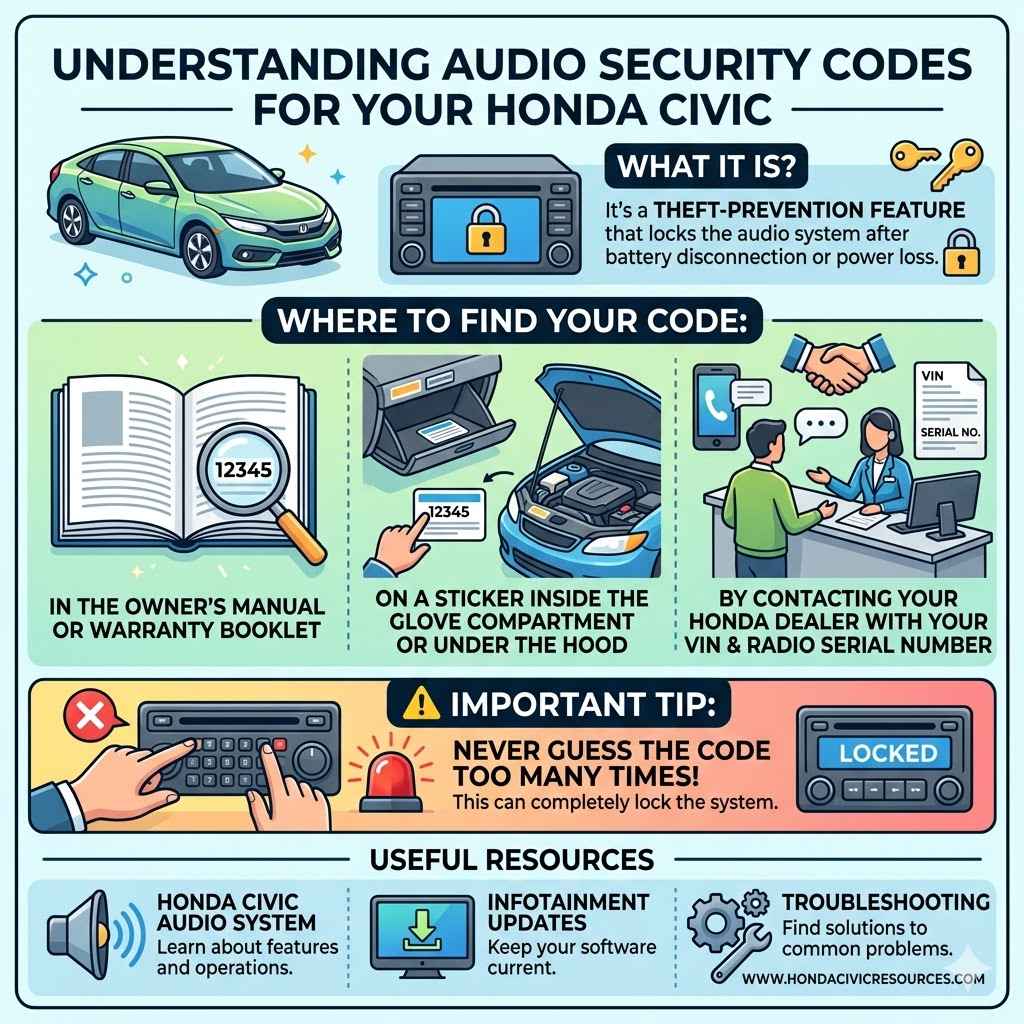
Understanding Audio Security Codes
If your Honda Civic asks for an audio security code, don’t panic. This is a theft-prevention feature. You can usually find the code:
- In the owner’s manual or warranty booklet
- On a sticker inside the glove compartment or under the hood
- By contacting your Honda dealer with your VIN and radio serial number
Never guess the code too many times, as this can lock the system.
Useful Resources
If you want to learn more about the Honda Civic’s audio system, infotainment updates, or troubleshooting, check out the official Honda site: Honda Audio & Navigation Support.
Frequently Asked Questions
Why Does My Honda Civic Say “audio Off” Even When The Radio Is On?
This usually happens if no audio source is selected, your volume is muted, or there’s a Bluetooth connection issue. Try changing the source, unmuting, or reconnecting your device.
How Do I Turn The Audio Back On In My Honda Civic?
Press the power button or volume knob. On touchscreen models, select your desired source (FM, AM, Bluetooth, USB) from the main menu.
Does “audio Off” Mean My Car’s Audio System Is Broken?
No, “Audio Off” usually means the system is waiting for input or needs to be turned on. If the message remains after trying all fixes, there could be a hardware or wiring issue.
What Should I Do If My Honda Civic Asks For An Audio Or Radio Code?
Check your owner’s manual or warranty booklet. If you can’t find it, contact your Honda dealer with your VIN and radio serial number to get the code.
Can A Dead Battery Cause The “audio Off” Message?
Yes. After a dead or replaced battery, the audio system may lock and show “Audio Off” until you enter the security code or reset the system.
Your Honda Civic’s audio system is designed to be simple and reliable, but when you see “Audio Off,” you now know exactly what to do. Most solutions are easy and quick—so you’ll be back to enjoying your drive in no time.
Related pick: Check today's price on Amazon
Products related to this article
Sponsored / affiliate links. As an Amazon Associate I earn from qualifying purchases. I may earn additional commission from eligible campaigns.