Why Can’t I Connect to My Car? Fix It With These Simple Steps
Connecting your phone to your car can sometimes feel like a guessing game. One day everything works perfectly, the next your car refuses to pair with your device. This guide walks you through the most common reasons for connection failures and provides clear, step-by-step fixes to get you back on the road.
Simply put, most connection issues with your car stem from outdated software, incorrect Bluetooth settings, or interference from other devices. The fix is usually a simple reset or update—no mechanic required.
Key Takeaways
- Bluetooth pairing often fails due to forgotten device lists or interference; resetting both the car and phone usually resolves it.
- Outdated infotainment software is a major cause of connectivity problems—check for updates regularly.
- USB cable quality and compatibility directly affect Android Auto and Apple CarPlay performance.
- Phone settings like airplane mode, battery saver, or do not disturb can block the connection without warning.
- If all else fails, a full factory reset of the car’s infotainment system will clear persistent bugs.
Common Reasons Your Phone Won’t Connect to Your Car
Before you start any fixes, it helps to know what usually goes wrong. Many drivers assume their phone or car is broken, but the truth is often simpler. Below are the most frequent culprits behind a failed connection.

SYKRSS
SYKRSS 4 Ignition Coils+ 4 Spark Plugs…
- 【 DIRECT FIT FOR MULTIPLE VEHICLE MODELS 】 This Ignition Coil Pack fits your 2.0L/2.3L L4 – for Ford (Escape 2005-2008 2.3L, Focus…
- 【 OEM-PERFECT FIT WITH A TWIST 】 Precision-molded to meet OEM specs – no modifications, no splicing wires. Coils directly replace…
- 【 BUILT FOR UNDER-HOOD HELL 】 We didn't just copy the OEM; we upgraded the guts. Coils are wound with German-imported enameled cop…
As an Amazon Associate I earn from qualifying purchases.
Forgotten or Overloaded Paired Devices
Most car infotainment systems can remember only a limited number of paired phones—typically 5 to 10. Once that list is full, new devices get rejected. Also, if you’ve previously paired with a rental car or a friend’s car, those old entries can cause confusion.
Bluetooth or Wi-Fi Interference
Other Bluetooth devices nearby—like wireless earbuds, smartwatches, or even your passenger’s phone—can interfere with the pairing process. Some cars also use Wi-Fi for Android Auto or CarPlay, and overlapping networks cause dropouts.
Outdated Software and Firmware
Car manufacturers release infotainment updates to fix bugs and improve compatibility. If your car’s system is several versions behind, it may not support your phone’s latest Bluetooth protocol. According to a study by J.D.
Power, nearly 60% of infotainment complaints are linked to outdated software.
Phone Settings That Block Connections
Several phone modes can silently prevent pairing:
- Airplane mode disables all wireless radios.
- Battery saver may turn off Bluetooth after a period of inactivity.
- Do not disturb mode sometimes blocks hands-free features.
- VPN apps on your phone can interfere with Android Auto routing.
| Issue | Typical Symptom | Quick Fix |
|---|---|---|
| Full paired device list | Phone not discovered | Delete old devices from car |
| Interference | Connection drops randomly | Turn off nearby Bluetooth gadgets |
| Outdated software | Phone pairs but no audio | Update car and phone software |
These three categories cover the vast majority of connection problems. Once you identify which one applies to you, the solution becomes straightforward.
How to Fix Bluetooth Connection Issues Step by Step
When your phone won’t connect via Bluetooth, a systematic approach gets you there faster. Follow these steps in order—most problems are solved by step three.
Step 1: Restart Both Devices
Restart your phone and your car. Many drivers skip this, but it clears temporary software glitches. For the car, turn off the engine, open and close the driver’s door, wait 30 seconds, then restart.
For the phone, a simple power cycle works best.
Step 2: Delete and Re-Pair
Go to your car’s Bluetooth settings and remove your phone from the paired list. On your phone, forget the car’s Bluetooth entry. Then start the pairing process fresh—put the car in pairing mode and search from your phone.
Tip: If your car has a “Pair New Device” button, use that instead of the automatic pairing mode. It often resets the Bluetooth discovery buffer.
Step 3: Check Phone Permission Settings
Modern phones require you to grant specific permissions for Bluetooth connections to function fully. On iOS, go to Settings > Bluetooth > (i) next to your car and make sure “Contacts”, “Favorites”, and “Notifications” are enabled. On Android, go to Settings > Connected Devices > (gear icon) and allow “Phone calls” and “Contacts access”.
Step 4: Reset Network Settings
If steps 1–3 fail, reset your phone’s network settings. This clears saved Wi-Fi networks, Bluetooth pairings, and cellular settings—it’s a stronger reset than a simple restart. On iPhone, go to Settings > General > Transfer or Reset iPhone > Reset > Reset Network Settings.
On Android, go to Settings > System > Reset Options > Reset Wi-Fi, mobile & Bluetooth.
Warning: Resetting network settings will erase all saved Wi-Fi passwords and Bluetooth pairings on your phone. Make sure you have your home Wi-Fi password handy.
Step 5: Update Software
Check for car infotainment updates. Most modern cars allow over-the-air updates via Wi-Fi or a USB drive. Visit your car manufacturer’s support site for instructions.
Also update your phone’s operating system—both sides need to be current for reliable Bluetooth connectivity.
- Connect your car to a stable Wi-Fi network (if supported).
- Navigate to Settings > Software Update in your infotainment system.
- Install any available updates (may take 10–20 minutes).
- On your phone, go to Settings > General > Software Update (iOS) or Settings > System > System Update (Android).
- Apply any pending updates and restart both devices.
According to AAA, nearly 25% of drivers who experience car Bluetooth problems resolve them after a software update alone. It’s the single most effective long-term fix.
Troubleshooting Android Auto and Apple CarPlay
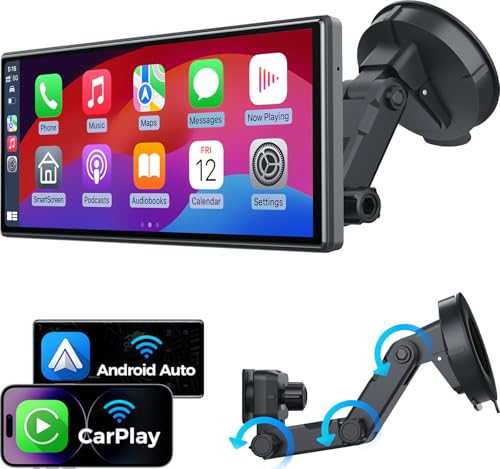
Android Auto and Apple CarPlay add another layer of complexity because they rely on both USB and wireless connections. If you can connect via Bluetooth but not get CarPlay or Android Auto to launch, the problem is usually cable-related or a permission misconfiguration.
Wired Connection Problems
Using the wrong USB cable is the number one cause. Many cheap or worn cables only support charging, not data transfer. You need a high-quality USB-A to USB-C or Lightning cable that explicitly supports data sync.
- Try a different USB port in your car (some ports are charge-only).
- Use the original cable that came with your phone if possible.
- Test with a known-good cable from a friend.
- Inspect both ends of the cable for bends or fraying.
Wireless Android Auto or CarPlay Issues
Wireless connections depend on strong Wi-Fi and Bluetooth working together. If your car supports wireless projection but it fails, try these steps:
- Enable Wi-Fi on your phone and ensure it’s not connected to another network.
- Turn off mobile hotspot on your phone (it can interfere).
- Go to CarPlay/Android Auto settings on your phone and delete the car from the list, then reconnect.
- Restart both devices again—wireless projection is sensitive to memory leaks.
| Symptom | Likely Cause | Fix |
|---|---|---|
| Android Auto doesn’t start | Cable not data-capable | Use original cable |
| CarPlay audio stutters | Wireless interference | Switch to cable temporarily |
| CarPlay won’t launch | Restrictions enabled | Check Screen Time settings on iPhone |
Most projection errors are solved by checking permissions. On iPhone, go to Settings > Screen Time > Content & Privacy Restrictions > Allowed Apps and ensure CarPlay is allowed. On Android, go to Settings > Google > Device connections > Android Auto and verify it’s enabled.
Important: Some car models with built-in navigation will not allow Android Auto or CarPlay while the car is in motion for safety reasons. Ensure the car is parked when setting it up.
When to Reset Your Car’s Infotainment System
If you’ve tried all the software fixes and the connection still fails, the car’s infotainment system itself may be stuck. A reset clears temporary bugs without affecting saved data in most cases.
Soft Reset vs. Factory Reset
Most car systems have two types of resets:
- Soft reset: Hold down the power button for 10–15 seconds until the screen turns off. This reboots the system without losing settings. Ideal for persistent connection glitches.
- Factory reset: Navigate to Settings > General > Reset to factory defaults. This wipes all paired phones, settings, and personal data. Use only as a last resort.
According to a report from Consumer Reports, approximately 30% of serious infotainment issues that don’t respond to other fixes are resolved by a factory reset. However, resetting may require you to re-enter Wi-Fi passwords and re-pair all devices.
How to Perform a Factory Reset (General Steps)
- Go to the Settings menu on your infotainment screen.
- Look for “System”, “General”, or “Device” settings.
- Find “Reset” or “Factory reset” option. It may be under “About”.
- Confirm the reset. The system will reboot—this may take 2–5 minutes.
- After reboot, set up your language, date, and time again.
- Try pairing your phone again.
Warning: A factory reset erases all saved settings, including equalizer presets, radio presets, and navigation favorites. Note down anything important before resetting.
Preventing Future Connection Problems
Once you’ve fixed the connection, a few habits keep it working reliably. Small changes in how you manage your phone and car can prevent that frustrating “device not compatible” message from returning.
Keep Software Updated Regularly
Check for car infotainment updates every three months. Many manufacturers now release updates twice a year. Set a reminder on your calendar to avoid falling behind.
Manage Your Paired Devices
Periodically delete old phone entries from your car’s Bluetooth list. If you often rent cars or share driving, clean up after each use. A cluttered device list is one of the top reasons for car connection failures.
Use High-Quality Cables
For wired connections, invest in a branded USB cable that supports both charging and data transfer. Replace cables every six months or at the first sign of wear. A damaged cable can cause intermittent disconnects that mimic software bugs.
- Anker, Belkin, and Apple original cables are reliable choices.
- Avoid cables longer than 1 meter (3 feet) for data stability.
- Keep a spare certified cable in your glovebox.
Avoid Overloading the Car’s USB Port
Charging multiple devices from the same USB hub can reduce power and data integrity. If your car has multiple USB ports, use only one for phone projection.
Also, be cautious about using third-party wireless adapters for Android Auto or CarPlay. While they work for many, they add an extra layer of potential interference. Stick with built-in methods when possible.
What to Do If Nothing Works
In rare cases, the problem lies deeper—either in the car’s hardware or in your phone’s Bluetooth module. If you’ve exhausted all fixes, here’s your next move.
Test with Another Phone
Borrow a friend’s phone and try pairing it with your car. If the second phone connects without issue, the problem is with your phone’s Bluetooth hardware or settings (a deeper reset, like a full phone factory reset, may be needed).
Test with Another Car
If your phone won’t connect to any car, your phone’s Bluetooth chip may be faulty. Contact the manufacturer for support. If your phone connects to other cars but not yours, the car’s Bluetooth module might need service.
Visit a Professional
A certified mechanic or dealership can run a diagnostic on your car’s infotainment system. They may find a wiring issue, a faulty module, or a recall you didn’t know about. According to the National Highway Traffic Safety Administration (NHTSA), some vehicles have service bulletins specifically for Bluetooth connectivity.
Tip: Check your car’s owner forum online—other owners may have discovered a workaround for your exact model year.
Frequently Asked Questions
Why does my car say “Connection Failed” even after I enter the PIN?
This usually means the pairing PIN on your phone doesn’t match the car’s code. Try entering 0000 or 1234. Also, ensure you confirm the pairing on both screens within 10 seconds—timeout is common.
Can a phone case affect Bluetooth connection with my car?
Yes, thick or metal cases can block Bluetooth signals. Remove the case and try pairing again. Wallet-style cases with RFID-blocking layers are especially problematic.
Why does my Android Auto keep disconnecting while driving?
This is often caused by a loose USB connection or a failing cable. Bumps in the road can momentarily break the connection. Try a shorter cable and ensure it’s fully inserted.
Also, check for software updates on both phone and car.
Do I need to enable something special for Apple CarPlay to work?
Yes, on iPhone ensure CarPlay is not restricted in Screen Time settings. Also, make sure Siri is enabled—CarPlay requires it. Go to Settings > Siri & Search and turn on “Press Side Button for Siri”.
How do I update my car’s infotainment software if it’s not over-the-air?
Most manufacturers provide updates via USB download. Visit their website, enter your VIN, download the update to a USB drive (FAT32 format), insert it into the car’s USB port, and follow the on-screen instructions. The process usually takes 20–40 minutes.
Final Thoughts
Not being able to connect your phone to your car is frustrating, but it’s almost always fixable without a mechanic. Start with the simplest steps—restart both devices and check permissions. Most problems come down to software bugs, outdated firmware, or interference.
Keeping both your phone and car updated will prevent 80% of future issues. If all else fails, a factory reset or a trip to the dealership is your last resort. In the vast majority of cases, you’ll be streaming music and navigating hands-free again in minutes.
See also ford car key won’t turn here’s how to fix it fast.
Related pick: Check today's price on Amazon See also ford cars stopped in india which models and what happened .
Products related to this article
Sponsored / affiliate links. As an Amazon Associate I earn from qualifying purchases. I may earn additional commission from eligible campaigns.