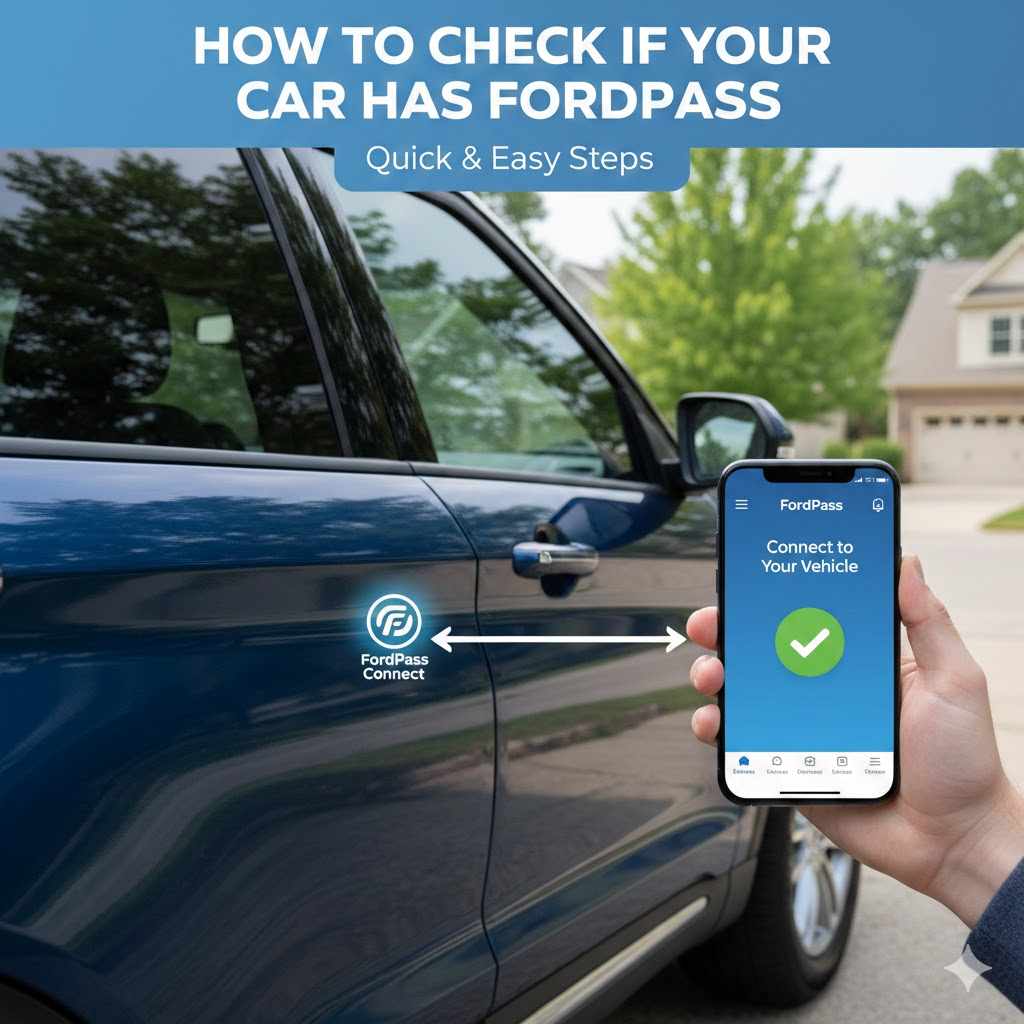
How to Check If Your Car Has FordPass
Many car owners wonder if their vehicle is equipped with the handy FordPass system. It might seem tricky to figure out, especially if you’re new to this technology. Don’t worry!
This guide makes it super simple. We’ll walk you through exactly how to check if your car has FordPass step-by-step. After this, you’ll know for sure if your car is ready for all the cool features FordPass offers.
What is FordPass and Why Check For It
FordPass is a smartphone app that lets you connect with your Ford vehicle in many ways. It’s designed to make owning and driving your Ford easier and more convenient. You can use it to start your car remotely, check fuel levels, find parking, and even schedule service.
Knowing if your car has FordPass is the first step to unlocking these useful features and enhancing your driving experience.
Understanding FordPass Connectivity
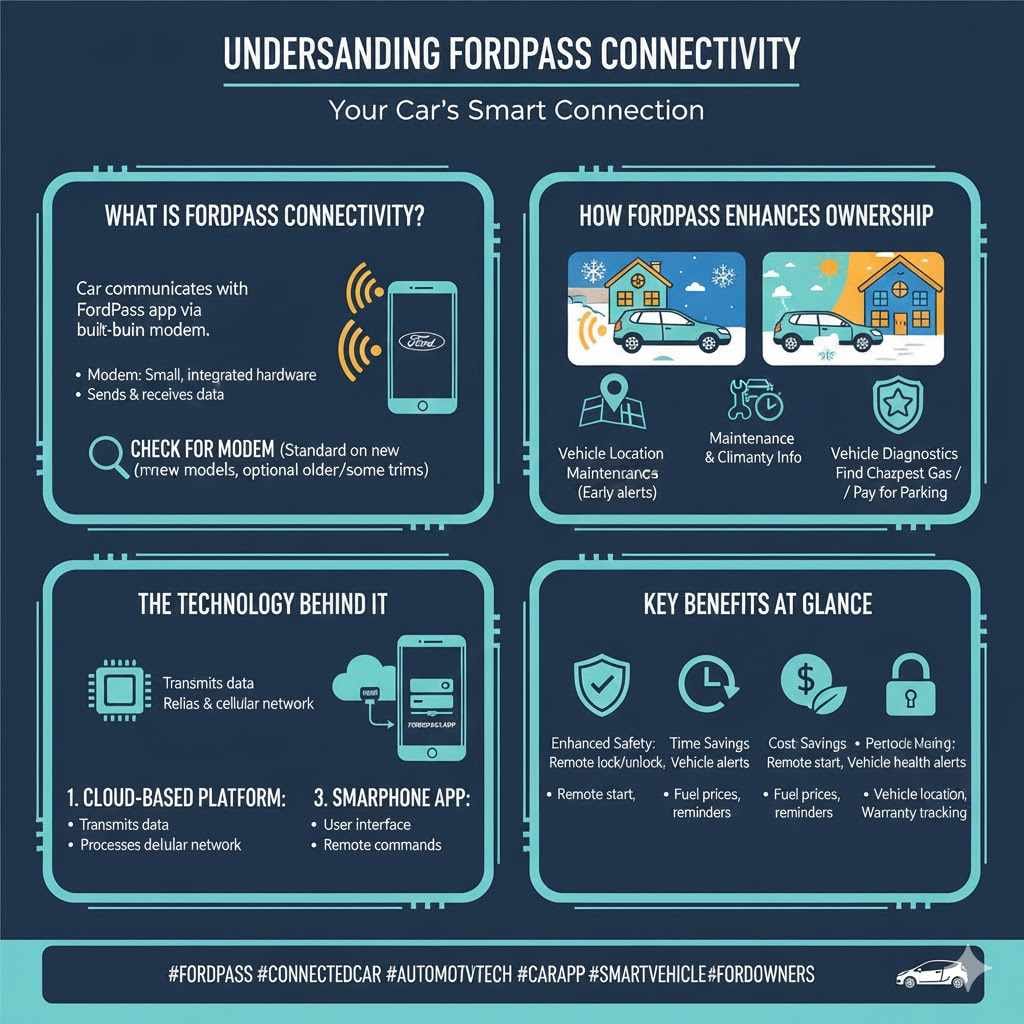
FordPass connectivity means your car has the built-in technology to communicate with the FordPass app on your phone. This connection typically relies on a modem installed in your vehicle. This modem allows your car to send and receive data, enabling remote commands and information sharing.
It’s like giving your car a voice and a brain that you can access from anywhere.
The modem is usually a small, integrated piece of hardware. It transmits signals that your FordPass app can interpret. Without this hardware, your car cannot connect to the FordPass system, no matter how many times you download the app.
This is why checking for the physical presence or compatibility is key.
Many newer Ford models come equipped with this modem as standard. However, for some older models or specific trims, it might have been an optional upgrade. This is where the need to check arises.
You might have a car that’s perfectly capable of using FordPass, but you just need to confirm its inclusion.
How FordPass Enhances Vehicle Ownership
FordPass brings a new level of convenience to owning a Ford. Imagine warming up your car on a cold morning or cooling it down on a hot day before you even step outside. You can also see your car’s location, which is great for busy parking lots.
It even helps you manage your Ford ownership by keeping track of maintenance reminders and warranty information.
This system also plays a role in vehicle diagnostics. If your car detects a minor issue, it can alert you through the app. This early warning can prevent small problems from becoming bigger, more expensive repairs down the line.
It’s like having a personal assistant for your car, always looking out for its well-being.
Furthermore, FordPass can help you save money. For example, some versions offer features that help you find the cheapest gas prices nearby. It also makes it easier to pay for parking in select locations directly through the app.
These small conveniences add up to a more streamlined and cost-effective ownership experience.
Identifying FordPass Capability
There are several ways to determine if your Ford vehicle is equipped with FordPass. The most straightforward method involves checking your vehicle’s features list or window sticker. If you still have the original paperwork from when the car was purchased, it will clearly state whether FordPass connectivity was included.
Another common indicator is the presence of a small antenna or a specific badge on the vehicle, though this is not always the case. The most reliable method is to look for indicators within the vehicle’s infotainment system. Many Ford vehicles will have an option related to FordPass or connectivity settings within their touchscreen menus.
You can also check your vehicle’s VIN (Vehicle Identification Number). By entering your VIN into Ford’s official website or a third-party VIN decoder, you can access a detailed report of your car’s original specifications, including any connectivity features. This method offers a definitive answer about your car’s factory configuration.
Decoding Your Vehicle’s VIN for FordPass
Your VIN is a unique 17-character code that identifies your specific vehicle. It’s like a fingerprint for your car. Ford provides a VIN lookup tool on their website that can provide a wealth of information about your vehicle’s build and features.
When you access Ford’s VIN decoder, you’ll see a list of all the options and packages your car came with from the factory. Look for terms like “FordPass Connect,” “Modem,” “Connectivity Package,” or similar. If any of these are listed as included, your car is equipped for FordPass.
This is often the most accurate way to confirm.
For example, if your VIN report shows “FordPass Connect with 4G LTE Wi-Fi Hotspot,” this confirms your vehicle has the necessary hardware. The 4G LTE hotspot feature is typically bundled with FordPass Connect. Even if you don’t plan to use the Wi-Fi, the presence of the modem enables FordPass functionality.
If you are having trouble finding the VIN decoder or interpreting the results, contacting your local Ford dealership’s service department is a good next step. They have access to comprehensive databases and can quickly tell you if your car is FordPass compatible.
Checking Your Vehicle’s Infotainment System
Your car’s built-in infotainment system, often a touchscreen display, is a primary place to check for FordPass integration. Most Ford vehicles equipped with FordPass will have a dedicated section within the settings or a separate app icon for FordPass or connectivity.
Start by powering on your vehicle and navigating through the main menu of your touchscreen. Look for options labeled “Settings,” “Vehicle,” “Connectivity,” “Apps,” or something similar. Within these menus, you should find an option related to FordPass.
If you see it, your car is likely equipped.
Sometimes, the FordPass option might be presented as a tile or an icon on the main home screen of the infotainment system. You might also find a section that displays your vehicle’s modem status or connectivity information. This section can tell you if the modem is active and ready to connect.
Navigating Ford’s SYNC System for FordPass
If your Ford has the SYNC infotainment system, this is where you’ll likely find the FordPass settings. SYNC systems can vary in version (e.g., SYNC 3, SYNC 4), but the general location of connectivity settings is usually consistent.
On a SYNC 3 system, for instance, you would typically go to “Settings,” then “Connectivity.” There, you might see options for Wi-Fi, Bluetooth, and FordPass. If FordPass is listed, tap on it to see more details about its status and features.
For newer SYNC systems, the interface might be slightly different, but the principle remains the same. You’re looking for a menu that controls your car’s connection to external services or networks. The presence of FordPass within these menus is a strong indicator that your car supports it.
If you’re unsure about your specific SYNC version or where to find these settings, your Ford owner’s manual is an excellent resource. It provides detailed instructions for your car’s specific infotainment system.
Physical Indicators on Your Vehicle
While not always definitive, there are a few physical aspects of your car that might hint at FordPass capability. The most common indicator is the presence of a shark fin antenna on the roof of your vehicle. Many Ford models that come with FordPass Connect also feature this type of antenna, which houses the modem and cellular antenna.
However, not all vehicles with a shark fin antenna have FordPass, and some FordPass-equipped vehicles might have a more integrated or less visible antenna. Therefore, this should be considered a secondary check, not the primary one. It’s a visual clue, but not a guarantee.
Another potential, though rare, physical indicator could be a small FordPass badge somewhere on the exterior or interior of the vehicle. However, Ford has not consistently used such badges across all models and years. Relying on this physical sign alone is not recommended.
The Role of the Telematics Control Unit TCU
At the heart of FordPass connectivity is the Telematics Control Unit (TCU). This is the hardware module installed in your vehicle that enables communication with the FordPass app. It’s essentially the modem that allows your car to send and receive data wirelessly.
The TCU is responsible for managing the cellular connection, GPS signals, and other data necessary for FordPass features. It’s a sophisticated piece of technology that allows for remote operations and data sharing. The presence and functionality of the TCU are what make FordPass possible.
When you use the FordPass app to remotely start your car, the TCU receives that command via the cellular network and signals the car’s ignition system. Similarly, when the app displays your car’s fuel level, the TCU is relaying that information from the car’s onboard systems to the Ford servers, which then transmit it to your app.
The TCU also plays a role in vehicle diagnostics and over-the-air (OTA) software updates. As vehicles become more connected, the TCU is becoming an increasingly important component for vehicle functionality and maintenance. Ensuring your car has a functional TCU is key to accessing the full FordPass experience.
Consulting Your Ford Owner’s Manual
Your Ford owner’s manual is a treasure trove of information specific to your vehicle. It details all the features, functions, and systems that your car is equipped with. If you’re trying to figure out if your car has FordPass, the manual is an excellent place to start your search.
Look for sections related to “Connectivity,” “Infotainment System,” “SYNC,” or “Digital Services.” The manual will clearly explain what features are available for your specific model and trim level. It will also provide instructions on how to activate and use those features, including FordPass.
If your manual mentions FordPass or FordPass Connect, then your car is equipped with the necessary hardware. The manual will often guide you on how to download the app and link your vehicle to your FordPass account. It’s the most authoritative source of information for your specific vehicle.
For instance, a typical entry might read: “Your vehicle is equipped with FordPass Connect, allowing you to use the FordPass smartphone application for remote features. To set up FordPass, download the app and follow the in-app instructions to pair your vehicle using your VIN.” This leaves no room for doubt.
When to Contact Your Ford Dealership
If you’ve gone through the above steps and are still unsure whether your car has FordPass, it’s time to reach out to your local Ford dealership. They have the expertise and access to resources that can provide a definitive answer.
Dealership service advisors can look up your vehicle’s exact configuration using its VIN. They can also physically inspect your vehicle to confirm the presence of the necessary hardware, like the TCU or specific antennas. This is the most reliable method if you’re facing any uncertainty.
Furthermore, if your car is FordPass compatible but hasn’t been activated, the dealership can assist you with the initial setup. They can ensure the vehicle is properly registered and linked to your account, allowing you to access all the FordPass features seamlessly. This can save you a lot of potential troubleshooting time.
Common Ford Models with FordPass
Ford has been steadily integrating FordPass Connect into its lineup. Many of its popular models now come standard with this technology, especially those manufactured in recent years. This makes it easier for a wide range of drivers to benefit from connected car services.
For example, models like the Ford Explorer, F-150, Escape, and Edge typically include FordPass Connect as standard equipment on most, if not all, trim levels. These vehicles are designed with modern connectivity in mind, reflecting customer demand for such features.
Even some of Ford’s smaller cars and SUVs, like the EcoSport and Bronco Sport, often feature FordPass. The expansion of this technology across the Ford portfolio signifies the company’s commitment to offering connected experiences to a broader audience. It’s becoming a hallmark of the Ford brand.
FordPass Connect Availability by Model Year
The availability of FordPass Connect has grown significantly with each model year. Generally, you’ll find FordPass Connect more commonly in vehicles manufactured from 2019 onwards, though some models may have offered it as an option or on higher trims even earlier.
For example, the Ford F-150 has had FordPass Connect available as an option for several years, becoming more prevalent in newer generations. Similarly, the Ford Explorer and Escape started incorporating it more broadly around the 2019-2020 model years. The exact availability can vary based on specific trim levels and regional offerings.
To get precise information for your vehicle, checking your owner’s manual or using your VIN on Ford’s website is the best approach. These resources will confirm whether FordPass Connect was part of your car’s original specifications for that particular model year.
What to Do If Your Car Has FordPass
Once you’ve confirmed that your car has FordPass, the next step is to get it set up and start using its features. This process is designed to be user-friendly, allowing you to quickly enjoy the benefits of a connected vehicle.
First, you’ll need to download the FordPass app from your smartphone’s app store. It’s available for both iOS and Android devices. Once the app is installed, open it and create a FordPass account if you don’t already have one.
The app will then guide you through the process of adding your vehicle. You’ll typically need to enter your car’s Vehicle Identification Number (VIN) to link it to your account. After verification, you’ll be prompted to perform a vehicle activation within the app.
This usually involves confirming a code or accepting terms and conditions within your car’s infotainment system.
Activating FordPass Features
Activating FordPass features involves a few simple steps after you’ve downloaded the app and added your vehicle. The app itself provides clear, step-by-step instructions for this process.
Often, the activation requires you to be inside your vehicle with the engine running or the ignition in the accessory mode. This allows the app to communicate directly with your car’s onboard systems. You may need to navigate to the “Connectivity” or “FordPass” section of your infotainment screen to confirm the activation request from the app.
Once activated, you’ll gain access to a range of features. These include remote start and stop, lock and unlock, vehicle location tracking, fuel level monitoring, and maintenance reminders. You can also use the app to find parking, view your owner’s manual, and schedule service appointments.
For example, using the remote start feature is as simple as tapping a button in the app. You’ll receive a notification once the engine has started. Similarly, if you misplace your car in a large parking lot, the “Find My Vehicle” feature will display its location on a map within the app.
Troubleshooting Common FordPass Issues
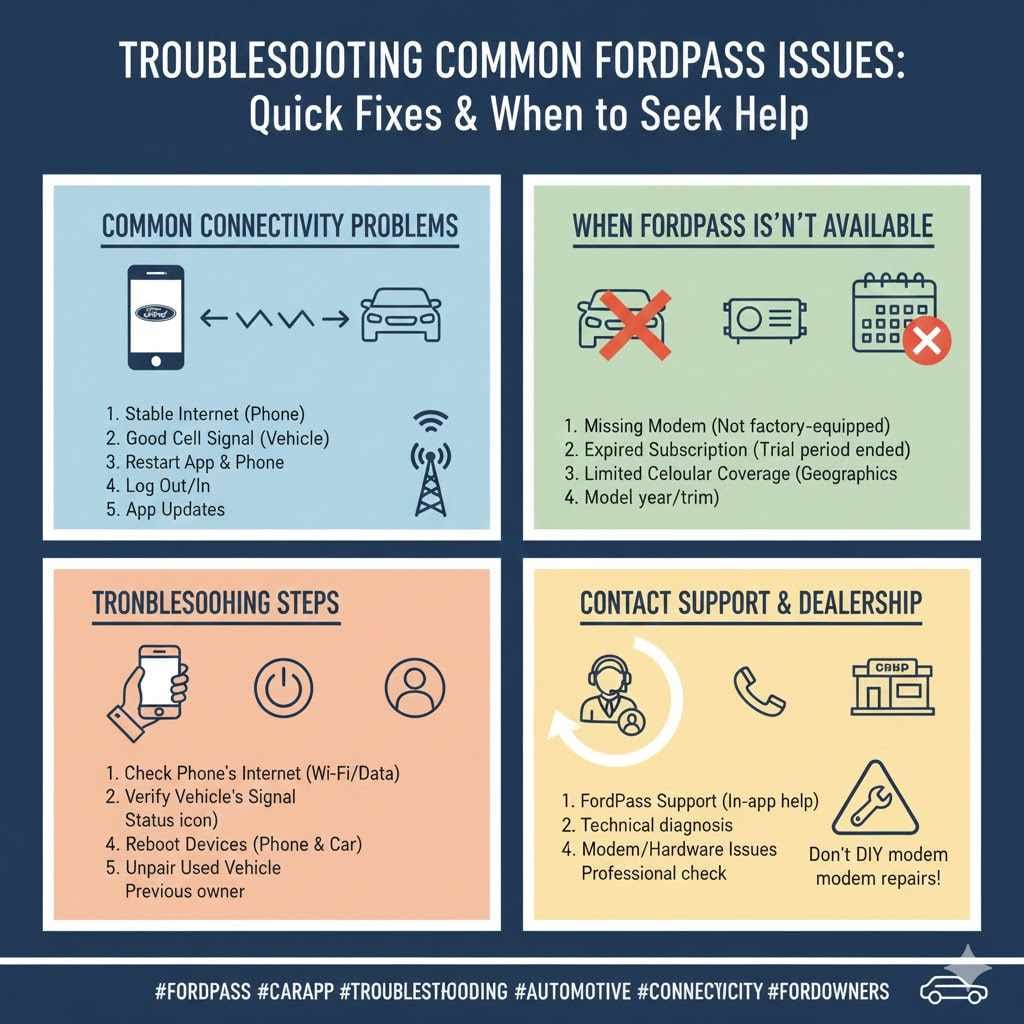
While FordPass is generally reliable, you might encounter a few common issues. The most frequent problem is simply that the app isn’t connecting to the vehicle. This can happen for various reasons.
One common fix is to ensure your phone has a stable internet connection (Wi-Fi or cellular data). Also, check that your vehicle’s modem has a good cellular signal. Poor signal strength can prevent communication.
Another step is to try restarting both the FordPass app and your smartphone. Sometimes, a simple reboot can resolve temporary glitches. If the issue persists, try logging out of the FordPass app and logging back in.
Ensure your FordPass app is updated to the latest version, as updates often contain bug fixes. If you’ve recently acquired a used Ford, make sure the previous owner has unpaired the vehicle from their FordPass account. If you still face problems, contacting FordPass support or your dealership is the best recourse.
When FordPass Might Not Be Available
There are situations where FordPass might not be available or fully functional. Firstly, as discussed, if your vehicle was not equipped with the FordPass Connect modem from the factory, you cannot use the system. There is no aftermarket solution to add this functionality.
Secondly, for some older vehicles that were equipped with FordPass Connect, the service subscription may have expired. FordPass Connect often comes with a trial period, after which a paid subscription is required to maintain full functionality, especially for features like the Wi-Fi hotspot.
Thirdly, in certain geographical areas with very limited cellular coverage, the FordPass system might experience intermittent connectivity issues. The availability of features also depends on your specific vehicle’s model year and trim. Some advanced features might be exclusive to newer or higher-end models.
Frequently Asked Questions
Question: How do I know if my Ford has FordPass Connect
Answer: You can check by looking for a FordPass tile in your car’s infotainment system, checking your VIN on Ford’s website, reviewing your original vehicle purchase documents, or consulting your owner’s manual. Dealerships can also confirm for you.
Question: Can I add FordPass to a car that doesn’t have it
Answer: No, FordPass connectivity requires a specific hardware modem installed in the vehicle from the factory. It cannot be added to vehicles that were not originally equipped with it.
Question: What are the main features of FordPass
Answer: Key features include remote start and stop, lock and unlock, vehicle location, fuel level monitoring, maintenance reminders, parking assistance, and access to your owner’s manual.
Question: Is FordPass free to use
Answer: The FordPass app itself is free to download. Some connected services, like the Wi-Fi hotspot, may require a paid subscription after an initial trial period.
Question: How often should I update the FordPass app
Answer: It is recommended to keep the FordPass app updated to the latest version. Updates often include bug fixes, performance improvements, and new features for a better user experience.
Summary
You’ve learned how to check if your car has FordPass. By looking at your car’s screens, checking its VIN, or reviewing your manual, you can easily confirm its presence. If your car is equipped, setting up the FordPass app unlocks many convenient features for your daily driving.
Enjoy your connected Ford. See also how to stop a ford car alarm that won’t shut off.
Products related to this article
Sponsored / affiliate links. As an Amazon Associate I earn from qualifying purchases. I may earn additional commission from eligible campaigns.