
Yes, you absolutely can track your car using the My Chevrolet (MyChevy) app, primarily through the built-in OnStar services. This feature allows you to see your vehicle’s real-time location right on your smartphone, provided your car is equipped with the necessary subscription and remote services are active.
Have you ever parked your car in a massive parking lot and instantly forgotten where you left it? Or maybe you’re letting a family member borrow your vehicle and you want peace of mind while they are driving. It’s a common feeling, and thankfully, modern technology makes it easy to stop worrying. If you drive a newer Chevrolet, the MyChevy mobile application is a powerful tool designers built just for you.
It feels complicated when you first look at all the buttons and menus, but I promise, finding your car’s location is simpler than changing the wiper blades. We are going to walk through exactly how to set this up and use it, removing all the confusing jargon. By the time we are done, you’ll feel completely confident knowing where your Chevy is at all times. Let’s unlock these essential tracking secrets together.
The Power of Tracking: Why the MyChevy App Is Your Vehicle’s Digital Key
The MyChevy app is much more than just a way to check your tire pressure. It’s a direct line of communication between you and your actual vehicle. For many Chevy owners, the key to location tracking lies within an often misunderstood but powerful feature: OnStar.
Think of OnStar as the digital brain connecting your car to the internet and to your phone. While the app lets you unlock doors or check fuel levels, the ability to pinpoint your car’s GPS location usually requires an active OnStar subscription that includes Connected Services or a specific remote access plan.
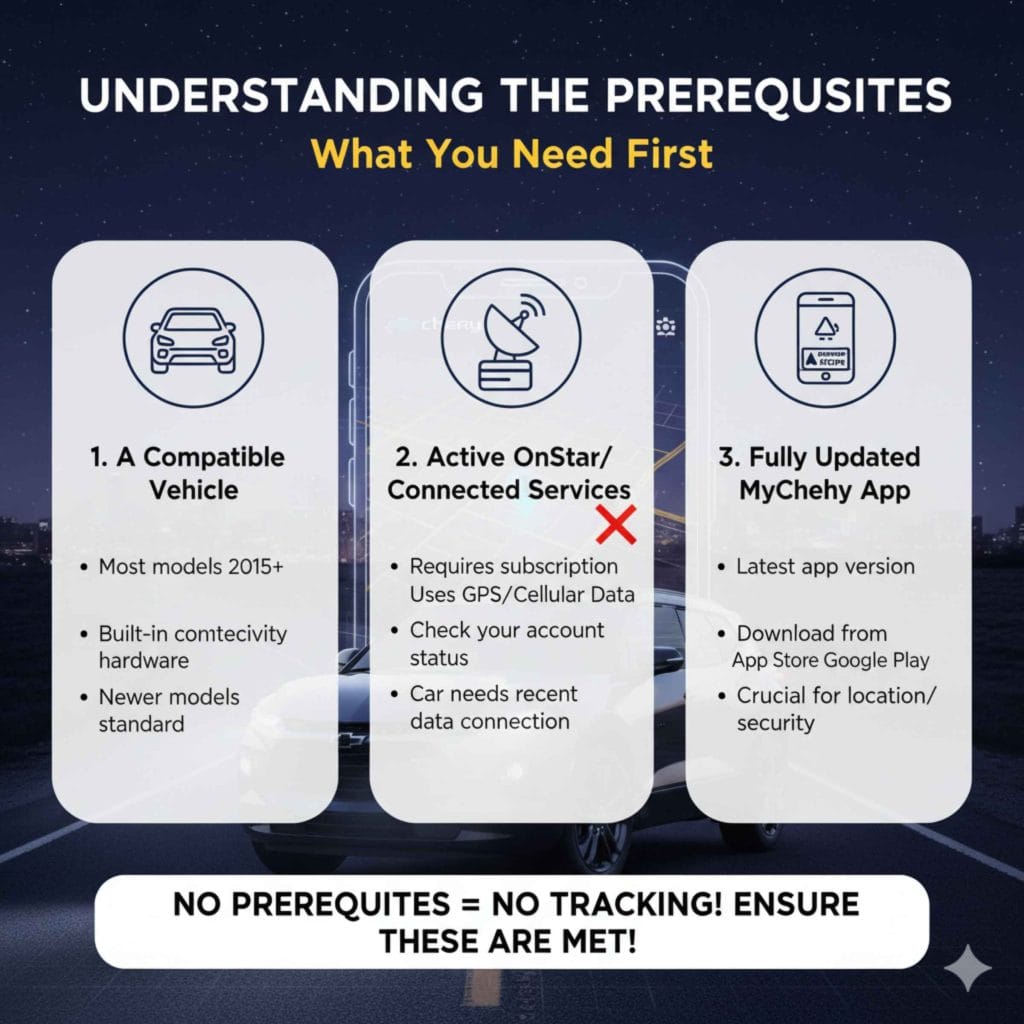
Understanding the Prerequisites: What You Need First
Before you can see your car magically appear on a map, a few boxes need to be checked. If these prerequisites aren’t met, the tracking feature simply won’t work, no matter how many times you refresh the app. This is often the number one reason people think the feature is broken.
1. A Compatible Chevrolet Vehicle
Most Chevrolet models from about 2015 onward come with some level of built-in connectivity hardware. Newer models usually have these features standard. Older models might require hardware retrofitting, though this is rare for basic location services.
2. An Active OnStar or Connected Services Subscription
This is the big one. Tracking your car’s real-time location relies on GPS and cellular data transmitted through the OnStar system. If your free trial has expired and you haven’t renewed a plan that includes remote functions, the app might show you other data (like oil life) but it cannot pinpoint the location.
- Check Your Status: Log into your OnStar account online or call OnStar support to verify your subscription level.
- Data Connection: The car must have used cellular data recently. If the car has been sitting completely untouched for months without battery power, the initial refresh might take longer.
3. The Fully Updated MyChevy App
Ensure you have the latest version of the My Chevrolet app downloaded from the Apple App Store or Google Play Store. Older versions often miss crucial updates needed for new location services or improved security protocols.
Step-by-Step Guide: How to Track Your Car Using the MyChevy App
Once you are certain you have the right subscription and the right app version, the actual tracking process is straightforward. Follow these steps carefully—it should only take a minute or two.
Step 1: Open the MyChevy App and Log In
Launch the application on your smartphone. Enter your credentials. If you haven’t set up your account yet, you will need your VIN (Vehicle Identification Number) and an active OnStar account to link the vehicle successfully.
Step 2: Locate the Vehicle Overview Screen
The home screen generally displays a picture or summary of your primary linked vehicle. If you have multiple vehicles linked, tap on the specific Chevy you wish to track.
Step 3: Find the Location Feature
The layout changes slightly with updates, but you are generally looking for one of two main icons or tabs:
- Map View: Often present directly on the main dashboard widget.
- Vehicle Status/Controls: Look for a menu item often labeled “Status,” “Remote Commands,” or a specific map icon.
Step 4: Initiate the Location Request
Tap on the map icon or the “Find My Vehicle” option. The app will send a command over the cellular network to your car’s OnStar module, prompting it to report its current GPS coordinates back to your phone.
Step 5: Read the Map Display
Within a few seconds, the app should display a map centered on your vehicle’s exact location. Most apps will show:
- A marker showing the car’s precise spot.
- The street address or nearest intersection.
- The time the location data was last refreshed.
Pro Tip for Accuracy: If the location seems slightly off, you can usually refresh the map view by pulling down on the screen (the standard mobile refresh gesture) or tapping a dedicated refresh button within the map interface.
Advanced Tracking: Setting Up Geofence Alerts (Curfew and Arrival Zones)
The real magic of tracking isn’t just finding a car you lost in the mall parking lot; it’s about setting boundaries for when and where your vehicle should be. Chevy calls these features “Alerts” or sometimes integrates them into the OnStar Guardian App features, depending on your subscription level.
What is a Geofence?
A geofence is a virtual boundary you draw on a map using the app. If your vehicle crosses this electronic line—either entering or exiting—you receive an immediate notification on your phone.
How to Set Up Parking Radius and Curfew Alerts
This process is extremely helpful for monitoring teenage drivers or ensuring your vehicle stays in a specific zone, like your driveway overnight.
- Navigate to Alerts: In the MyChevy app menu, look for “Alerts” or “Notifications Preferences.”
- Select Geofence/Location Alert: Choose the option to create a new location-based alert.
- Define the Area: Use your finger to draw a circle or shape around the desired area on the map (e.g., your house, your mechanic’s shop).
- Set the Trigger: Decide if you want an alert when the car enters this zone, leaves the zone, or both.
- Set Time Restrictions (Curfew): If desired, you can specify that this alert only activates during certain hours (e.g., alert me if the car leaves the home geofence between 10 PM and 6 AM).
- Save and Confirm: Save the alert. Ensure push notifications are enabled for the MyChevy app on your phone settings so the alert actually reaches you.
Utilizing these location alerts moves the MyChevy app from a simple finder tool to a proactive safety and monitoring system. For more deep dives into advanced vehicle alerts, GM often posts tutorials on official support pages, referencing connectivity standards supported by groups like the Telematics Research Center at UC San Diego regarding in-vehicle communication systems.
Troubleshooting Common Tracking Issues: When the Map Stays Blank
It’s frustrating when you try to track your car and the app just spins or shows an old location. Don’t panic! Most issues boil down to three simple things: power, connection, or subscription.
Common Problem 1: “Last Reported Location” is Old
This happens if the car’s battery is low or if it hasn’t been driven in a long time. The OnStar system uses a small amount of power to maintain connectivity. If the battery voltage drops too low, it goes into a deep sleep mode and cannot respond to tracking requests.
Common Problem 2: App Shows an Error Message
If you get a generic error, try the steps below:
- Check your phone’s data connection (Wi-Fi or Cellular).
- Force quit the MyChevy app and reopen it.
- Log out and log back into the MyChevy app.
Common Problem 3: Subscription Lapse
If you recently cancelled your OnStar or remote services, the app loses the authorization to request GPS data. You must contact GM customer service or OnStar to reactivate the necessary services.
Troubleshooting Checklist Table
Use this quick reference chart when you run into connection trouble:
| Issue Encountered | Likely Cause | Quick Fix |
|---|---|---|
| Location is hours old. | Car battery low or unit is asleep. | Drive the car for 15 minutes to boost the battery, then request location again. |
| “Service Unavailable” error. | Subscription has expired or lapsed. | Call OnStar or check your billing portal online. |
| App crashes when viewing map. | Outdated app or phone OS issue. | Update the MyChevy app in your phone’s app store. |
| Car icon is visible but won’t move. | Temporary poor cellular signal in the car’s location. | Wait 5 minutes and try refreshing the map display. |
Security and Privacy: What Chevy Knows About Your Driving
It is completely natural to wonder about the privacy implications when an app knows exactly where your car is 24/7. It’s important to understand that this technology is designed for owner convenience and security, but it adheres to strict data policies.
Data Security Protocols
General location data shared via the MyChevy app (when requested by the owner) is encrypted. General fleet statistics and usage data are anonymized. However, Chevrolet, through OnStar, maintains the legal right to access this data:
- For providing emergency services (like automatic crash response).
- If requested by law enforcement with a warrant or emergency necessity.
- If required to maintain or improve service quality (anonymized data).
Controlling Data Sharing
You have control over your data preferences, usually managed within your main OnStar account settings online, not always directly in the in-app tracking screen. Look for “Privacy Settings” or “Data Sharing Preferences.” You can often opt out of non-essential data sharing, but read the fine print—opting out of certain data sharing might disable specific convenience features, like personalized usage reports.
Comparing Tracking Methods for Chevy Owners
The MyChevy app is excellent, but it’s not the only way to locate your vehicle. Sometimes, you might need to use a dedicated OnStar service or even third-party tools.
MyChevy App vs. Dedicated OnStar Remote Key Fob
While the app is superior for detailed map viewing, older or lower-trim vehicles might rely more heavily on basic OnStar services.
| Feature | MyChevy App Tracking | Traditional OnStar Service Call |
|---|---|---|
| Location Detail | Precise GPS map view on your phone. | Verbal description from an advisor (e.g., “You are at 123 Main St.”). |
| Speed of Access | Instantaneous access via smartphone. | Requires calling a number and waiting for an advisor. |
| Cost Implication | Included with current subscription plans. | Generally included, but some one-off requests might incur fees on older plans. |
| Alerts (Geofencing) | Yes, self-managed push notifications. | No, requires manual check-ins. |
For simple, self-service location checking, the app wins every time. For emergencies where you need human intervention (like police dispatch), utilizing the built-in SOS button in your car or calling OnStar directly is the established emergency procedure.
Maximizing Value: Other Key Features Linked to Location Services
Once you have access to location tracking, you unlock other related features within the MyChevy app that boost convenience and safety. These functions often rely on knowing where your car is or its operational status.
Remote Start and Climate Control
If you’re tracking your car on a freezing morning, you can check that it’s still parked safely at home, and then use the app to start the engine remotely. This warms up the cabin and ensures the engine is running smoothly before you even step outside.
To use this:
- Verify the vehicle is in Park.
- Open the “Remote Commands” section.
- Tap “Start/Stop.”
- Wait for the confirmation light in the app.
Vehicle Diagnostics and Maintenance Scheduling
The app constantly monitors basic vehicle health metrics, like oil life, tire pressure, and fuel levels. If your car has automatically reported a diagnostic issue, the app sometimes suggests nearby authorized Chevrolet service centers based on your vehicle’s last known location. This integration saves you the hassle of looking up service stations manually.
Stolen Vehicle Assistance (SVA)
If the worst happens and your Chevy is stolen, the tracking feature becomes critical. If you report the theft to the police and provide them with the police report number, OnStar can work directly with law enforcement to track the vehicle’s GPS coordinates in real-time. This specialized service significantly increases the chances of recovery, often utilizing more advanced tracking capabilities than the standard owner app provides. This is a major benefit of maintaining an active subscription.
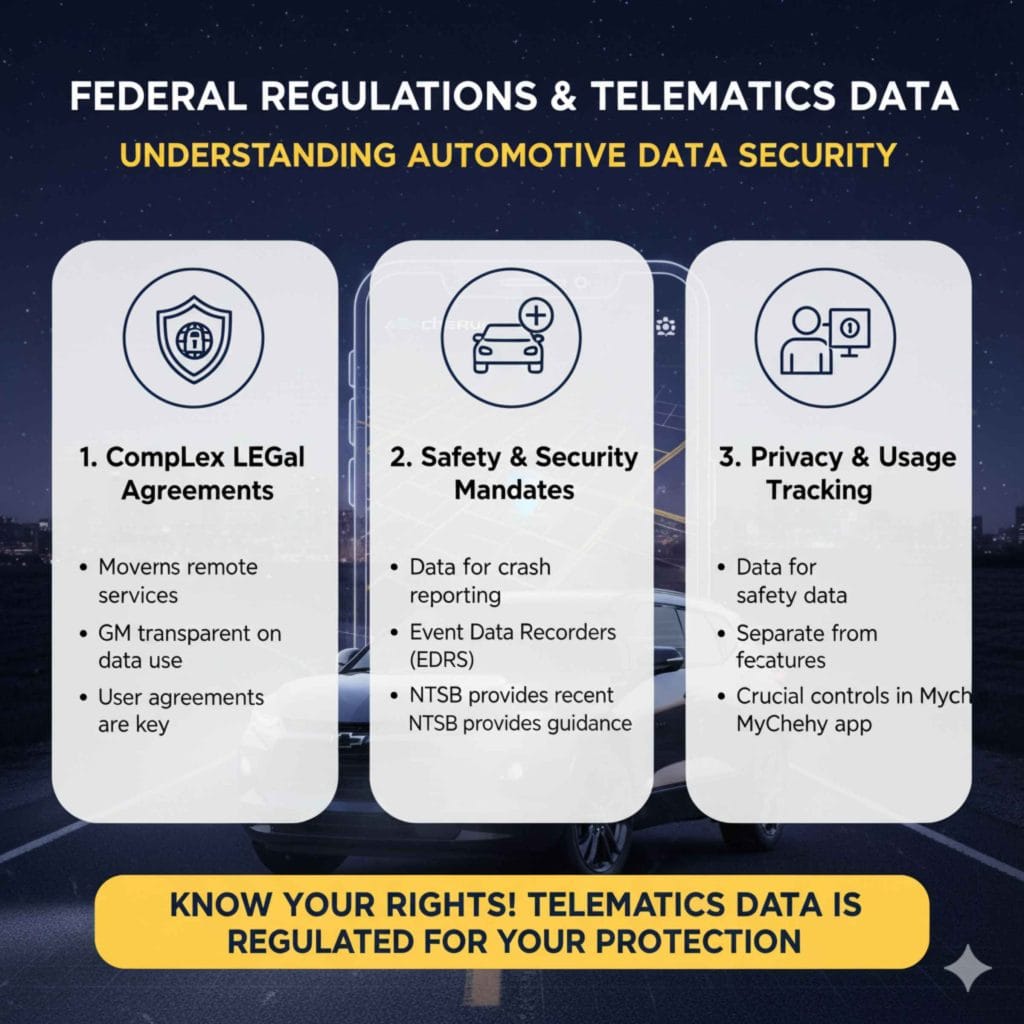
Federal Regulations and Telematics Data
It’s worth knowing that the remote services provided by GM fall under complex agreements regarding telematics data. While GM is generally transparent about what data is collected when the services are active, understanding the baseline is helpful. For instance, safety and security standards often mandate certain data retention for crash reporting, which is separate from standard usage tracking. For an overview of how automotive data security is generally approached in the US, resources from organizations like the National Transportation Safety Board (NTSB) often touch upon the growing importance of event data recorders (EDRs) and connected vehicle safety standards.
Frequently Asked Questions (FAQs) About MyChevy Tracking
Q1: Does tracking my car use a lot of battery power in the car itself?
No. Modern OnStar hardware is extremely efficient. The system only draws significant power when actively responding to a remote command (like turning on the tracking map) or when the car’s ignition is on. Normal passive monitoring uses very little power.
Q2: Can I track my Chevy if it’s out of the country?
Typically, tracking works best within your home country’s primary service area (e.g., US/Canada for US accounts). If the vehicle crosses international borders, cellular coverage becomes spotty, and international roaming charges might apply to the OnStar service itself, potentially interrupting location reporting.
Q3: What if I sell my car? How do I remove tracking access?
You must actively remove the vehicle from your MyChevy account settings online or by calling customer support. If you do not remove it, the new owner could potentially link it if they purchase a new OnStar subscription, though they might need security verification steps.
Q4: Is the location tracking feature the same as tile or AirTag?
No. Tile or AirTag uses Bluetooth triangulation and is reliant on nearby phones running the respective app. MyChevy tracking uses the car’s built-in, dedicated cellular connection and a powerful GPS antenna, meaning it works reliably whether or not any other person is near your car.
Q5: Why can I see the fuel level but not the location?
Fuel level and odometer readings are often considered low-security data and may be accessible even if your primary OnStar tracking subscription is inactive (sometimes via a basic, free connection tier). Real-time GPS requires the higher-level remote services subscription to be current.
Q6: Does my car need to be on for me to track it?
No, the car does not need to be running (ignition on). It only needs enough residual battery power to wake up the OnStar module and transmit its GPS coordinates when the app requests them.
Conclusion: Your Car, Your Control
Mastering the MyChevrolet app means taking proactive control over your vehicle’s security, monitoring, and convenience. We’ve covered the core secret: reliable location tracking hinges on an active OnStar plan that services the vehicle’s built-in modem.
Whether you are double-checking that your newly licensed teen made it safely to school, finding your ride after a long shopping trip, or setting up vital geofence alerts, the steps are clear. Remember to check your subscription status, ensure your phone has data, and utilize the map view.
By understanding these simple prerequisites and troubleshooting tips, you can rely on the MyChevy app as a trusted digital guide for your Chevrolet. Go ahead and open that app now—you now have the confidence and the knowledge to locate your vehicle quickly.