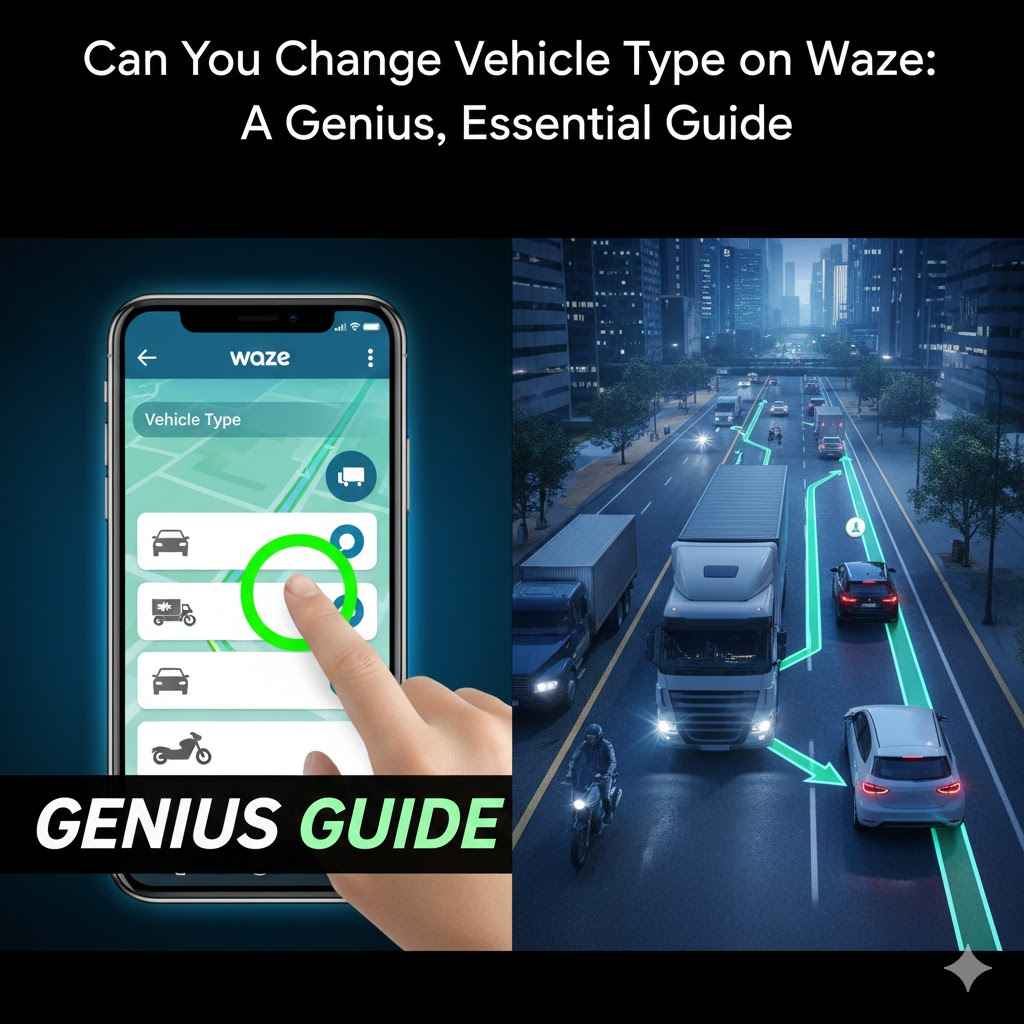
Can You Change Vehicle Type on Waze A Genius, Essential Guide
Yes, you can easily change your vehicle type on Waze to get more accurate routes and arrival times. The app allows you to choose between Private (car), Taxi, Motorcycle, and Electric Vehicle. Customizing this setting helps Waze find the best roads for your specific vehicle, such as routes with EV chargers or lanes accessible to motorcycles.
Have you ever used Waze and felt like it sent you down a road that just wasn’t right for your car? Maybe it was a tight street better suited for a scooter, or it missed a shortcut only a taxi could take. Many drivers don’t realize that Waze can be customized for their specific ride. It’s a small setting that makes a huge difference.
If you’ve ever been frustrated by a tricky route, you’re not alone. But don’t worry, the fix is incredibly simple. We’re here to walk you through exactly how to tell Waze what you’re driving. In this guide, we’ll show you step-by-step how to change your vehicle type for a smoother, smarter, and safer journey. Let’s get started!
Why Bother Changing Your Vehicle Type in Waze?
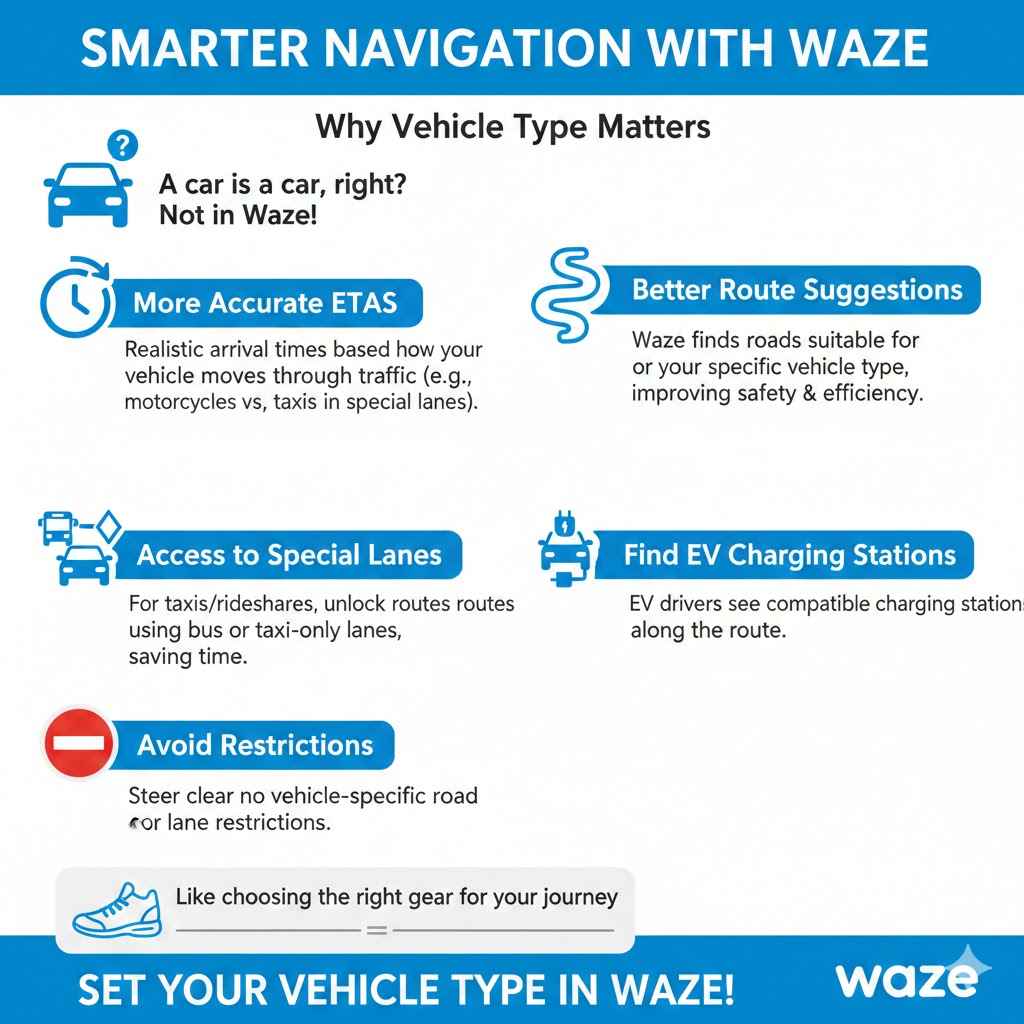
You might think, “A car is a car, right? Why does Waze need to know?” But telling Waze what you’re driving unlocks a smarter navigation experience. It’s like giving your GPS a little more information so it can do its job better. When your vehicle type is set correctly, Waze can tailor its directions just for you.
Here are the key benefits of keeping your vehicle setting updated:
- More Accurate ETAs: Motorcycles can often navigate through traffic differently than cars. Taxis may have access to special lanes. By knowing your vehicle, Waze can provide a much more realistic Estimated Time of Arrival (ETA).
- Better Route Suggestions: The best route for a sedan isn’t always the best for a motorcycle. Waze can find routes with roads that are more suitable for your specific vehicle, making your drive safer and more efficient.
- Access to Special Lanes: If you’re a taxi or rideshare driver, setting your vehicle type can give you routes that use bus or taxi-only lanes, saving you valuable time.
- Find EV Charging Stations: For electric vehicle drivers, this is a game-changer. Waze can show you compatible charging stations along your route, so you never have to worry about running out of power.
- Avoid Restrictions: Some roads or lanes have vehicle-specific restrictions. Setting your vehicle type helps you avoid accidentally entering a lane you shouldn’t be in.
Think of it this way: you wouldn’t wear running shoes for a hiking trip. Choosing the right vehicle in Waze is just like choosing the right gear for your journey. It prepares you for the road ahead and makes the entire trip smoother.
How to Change Your Vehicle Type on Waze: A Simple Step-by-Step Guide
Changing your vehicle in Waze is quick and easy. It takes less than a minute, and you only have to do it once unless you switch vehicles. Just follow these simple steps. The process is nearly identical for both iPhone and Android users.
- Open the Waze App: Tap the Waze icon on your phone to launch the application.
- Go to “My Waze”: Look for the “My Waze” button at the bottom of the screen. Tap on it to open your personal menu.
- Access Settings: In the “My Waze” screen, look for a gear icon, usually in the top-left corner. This is the Settings menu. Tap on it.
- Select “Vehicle Details”: Scroll down through the settings options until you find “Vehicle Details.” Tap on it to open the vehicle customization screen.
- Choose “Vehicle Type”: Inside “Vehicle Details,” the first option you’ll see is “Vehicle Type.” This is where the magic happens. Tap on it.
- Pick Your Vehicle: You will now see a list of available vehicle types. Select the one that matches what you are driving. The options typically include:
- Private (for standard cars, SUVs, and personal trucks)
- Taxi (for registered taxis and some rideshare vehicles)
- Motorcycle
- Electric
- Confirm Your Selection: After tapping your choice, Waze will automatically save it. There is usually no “save” button to press. You can simply go back to the map, and your new vehicle type will be active.
That’s it! Your Waze app is now optimized for your specific vehicle. It will start using this information immediately to find better routes for you.
Understanding Waze’s Vehicle Options
Waze offers a few distinct vehicle types, each designed to fine-tune your navigation. Choosing the right one ensures Waze gives you the most relevant directions. Here’s a breakdown of what each option does for you.
| Vehicle Type | Best For | Key Features & Benefits |
|---|---|---|
| Private | Standard cars, SUVs, minivans, and personal pickup trucks. | This is the default setting. It provides standard routing based on regular traffic laws and road access for passenger vehicles. |
| Taxi | Licensed taxi drivers and some rideshare drivers (e.g., Uber, Lyft). | Unlocks routes that may include taxi-only or bus lanes, potentially offering faster routes in congested urban areas. Check local laws to ensure you’re eligible to use these lanes. |
| Motorcycle | Two-wheeled motorcycles and scooters. | Provides routes that may be more suitable for motorcycles, potentially including narrower roads. It also calculates ETAs based on a motorcycle’s ability to navigate traffic differently. |
| Electric | All-electric vehicles (EVs). | This is the most specialized setting. It allows you to find and add stops at compatible EV charging stations along your route, making long trips worry-free. |
Choosing the correct setting is more than just a label. It directly impacts the algorithm Waze uses to calculate your route. For example, a taxi route in New York City might be completely different from a private car route during rush hour.
A Deep Dive into Special Vehicle Settings
Some vehicle settings in Waze come with extra customizations that are incredibly useful. Let’s explore the powerful features available for EV, Motorcycle, and Taxi drivers.
For the Electric Vehicle (EV) Driver
If you drive an electric car, the “Electric” vehicle type is a must-use feature. It turns Waze into an essential tool for managing your range and planning trips. Once you select “Electric,” you can access additional settings:
- Find Charging Stations: Waze will display EV charging stations on the map. You can search for them directly or have Waze suggest them along your route.
- Filter by Plug Type: Not all chargers are the same. Waze allows you to specify which plug types your car uses (e.g., J1772, CCS, CHAdeMO, Tesla). This ensures you’re only routed to stations you can actually use. You can find more information about plug types at the U.S. Department of Energy’s Alternative Fuels Data Center.
- Filter by Charging Network: If you have a membership with a specific network like Electrify America, EVgo, or ChargePoint, you can tell Waze to prioritize those stations.
To set this up, go to Settings > Vehicle Details > Electric Vehicles. From there, you can add your preferred networks and plug types. This simple step removes the “range anxiety” that many EV drivers feel.
For the Motorcycle Rider
Riding a motorcycle is a different experience than driving a car, and Waze recognizes that. The “Motorcycle” setting adjusts routing to favor roads that might be more enjoyable or efficient for a bike. While Waze doesn’t officially support features like avoiding highways specifically for motorcycles, it does adjust its ETA calculations.
The routing algorithm for motorcycles can:
- Provide More Accurate ETAs: Waze knows that a motorcycle can sometimes move through slow traffic more easily than a car (a practice known as lane filtering or splitting, which is only legal in some areas). This results in more realistic arrival times.
- Potentially Favor Different Roads: In some regions, the algorithm may suggest routes that are better suited for two-wheeled vehicles, though this is less pronounced than the EV or Taxi features.
This setting helps ensure your estimated arrival time is more reliable, which is a huge benefit on its own.
For the Taxi and Rideshare Professional
Time is money for professional drivers. The “Taxi” setting in Waze is designed to give you a competitive edge. By identifying yourself as a taxi, you allow Waze to consider routes that use lanes restricted to commercial or high-occupancy vehicles.
Key benefits include:
- Access to Bus and Taxi Lanes: In many major cities, taxis are permitted to use bus lanes. Waze can incorporate these into your route, helping you bypass traffic jams and get your passengers to their destinations faster.
- Smarter Airport and Venue Routing: Waze may offer better navigation around large venues, like airports or stadiums, that have dedicated lanes or drop-off points for taxis and rideshare vehicles.
It’s crucial to remember that you should only use this setting if your vehicle is legally authorized to use these special lanes. Misusing this feature could result in a traffic ticket. Always follow local traffic laws, which you can often find on your state’s Department of Transportation website.
The Big Question: What About Trucks, RVs, and Trailers?
This is one of the most common questions from Waze users, and the answer is very important: Waze is NOT designed for large vehicles like commercial trucks, RVs, or vehicles towing trailers.
Using Waze to navigate a large vehicle is dangerous and can lead to serious problems. Standard navigation apps like Waze do not have information about:
- Low Bridge Clearances: Waze won’t warn you about a bridge that is too low for your truck or RV.
- Weight-Restricted Roads: Many smaller roads have weight limits, and Waze will not know to avoid them.
- Sharp Turns or Narrow Roads: A route that is perfectly fine for a car might be impossible for a large RV or semi-truck to navigate.
- Roads with Commercial Vehicle Restrictions: Many parkways and residential streets prohibit commercial trucks. Waze doesn’t account for these restrictions.
Forcing a large vehicle down a route designed for a car can lead to getting stuck, causing major traffic backups, damaging your vehicle, or causing an accident. So, what should you do instead?
You need to use a GPS application specifically designed for trucks and RVs. These apps include the critical data needed for safe navigation. While Google owns Waze, its other navigation app, Google Maps, has also historically lacked dedicated truck or RV modes. It’s best to use a specialized tool for the job.
Waze vs. Truck-Specific GPS Apps
| Feature | Waze | Dedicated Truck/RV GPS Apps (e.g., CoPilot GPS, Trucker Path) |
|---|---|---|
| Low Bridge Alerts | No | Yes |
| Weight Limit Warnings | No | Yes |
| HAZMAT Route Guidance | No | Yes (in most) |
| Turn Radius Awareness | No | Yes |
| Real-Time Traffic | Yes (Crowdsourced) | Yes (Often from multiple sources) |
| Truck Stops & Weigh Stations | No | Yes |
The bottom line is clear: if you are driving anything larger than a standard passenger van or pickup truck, do not rely on Waze for navigation. Invest in a dedicated GPS solution to ensure your safety and avoid costly mistakes.
Fine-Tune Your Drive: More Waze Settings You Should Know
Beyond vehicle type, Waze offers several other settings that can make your drive even better. Customizing these options helps Waze understand your personal preferences.
You can find these in Settings > Navigation:
- Toll & HOV Passes: Do you have a pass like E-ZPass, FasTrak, or SunPass? You can add it here. Waze will then know it can route you through toll roads and express lanes without you having to stop. You can also specify if you have an HOV (High Occupancy Vehicle) pass to get routed through carpool lanes.
- Avoid Toll Roads: If you prefer to save money and don’t mind a potentially longer drive, you can tell Waze to avoid toll roads altogether.
- Avoid Freeways: Want a more scenic drive? You can instruct Waze to avoid major freeways and stick to surface streets.
- Avoid Difficult Intersections: In some cities, Waze offers a feature to avoid complex or dangerous intersections, which is great for new drivers or anyone who wants a less stressful trip.
- Fuel Preferences: In the “Vehicle Details” section, you can also set your preferred fuel type and gas station brands. Waze will then show you prices at nearby stations that match your preferences.
Taking a few moments to explore these settings can make Waze feel like a personal navigator built just for you.
Troubleshooting: When Waze Settings Don’t Cooperate
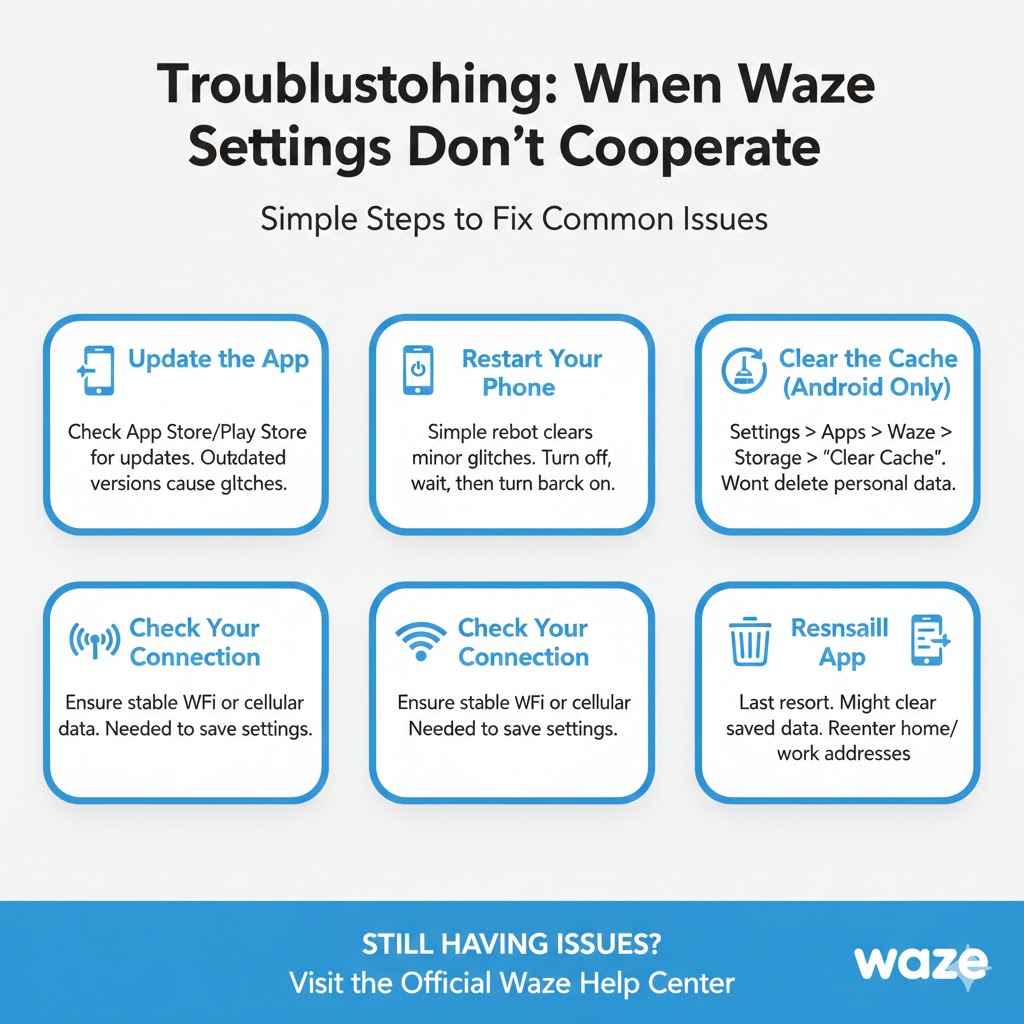
Sometimes technology doesn’t work as expected. If you’re having trouble changing your vehicle type or if the settings aren’t saving, here are a few simple things to try:
- Update the App: The most common cause of issues is an outdated app. Go to the Apple App Store or Google Play Store and check if there is an update available for Waze.
- Restart Your Phone: It sounds simple, but restarting your device can clear up many minor glitches. Turn your phone off completely, wait a moment, and then turn it back on.
- Clear the Cache (Android Only): If you’re on an Android device, you can try clearing the app’s cache. Go to your phone’s Settings > Apps > Waze > Storage, and tap “Clear Cache.” This won’t delete your personal data like home and work addresses.
- Check Your Connection: Waze needs an internet connection to save settings. Make sure you are connected to Wi-Fi or have a stable cellular data connection.
- Reinstall the App: If nothing else works, you can try uninstalling and reinstalling Waze. Just be aware that this might clear some of your saved settings, so you may need to re-enter your home/work addresses and preferences.
These steps solve the vast majority of problems. If you’re still having issues, you can visit the official Waze Help Center for more support.
Frequently Asked Questions (FAQ)
1. Does Waze have a truck mode?
No, Waze does not have a mode for commercial trucks, RVs, or other large vehicles. Using Waze for truck navigation is not recommended because it doesn’t account for low bridges, weight limits, or road restrictions for large vehicles.
2. Can I set my vehicle to “RV” on Waze?
No, Waze does not have an RV or camper setting. Similar to trucks, RVs require specialized navigation that considers vehicle height, length, and weight. You should use a dedicated RV GPS app for safe routing.
3. How does the Waze motorcycle setting work?
The motorcycle setting primarily adjusts ETA calculations, as motorcycles can often navigate through traffic differently than cars. It may also slightly alter route suggestions to favor roads more suitable for two-wheeled vehicles, but its main benefit is providing more realistic arrival times.
4. Will changing my vehicle type help me avoid traffic?
Yes, in some cases. For example, if you set your vehicle to “Taxi,” Waze may route you through taxi-only lanes that bypass general traffic. For “Motorcycle,” the ETA will be more accurate in heavy traffic. However, the biggest factor in avoiding traffic is Waze’s real-time, crowdsourced data, which works for all vehicle types.
5. Can I add more than one vehicle in Waze?
Currently, Waze only allows you to have one active vehicle type at a time. If you frequently switch between driving a car and a motorcycle, for example, you will need to manually change the vehicle type in the settings before each trip.
6. What does the “Private” vehicle type mean?
“Private” is the default setting in Waze and is intended for all standard passenger vehicles. This includes sedans, SUVs, minivans, and personal pickup trucks. It provides standard navigation without any special considerations for lanes or vehicle size.
7. Why can’t I see the “Electric” vehicle option?
The availability of certain features can sometimes vary by region. If you don’t see the “Electric” vehicle option, first make sure your app is fully updated. If it’s still missing, the feature may not have been fully rolled out in your area yet.
Conclusion: Your Waze, Your Way
Customizing your vehicle type in Waze is a simple but powerful way to improve your navigation experience. It’s a perfect example of how a small adjustment can lead to a big improvement in your daily drives. By telling Waze whether you’re in a car, on a motorcycle, or driving an EV, you’re giving it the information it needs to provide you with the safest, fastest, and most accurate route possible.
You are now equipped with the knowledge to take full control of your Waze settings. No more frustrating routes or inaccurate arrival times. Take a moment before your next trip to ensure your vehicle details are correct. You’ll be rewarded with a smarter, smoother, and more enjoyable journey every time you hit the road. Drive safely! See also why are cars considered female history behind the trend. See also how often are car models redesigned the real schedule.
Products related to this article
Sponsored / affiliate links. As an Amazon Associate I earn from qualifying purchases. I may earn additional commission from eligible campaigns.