
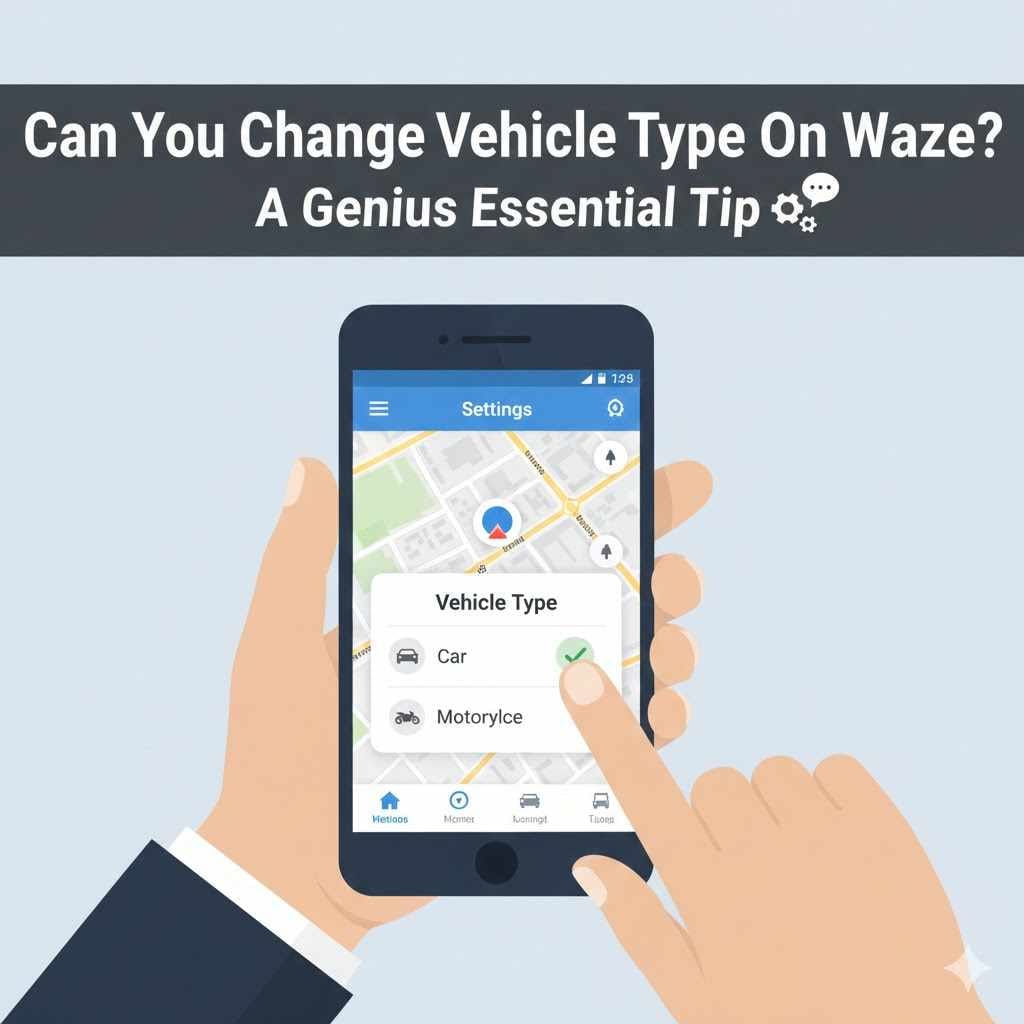
Yes, you can easily change your vehicle type on Waze to get more accurate routes. By going to Settings Vehicle details, you can select Private, Taxi, Motorcycle, or Electric. This simple change helps Waze find better routes, access special lanes, locate EV charging stations, and avoid restrictions, giving you a smarter and smoother drive.
Have you ever used Waze and found yourself on a road that just didn’t feel right? Maybe it was a narrow street better suited for a scooter, or a route that ignored a faster carpool lane. This happens more often than you think. Many drivers don’t realize that Waze gives you the power to tell it what you’re driving. This small setting can make a huge difference.
Don’t worry, fixing this is simple. You don’t need to be a tech expert. In this guide, I’ll show you exactly how to change your vehicle type on Waze. We’ll walk through each step together, making sure your app is perfectly set up for your car, motorcycle, or EV. Let’s get you on the best route every time.
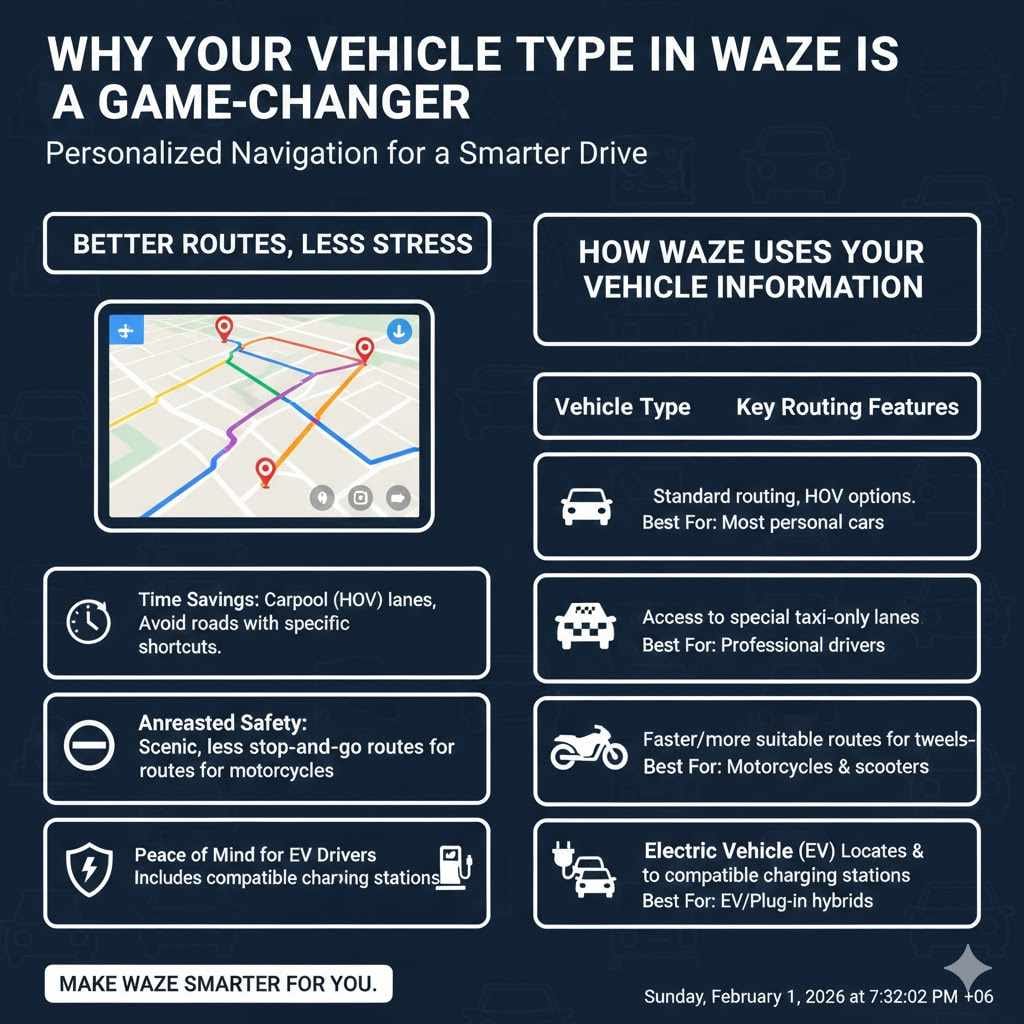
Why Your Vehicle Type in Waze Is a Game-Changer
You might think a map is just a map. But Waze is much smarter than that. It uses real-time information from other drivers to find the best path. When you tell Waze what kind of vehicle you’re driving, you unlock a whole new level of personalized navigation. It’s like giving your GPS a brain boost.
Think about it. A motorcycle can navigate tight spaces that a car can’t. An electric vehicle (EV) driver needs to think about charging stations, not gas stations. A taxi might have access to special lanes. When Waze knows these details, it stops treating you like every other car on the road and starts finding routes tailored just for you.
Better Routes, Less Stress
The main benefit is simply getting a better route. Setting your vehicle type correctly can lead to:
- Time Savings: Waze can direct you to carpool (HOV) lanes if you’re eligible, or find shortcuts that are great for motorcycles.
- Avoiding Hassles: It helps you avoid roads with specific restrictions, like those that ban commercial traffic if you’re driving a taxi for work.
- Increased Safety: For motorcyclists, Waze might suggest routes that are more scenic or have less stop-and-go traffic, which can be safer and more enjoyable.
- Peace of Mind for EV Drivers: Knowing your route can include compatible charging stations removes one of the biggest anxieties of driving an electric car.
How Waze Uses Your Vehicle Information
Waze takes the vehicle type you select and uses it to filter your navigation options. It’s not just a label; it actively changes the app’s routing algorithm. Here is a simple breakdown of what changes for each vehicle type.
| Vehicle Type | Key Routing Features | Best For |
|---|---|---|
| Private | Standard car routing, options for avoiding tolls and using HOV passes. | Most personal cars, SUVs, and minivans. |
| Taxi | May gain access to special taxi-only lanes in supported cities. | Professional drivers, rideshare drivers. |
| Motorcycle | Finds routes potentially faster or more suitable for two-wheeled vehicles. | Motorcycles and scooters. |
| Electric Vehicle (EV) | Locates and routes to compatible charging stations along your way. | Any battery-electric or plug-in hybrid vehicle. |
By making this one small adjustment in the settings, you are telling Waze to work smarter for you. It’s one of the easiest ways to improve your daily commute or next road trip.
Step-by-Step: How to Change Vehicle Type on Waze
Ready to customize your Waze experience? It only takes a minute. Let’s walk through the process together. These steps work for both iPhone and Android devices, as the Waze app is very similar on both.
Just open your Waze app and follow along.
Open Waze and Go to “My Waze”First, tap the Waze app icon on your phone to open it. Once the map loads, look for the “My Waze” button at the bottom of the screen. It usually has a little smiley face icon or your personal Waze mood icon. Tap on it.
Tap the Settings Gear IconAfter you tap “My Waze,” a new menu will slide up. At the top left corner of this menu, you’ll see a gear icon. This is the universal symbol for “Settings.” Tap that gear to open up all of Waze’s settings.
Find “Vehicle details”Now you’re in the main settings menu. You’ll see a list of options like “General,” “Map display,” and “Voice & sound.” Scroll down a little bit until you see the “Driving preferences” section. The option you are looking for is Vehicle details. Tap on it to proceed.
Choose Your “Vehicle type”This is the most important step! Inside “Vehicle details,” the very first option is Vehicle type. Tap on it, and you’ll see the list we discussed earlier: Private, Taxi, Motorcycle, and Electric. Simply tap the one that best describes what you are driving.
Customize Additional Settings (Optional but Recommended)While you’re in the “Vehicle details” menu, take a look at the other options. They can further refine your routes. You can add toll passes (like E-ZPass), specify if you can use HOV lanes, and even add any country-specific passes you might have, called vignettes. For EV drivers, this is also where you can add your specific plug types to find the right chargers.
That’s it! Waze will automatically save your changes. The next time you search for a destination, Waze will use your updated vehicle information to calculate the best route for you. You’ve just made your navigation app a whole lot smarter.
A Deeper Look at Waze’s Vehicle Options
Now that you know how to change your vehicle type, let’s explore what each option really does. Understanding these settings will help you get the most out of the Waze app and ensure every drive is as smooth as possible.
Private: The Standard Choice
This is the default setting for Waze. If you drive a regular car, sedan, SUV, or truck for personal use, this is the setting for you. It provides standard routing based on traffic, road closures, and police alerts. Even within this setting, you can customize your experience by telling Waze to avoid tolls, ferries, or freeways. It’s the reliable, one-size-fits-all option.
Taxi: For the Professionals
Are you a professional driver or do you drive for a rideshare service? The Taxi setting might be for you. In some major cities, taxis have access to special lanes or routes that are off-limits to private cars. By selecting “Taxi,” you tell Waze that you are eligible to use these lanes. Waze will then include them in its route calculations, potentially saving you a lot of time in heavy city traffic. Note that this feature is city-dependent, so its usefulness can vary based on where you drive.
Motorcycle: Freedom on Two Wheels
Riding a motorcycle is a different experience from driving a car, and your navigation should reflect that. The Motorcycle setting optimizes routes for two-wheelers. This can mean a few things:
- Different Route Calculations: Waze may prioritize routes that are more friendly to motorcycles. This could involve routes with fewer stops or roads that are more enjoyable to ride.
- Potentially Faster ETAs: Since motorcycles can sometimes navigate traffic more easily (where lane splitting is legal and safe), Waze may provide a more accurate Estimated Time of Arrival (ETA).
- Avoiding Certain Roads: It might help you avoid freeways if you’re on a smaller scooter that can’t handle high speeds.
This setting is perfect for anyone who prefers to travel on two wheels.
Electric Vehicle (EV): Power Up Your Route
This is one of the most powerful and important settings in Waze today. If you drive an EV, this feature is a must-use. When you select “Electric vehicle,” you unlock a suite of tools designed to eliminate “range anxiety”—the fear of running out of power before you reach a charger.
Here’s what you can do:
- Add Your Vehicle: You can often select your exact EV model from a list.
- Set Your Plug Types: Different EVs use different charging plugs. You can tell Waze exactly which plugs your car uses (like CCS, CHAdeMO, or Tesla’s NACS). This is crucial for finding compatible stations. For more information on different plug types, you can visit the U.S. Department of Energy’s guide on home charging and plug standards.
- Find Chargers: Waze will display compatible charging stations along your route. You can add a stop to a charger with just a tap.
This transforms Waze from a simple navigation app into an essential tool for any EV owner, making road trips and daily driving completely stress-free.
A Critical Note for Truck and RV Drivers
It is very important to understand that Waze is NOT designed for large vehicles like commercial trucks, semi-trucks, or RVs. While you can use it for general traffic information, you should never rely on it for primary navigation in a large vehicle. Standard car navigation apps like Waze do not account for critical factors like:
- Low bridge clearances
- Weight limits on roads and bridges
- Sharp turns that a large vehicle cannot make
- Roads where large vehicles are prohibited
Using Waze in a truck or RV can be dangerous and could lead to getting stuck or causing an accident. Drivers of these vehicles should always use a dedicated GPS system designed specifically for trucking or RVs.
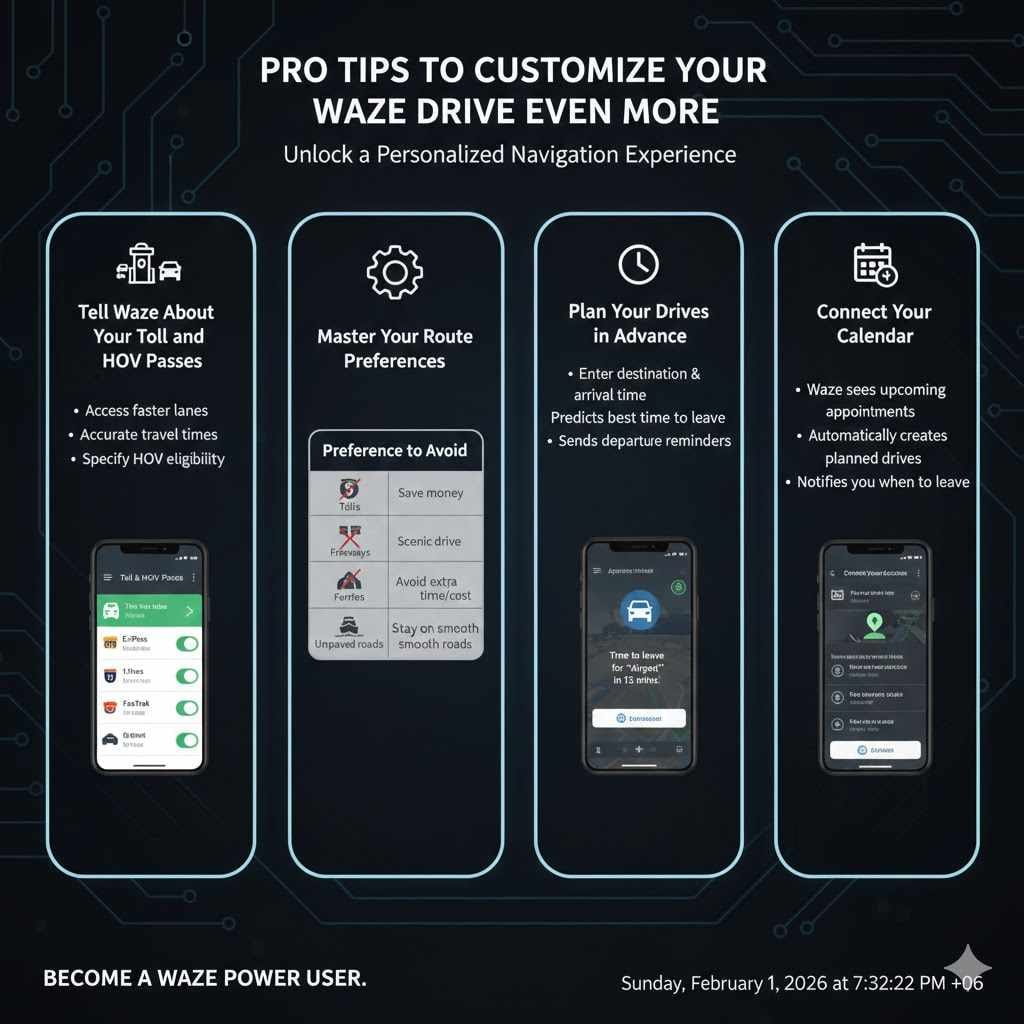
Pro Tips to Customize Your Waze Drive Even More
Changing your vehicle type is a great first step. But Waze has even more settings you can adjust to create the perfect drive. Here are a few pro tips to help you become a Waze power user.
Tell Waze About Your Toll and HOV Passes
Do you have an E-ZPass, FasTrak, or another toll pass? Let Waze know! In the same “Vehicle details” menu, you can go to “Toll & HOV passes.” Here, you can add any passes you own. When you do this, Waze can route you through faster toll lanes and give you more accurate travel times and toll cost estimates. If you’re eligible to use High Occupancy Vehicle (HOV) or carpool lanes, you can specify that here as well.
Master Your Route Preferences
Under Settings > Navigation, you can fine-tune how Waze finds your routes. You can tell the app to avoid certain things on all your drives. This is great for setting your permanent preferences.
| Preference to Avoid | Why You Might Use It |
|---|---|
| Tolls | If you always prefer to save money, even if the drive takes a little longer. |
| Freeways | For a more scenic drive on local roads or if you’re driving a vehicle not suited for highways. |
| Ferries | To avoid the extra time and cost associated with taking a ferry. |
| Difficult intersections | This feature helps you avoid complex or high-traffic intersections, which is great for new drivers. |
| Unpaved roads | Keeps you on smooth, paved roads and away from bumpy dirt or gravel paths. |
Plan Your Drives in Advance
Don’t just use Waze for immediate directions. The “Plan a drive” feature is incredibly useful. You can enter a destination and the time you need to arrive, and Waze will tell you the best time to leave based on predicted traffic. It will even send you a reminder when it’s time to go. This is perfect for getting to important appointments or the airport on time.
Connect Your Calendar
For the ultimate hands-free experience, you can allow Waze to connect to your phone’s calendar. When you do this, Waze will automatically see your upcoming appointments that have an address. It will create a planned drive for you and notify you when it’s time to leave for your next event. It’s like having a personal assistant for your travel.
By using these extra features, you move beyond basic navigation and turn Waze into a powerful tool that truly works for you and your vehicle.
Frequently Asked Questions (FAQ)
1. Can I use Waze for my RV or large commercial truck?
No, you should not rely on Waze for navigating a large vehicle like an RV, semi-truck, or bus. Waze is designed for standard passenger cars and does not account for low bridges, weight limits, or sharp turns. Using it can be unsafe. Always use a dedicated GPS system made for large vehicles.
2. Will changing my vehicle to “Motorcycle” always give me a faster route?
Not always. The “Motorcycle” setting helps Waze find routes that may be more suitable for a bike, which can sometimes be faster in traffic. However, the biggest factor in your route time is always real-time traffic, which affects all vehicles. It’s best to think of this setting as providing a “better” or more appropriate route, not necessarily a guaranteed faster one.
3. How do I tell Waze I can use carpool (HOV) lanes?
You can set this in the app. Go to My Waze > Settings > Vehicle details > Toll & HOV passes. Here, you can add your specific pass or indicate that you are eligible to use HOV lanes. Waze will then consider these lanes when planning your route.
4. Why isn’t Waze showing me EV charging stations after I set my vehicle to Electric?
First, double-check that your vehicle type is saved as “Electric.” Next, go into Settings > Vehicle details > Electric vehicles and make sure you have added your specific plug types. Waze will only show you chargers that are compatible with the plugs you have selected. If no plugs are selected, it may not show any stations.
5. Will Waze remember my vehicle type for every drive?
Yes, once you set your vehicle type, Waze will remember it and use it as the default for all future drives. You only need to change it again if you switch to driving a different type of vehicle.
6. Can I add more than one vehicle in Waze?
Currently, Waze does not have a feature to save a “garage” of multiple vehicles that you can quickly switch between. You have to manually change the vehicle type in the settings each time you drive a different vehicle (e.g., switching from your car to your motorcycle).
7. What does the “Vignette” setting mean in Waze?
A vignette is a type of road tax or toll required to use the motorways in some countries, primarily in Europe (like Austria or Switzerland). It’s usually a sticker you place on your windshield. In Waze, under Toll & HOV passes, you can tell the app which country-specific vignettes you have. This allows Waze to route you on roads that require them, avoiding fines.
Conclusion: Drive Smarter, Not Harder
And there you have it. Changing your vehicle type in Waze is a simple, quick step that can completely transform your driving experience. It’s one of those “set it and forget it” features that pays off on every single trip. You’re no longer getting a generic route; you’re getting a smart route, personalized for the wheels you’re on.
Whether you’re saving time in the carpool lane, finding the perfect scenic route on your motorcycle, or confidently locating the next charging station for your EV, you are now in full control. You’ve told Waze what it needs to know to be the best co-pilot possible.
So take a moment to check your settings. Make sure Waze knows what you’re driving. It’s a small tweak that delivers big results, making every journey a little bit easier, a little less stressful, and a whole lot smarter. Happy driving!