
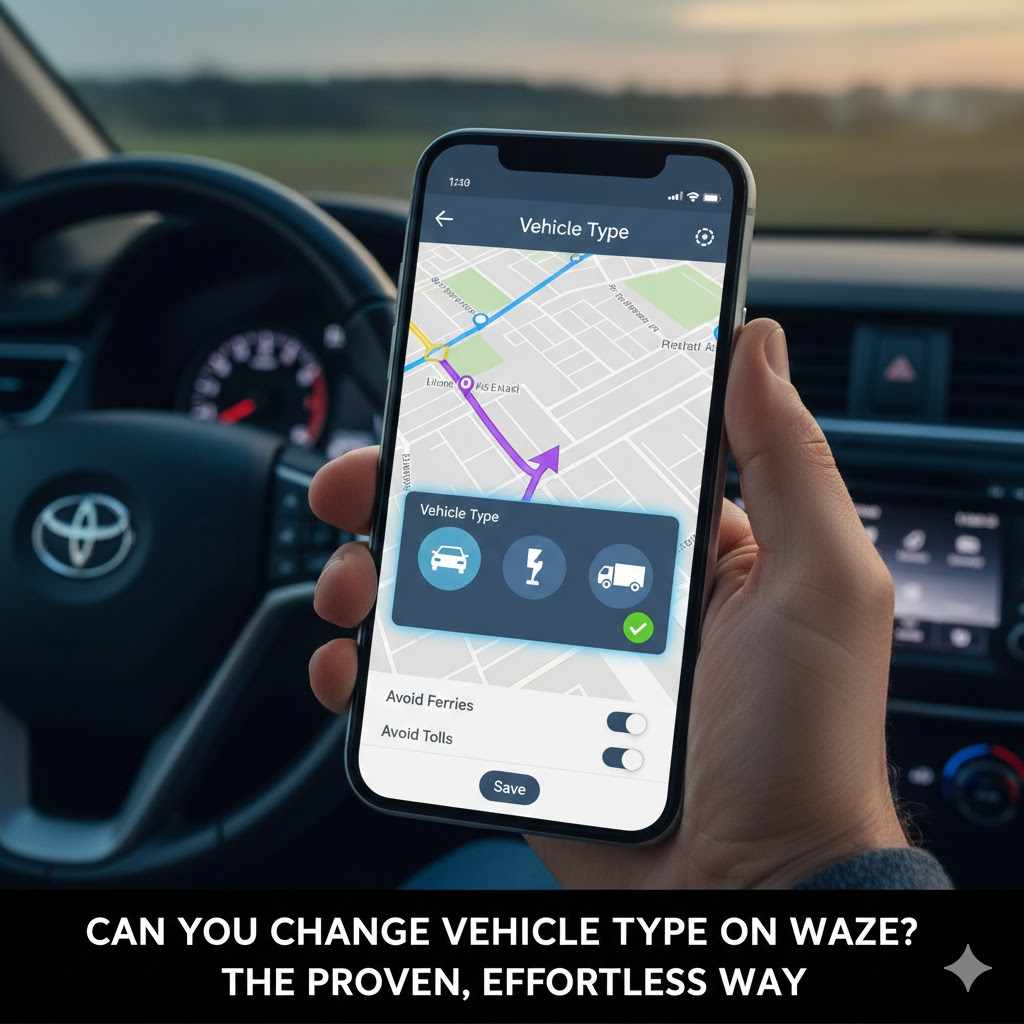
Yes, you can easily change your vehicle type on Waze. Simply open the app, tap “My Waze,” go to Settings, then “Vehicle details,” and select “Vehicle type.” Choosing the correct vehicle—like a car, motorcycle, or EV—gives you more accurate arrival times, better routes, and helps you avoid roads your vehicle can’t use.
Have you ever used Waze and felt like it sent you down a strange path? Maybe a tiny road that was a tight squeeze for your car? Or perhaps it didn’t know you could use the carpool lane? It happens to the best of us. The good news is, there’s a simple fix that many drivers overlook. It’s all about telling Waze what you’re driving.
It sounds small, but changing your vehicle type in the app is a game-changer. It can make your drives smoother, faster, and much less stressful. Don’t worry, you don’t need to be a tech wizard to do it. We’re going to walk through the easy steps together. You’ll see just how simple it is to get Waze working perfectly for you and your car.
Why Changing Your Vehicle Type in Waze Matters
You might think that a car is a car, so why bother telling Waze any different? But the type of vehicle you drive has a big impact on the best route for your journey. Setting it correctly unlocks a smarter, more personalized navigation experience. It’s one of the easiest ways to make a great app even better. Let’s look at why this small change makes such a huge difference.
More Accurate ETAs
Waze calculates your Estimated Time of Arrival (ETA) using tons of data, including how fast other drivers are moving. But not all vehicles move at the same speed. A motorcycle, for example, can often navigate through heavy traffic faster than a car, especially in places where lane splitting is legal. When you select “Motorcycle” as your vehicle type, Waze adjusts its calculations, giving you a much more realistic ETA. The same goes for taxis, which might have access to special lanes. A correct setting means you’ll know, with more confidence, exactly when you’ll arrive.
Avoiding Tickets and Fines
Certain roads and lanes are restricted to specific vehicles. The most common example is the High-Occupancy Vehicle (HOV) lane, also known as the carpool lane. If you tell Waze you have an HOV pass, it will start routing you through these faster lanes when it makes sense. On the other hand, some city centers have roads that are only for taxis or buses. If your vehicle is set to a private car, Waze will know to steer you clear of these areas, helping you avoid an expensive ticket. It’s like having a co-pilot who knows all the local rules.
Finding the Right Routes for Your Ride
The best route isn’t always the same for everyone. A scenic, winding road might be a joyride for a motorcyclist but a slow, frustrating path for someone in a car trying to get to work. When you select “Motorcycle,” Waze may prioritize these types of roads. Conversely, if you’re in a car, it will stick to more standard, efficient routes. For electric vehicles (EVs), Waze can even factor in the location of charging stations, making sure you never run out of power. It tailors the journey to the vehicle.
Saving on Tolls
Toll costs can vary wildly depending on your vehicle. Some toll roads charge different rates for cars versus motorcycles. By setting your vehicle type correctly, Waze can provide a more accurate estimate of your toll costs for a given route. When combined with adding your specific toll passes (like E-ZPass or FasTrak), Waze can find the cheapest route for you, potentially saving you real money over time. It helps you make smarter financial decisions before you even start your engine.
What Vehicle Types Can You Choose in Waze?
Waze offers a selection of common vehicle types to help customize your drive. While it doesn’t cover every possibility (like large trucks or RVs), the available options cover the vast majority of drivers. Choosing the right one is the first step toward a better navigation experience.
Here’s a breakdown of the vehicle types available in the Waze app and who should use them.
| Vehicle Type | Icon in App | Best For |
|---|---|---|
| Private | A standard car icon | This is the default setting. Use it for sedans, SUVs, minivans, pickup trucks, and any standard passenger vehicle. |
| Taxi | A yellow taxi icon | For licensed taxi drivers. This setting can give you access to routes that use taxi-only lanes or shortcuts in certain cities. |
| Motorcycle | A motorcycle icon | For anyone driving a two-wheeled motorcycle or scooter. This mode can suggest routes better suited for bikes and provides more accurate ETAs. |
| Electric Vehicle (EV) | A car icon with a plug | For drivers of all-electric cars. This setting helps you find compatible charging stations along your route. |
Step-by-Step Guide: How to Change Your Vehicle Type in Waze
Ready to make the switch? It only takes about 30 seconds, and you don’t need to be a tech expert. Just follow these simple steps. We’ll go through it one tap at a time, so you can’t go wrong. Grab your phone, and let’s get it done.
-
Open the Waze App
First, find the Waze icon on your phone’s home screen and tap it to open the application. Wait for the map to load completely before moving to the next step.
-
Tap on “My Waze”
Look at the bottom left of the screen. You will see a button that says “My Waze” with a magnifying glass icon. Tap on it. This will open up a new menu screen where you can manage your account and settings.
-
Go to Settings
On the “My Waze” screen, look for a gear icon in the top-left corner. This is the Settings menu. Tap on the gear icon to open up all the customization options for the app.
-
Select “Vehicle details”
In the Settings menu, scroll down until you see a section called “Driving preferences.” The first option under this heading should be “Vehicle details.” Tap on it to proceed.
-
Tap on “Vehicle type”
You’re almost there! Inside the “Vehicle details” menu, you will see several options. The one you want is “Vehicle type.” It will show your currently selected vehicle (by default, it’s “Private”). Tap on this option.
-
Choose Your New Vehicle
A new screen will appear with a list of available vehicle types: Private, Taxi, Motorcycle, and Electric. Simply tap on the one that matches the vehicle you are driving.
-
Confirm Your Choice
Once you tap your desired vehicle type, Waze automatically saves your selection. You can simply tap the back arrow at the top of the screen a few times to return to the map. That’s it! Your vehicle type is now updated, and Waze will use this information for all future routes.
Customizing Your Vehicle for Even Better Navigation
Changing your vehicle type is a great start, but Waze offers even more ways to fine-tune your driving experience. By exploring a few more settings, you can make sure every route is perfectly suited to your needs, your vehicle, and your wallet. These extra customizations can save you time, money, and hassle on the road.
Adding Toll Passes and HOV Permits
Do you have an E-ZPass, SunPass, or another electronic toll transponder? Or maybe you have a permit that allows you to use carpool lanes even when you’re driving alone? You should tell Waze about it! When you add your passes, Waze can intelligently route you through toll roads or HOV lanes when it will save you significant time. It can also give you more accurate toll cost estimates. To add a pass, go to Settings > Vehicle details > Toll & HOV passes. You can then add any passes you own from a long list of options.
Avoiding Certain Routes
Everyone has their own driving preferences. Some people hate freeways, while others want to avoid unpaved roads at all costs. Waze lets you set these preferences so it won’t suggest routes you don’t want to take. You can tell Waze to avoid:
- Freeways
- Toll roads
- Ferries
- Difficult turns
- Unpaved roads
You can find these options in Settings > Navigation > Avoidances. Just toggle on the options you want to avoid, and Waze will do its best to find an alternative route.
Setting Your Preferred Gas Station and Fuel Type
This is a fantastic feature for saving money. You can tell Waze what type of fuel your car uses (like Regular, Premium, or Diesel) and which gas station brands you prefer. When you need to refuel, Waze will show you the prices at nearby stations that match your preferences, helping you find the cheapest option quickly. Head to Settings > Gas stations & prices to set up your fuel type and favorite brands.
Common Problems and Quick Fixes When Changing Vehicle Type
Even in a simple app like Waze, you can sometimes run into a small snag. Don’t worry, most issues with vehicle settings are easy to solve. Here are a few common problems you might encounter and the quick fixes to get you back on the right track.
“My Vehicle Type Isn’t Listed!”
This is a frequent question from drivers of RVs, large commercial trucks, or vehicles pulling a trailer. Currently, Waze does not have dedicated vehicle types for these larger vehicles. Waze is primarily designed for standard passenger cars, so it doesn’t have data on things like low bridge clearances, weight limits, or sharp turns that would be dangerous for a big rig.
Quick Fix: The safest option is to use the default “Private” car setting and supplement your navigation with an app specifically designed for RVs or trucks, like CoPilot GPS or Trucker Path. This ensures you won’t be routed onto a road your vehicle can’t safely navigate.
“The App Keeps Reverting to My Old Vehicle”
Sometimes you might change your vehicle type, only to find it has switched back to “Private” the next time you open the app. This is usually caused by a small glitch or corrupted data in the app’s cache.
Quick Fix: Try these steps in order:
- Restart the App: Fully close the Waze app and reopen it.
- Restart Your Phone: A simple reboot can solve many strange app behaviors.
- Clear the Cache (Android): Go to your phone’s Settings > Apps > Waze > Storage, and tap “Clear Cache.”
- Reinstall the App: If all else fails, uninstalling and reinstalling Waze will give you a fresh start. Your account details and points will be safe as long as you log back in.
“I’m Still Getting Bad Routes for My Motorcycle/Taxi”
You’ve selected “Motorcycle” mode, but Waze is still sending you down major highways instead of fun backroads. Or you’re in “Taxi” mode but not seeing any special routes.
Quick Fix: The effectiveness of these special modes depends heavily on your location. The data that powers these routes is community-driven. In some areas, there may not be enough data to offer different routes. For motorcyclists, remember that Waze prioritizes the fastest route, which may still be a freeway. For taxis, special lanes may not exist in your city. Also, double-check your “Avoidances” settings to make sure you haven’t accidentally told Waze to avoid the very roads you want to use.
Understanding Special Vehicle Settings in Waze
The “Motorcycle,” “Taxi,” and “EV” settings do more than just change the icon on your screen. They activate different routing algorithms designed to give you a unique advantage. Understanding how they work can help you get the most out of them.
| Vehicle Setting | Key Features | How It Affects Your Routes |
|---|---|---|
| Motorcycle | Optimized ETAs for two-wheelers. May suggest narrower roads or routes with less traffic. | In locations where lane filtering or splitting is legal, Waze may provide a faster ETA. It might also find shortcuts through smaller streets that are easier for a bike to navigate. |
| Taxi | Access to routes using taxi-only lanes. | If your city has lanes reserved for licensed taxis, Waze will incorporate them into your route to bypass traffic, but only if this data is available in your area. |
| Electric Vehicle (EV) | Finds compatible charging stations. Connects to your car to see real-time battery levels. | You can tell Waze to automatically add a charging stop if your battery is too low to reach the destination. It helps eliminate range anxiety by planning charging into your trip. |
Motorcycle Mode: Weaving Through Traffic
Motorcycle mode is a fantastic tool for riders. Its primary benefit is a more accurate ETA. Waze knows that a bike can often maintain a more consistent speed in stop-and-go traffic. In states or countries where lane splitting is permitted, this feature becomes even more powerful. For example, the California DMV outlines guidelines for safe lane splitting, and Waze’s algorithm can reflect the time saved by doing this. While it won’t always send you on a twisty “fun” road, it’s the best option for getting an accurate arrival time on two wheels.
Taxi Mode: The Pro Driver’s Edge
Taxi mode is designed for professional, licensed taxi drivers. Its main advantage is its ability to navigate using taxi-only lanes, which are common in major cities like New York and London. These lanes can offer a significant shortcut during rush hour. However, this feature is highly dependent on Waze having accurate map data for your specific city. If you are not a licensed taxi driver, you should not use this mode, as it could route you into lanes where you risk getting a fine.
Electric Vehicle (EV) Mode: The Future of Driving
EV mode is a must-use for any electric car owner. Its core function is to integrate EV charging into your navigation. You can tell Waze your exact EV model and the types of charging plugs it uses. When you search for a charging station, it will only show you compatible ones. You can even filter by charging speed. The best part is the route planning: if Waze determines you don’t have enough battery to make it to your destination, it will automatically suggest a charging stop along the way, telling you how long you’ll need to charge. It turns range anxiety into a thing of the past.
Frequently Asked Questions (FAQ)
Can I set my vehicle as an RV or truck in Waze?
No, Waze does not currently support special vehicle types for RVs, commercial trucks, or vehicles with trailers. The app is not designed to account for height, weight, or length restrictions, so using it for these vehicles could be unsafe. It is best to use a specialized GPS app for RVs and trucks.
Does changing my vehicle type affect my Waze points?
No, changing your vehicle type has no effect on your Waze points, rank, or any other part of your user profile. It is purely a navigation setting to help the app find better routes for you.
How do I add my E-ZPass or other toll pass to Waze?
You can add your toll pass by going to My Waze > Settings > Vehicle details > Toll & HOV passes. From there, you can select your specific pass from a list. This helps Waze calculate more accurate toll prices and find faster routes.
Why does Waze ask for my vehicle type?
Waze uses your vehicle type to provide more accurate and relevant navigation. A motorcycle can take different routes than a car, an EV needs access to charging stations, and a taxi might use special lanes. Providing this information helps Waze personalize your route for a faster, safer, and often cheaper trip.
Can Waze help me avoid low bridges or tunnels?
No, Waze is not designed to route around low clearances. Because it lacks settings for trucks and RVs, it does not contain this data. Drivers of tall vehicles should not rely on Waze for safe navigation.
Is there a “bicycle” or “walking” mode in Waze?
No, Waze is exclusively a driving app and does not have navigation modes for bicycling or walking. Its routing algorithm is designed for motorized vehicles on roads. For those activities, it’s better to use an app like Google Maps.
What’s the difference between “Private” and “Taxi” vehicle types?
The “Private” setting is the default for all personal cars, trucks, and SUVs. The “Taxi” setting is specifically for licensed taxi drivers. It may route them through special taxi-only lanes in some cities to help them bypass traffic. You should only use “Taxi” mode if you are a licensed taxi driver.
Conclusion
And there you have it! Taking a moment to change your vehicle type in Waze is one of the smallest, simplest things you can do to have a huge impact on your daily drives. It’s not just about changing an icon; it’s about giving Waze the information it needs to be your smartest co-pilot. From providing more accurate arrival times to helping you save money on tolls and avoid tickets, this setting truly personalizes the app to your specific needs.
Whether you’re hopping on your motorcycle, driving your new EV, or just using your everyday car, you now have the knowledge to make sure Waze is working perfectly for you. So go ahead, open up the app, and get your settings dialed in. You’ll be surprised at what a difference it makes. Happy and safe driving!